A/B Testing
A/B testing lets you compare two variants to find what drives more revenue – either two promotions against each other, or a promotion against no promotion at all. Adsgun splits your traffic automatically and tracks the results per variant in real time.
1 How A/B testing works
When an A/B test is running, Adsgun intercepts each new visitor and assigns them to one of the two variants. Depending on the test type, a variant is either a promotion or no promotion at all (the control). The assignment is random based on the traffic split you configure, and each visitor stays in the same variant for the duration of their session.
Adsgun then tracks how each variant performs across a set of metrics including orders, revenue, conversion rate, and revenue per visitor, giving you a clear side-by-side comparison of which variant is driving better results.
2 Preparing your promotions
Before creating an A/B test, you need to prepare the promotions you want to test. Promotions used in A/B tests must be flagged in advance – they cannot be pulled from your regular active promotions.
-
Create or open the promotions you want to test
Go to Promotions in Adsgun and create the two promotions you want to compare. If you already have them, open each one for editing. -
Flag each promotion for A/B Testing
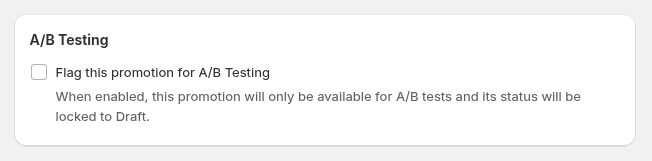
In the promotion editor, scroll to the A/B Testing section and check the Flag this promotion for A/B Testing checkbox. Do this for both promotions. -
Save both promotions
Once flagged, each promotion’s status will be locked to Draft and it will not run as a standalone promotion. It is now available to select when creating an A/B test.
3 Creating a test
Once your promotions are flagged, head to the A/B Testing section of Adsgun to set up the test.
-
Navigate to A/B Testing
In the Adsgun sidebar, click A/B Testing. Then click Create A/B Test. -
Enter a test name
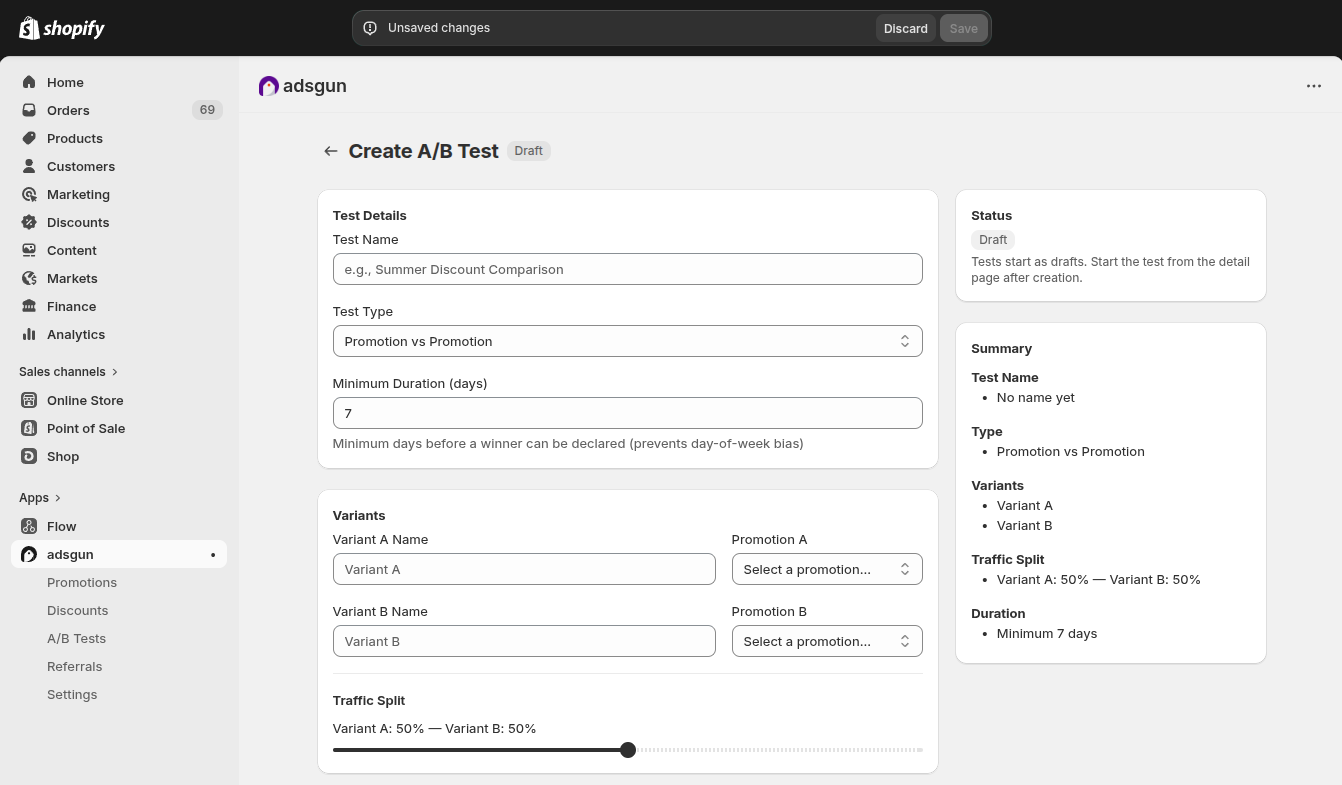
Give the test a descriptive name so you can identify it later in your list of tests, for example “30% vs 20% OFF – March”. -
Select the test type
Choose between Promotion vs Promotion or Promotion vs Control. See Section 4 for the difference. -
Set the minimum duration
Enter the minimum number of days the test must run before a winner can be declared. The default is 7 days. See Section 5 for guidance on choosing this value. -
Configure variants
Name each variant (e.g. “PROMOTION 1”, “PROMOTION 2”) and select the corresponding flagged promotion from the dropdown for each. -
Set the traffic split
Use the slider to define what percentage of visitors each variant receives. The default is 50% / 50%. -
Save the test
Click Save. The test is created in Draft status. You can review it before starting.
4 Test types
Adsgun supports two types of A/B tests, depending on what you want to measure.
5 Traffic split & duration
Traffic split
The traffic split determines what percentage of visitors are assigned to each variant. A 50/50 split is the default and is recommended for most tests – it gives both variants equal exposure and reaches statistical significance fastest.
You can adjust the split if needed, for example if you want to limit exposure to a more aggressive discount (e.g. 80% to the safer offer, 20% to the higher discount). Keep in mind that an uneven split means the smaller variant will take much longer to collect enough data to be meaningful.
Minimum duration
The minimum duration is the number of days the test must run before Adsgun will allow you to declare a winner. The default is 7 days, which is the recommended minimum for most stores.
-
Why 7 days minimum?
Shopping behavior varies significantly by day of the week. A test that runs for only 2–3 days might capture a weekend spike or a weekday slump that does not reflect typical performance. Running for at least 7 days ensures each variant is exposed to a full weekly cycle, making the results far more reliable.
6 Starting the test
After saving, the test opens in Draft status. You can review the full configuration – both variants, their promotions, the traffic split, and all settings – before going live.
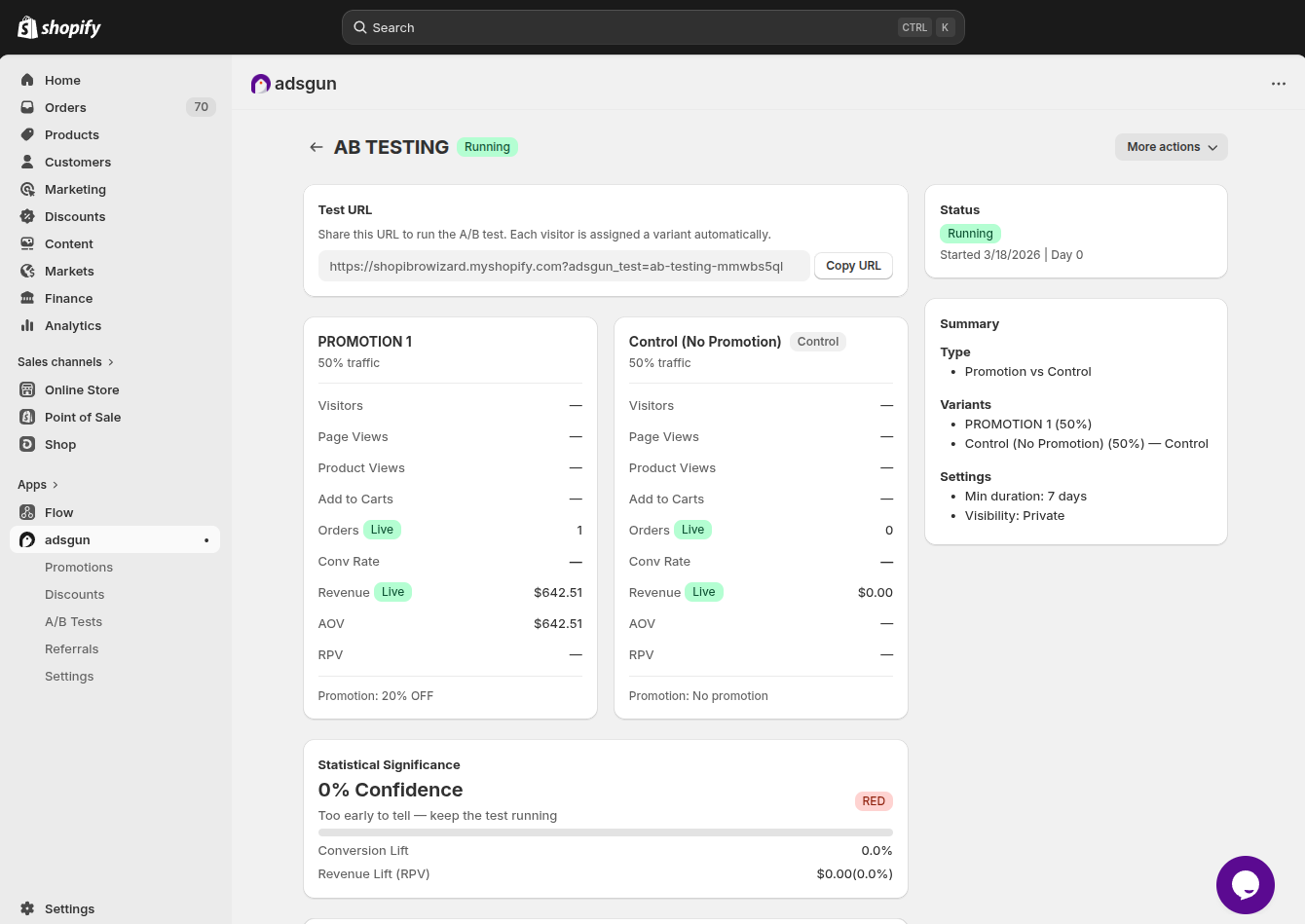
When you are ready, click Start Test in the bottom right corner. The test status changes to Running and Adsgun begins assigning visitors to variants immediately.
The Test URL
Once the test is running, Adsgun provides a Test URL at the top of the test detail page. This is a special URL you can share to run the A/B test – each visitor who lands via this URL is automatically assigned to a variant. Copy it using the Copy URL button and use it in your ads, emails, or any traffic source you want to include in the test.
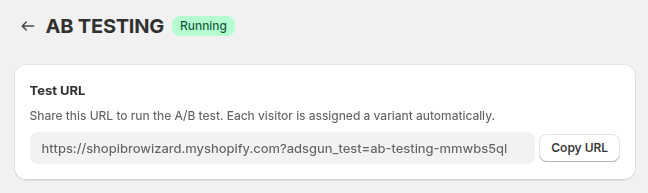
adsgun_test parameter that Adsgun uses to identify the test and assign the visitor to the correct variant. Do not modify this URL.
7 Reading results
While the test is running, the detail page shows a live metrics panel for each variant side by side. Here is what each metric means:
| Metric | What it measures |
|---|---|
| Visitors | Total unique visitors assigned to this variant. Sourced from Google Analytics 4 – may be delayed 24–48 hours. |
| Page Views | Total number of pages viewed by visitors in this variant. From GA4, subject to the same delay. |
| Product Views | Number of product detail page views recorded for visitors in this variant. From GA4. |
| Add to Carts | Number of add-to-cart events by visitors in this variant. From GA4. |
| Orders Live | Number of completed orders placed by visitors in this variant. This is live data – no delay. |
| Conv Rate | Conversion rate: orders divided by visitors. Requires both GA4 visitor data and live order data to calculate. |
| Revenue Live | Total revenue generated by orders in this variant. Live data – updates immediately as orders come in. |
| AOV | Average Order Value – total revenue divided by number of orders. Tells you how much customers spend per order on average in each variant. |
| RPV | Revenue Per Visitor – total revenue divided by number of visitors. The single most important metric for comparing variants, as it accounts for both conversion rate and order value together. |
8 Declaring a winner
Adsgun enforces two requirements before you can declare a winner:
- The test has been running for at least the minimum duration you set (default 7 days).
- Each variant has received at least 100 visitors.
While either of these conditions has not been met, Adsgun displays a warning banner on the test detail page explaining what is still needed. Once both conditions are satisfied, the option to declare a winner becomes available.