Bulk Discount Codes
Bulk Discount Codes lets you generate hundreds or thousands of unique discount codes for any existing discount in seconds – without leaving Adsgun. Works with both native Shopify discounts and Adsgun Discounts.
1 What are bulk discount codes?
A standard Shopify discount has a single code that can be shared and reused by many customers. Bulk discount codes take an existing discount and generate a large batch of unique, individual codes that all apply the same discount rules.
This is useful any time you need to give each customer a one-time-use code – for example in email campaigns, influencer partnerships, loyalty rewards, or event giveaways – without manually creating each code one by one.
2 Navigating to Bulk Discounts
-
Open the Adsgun app from your Shopify Admin.
-
In the Adsgun sidebar, click Discounts.
-
At the top of the Discounts page you will see three tabs. Click Bulk Discounts.
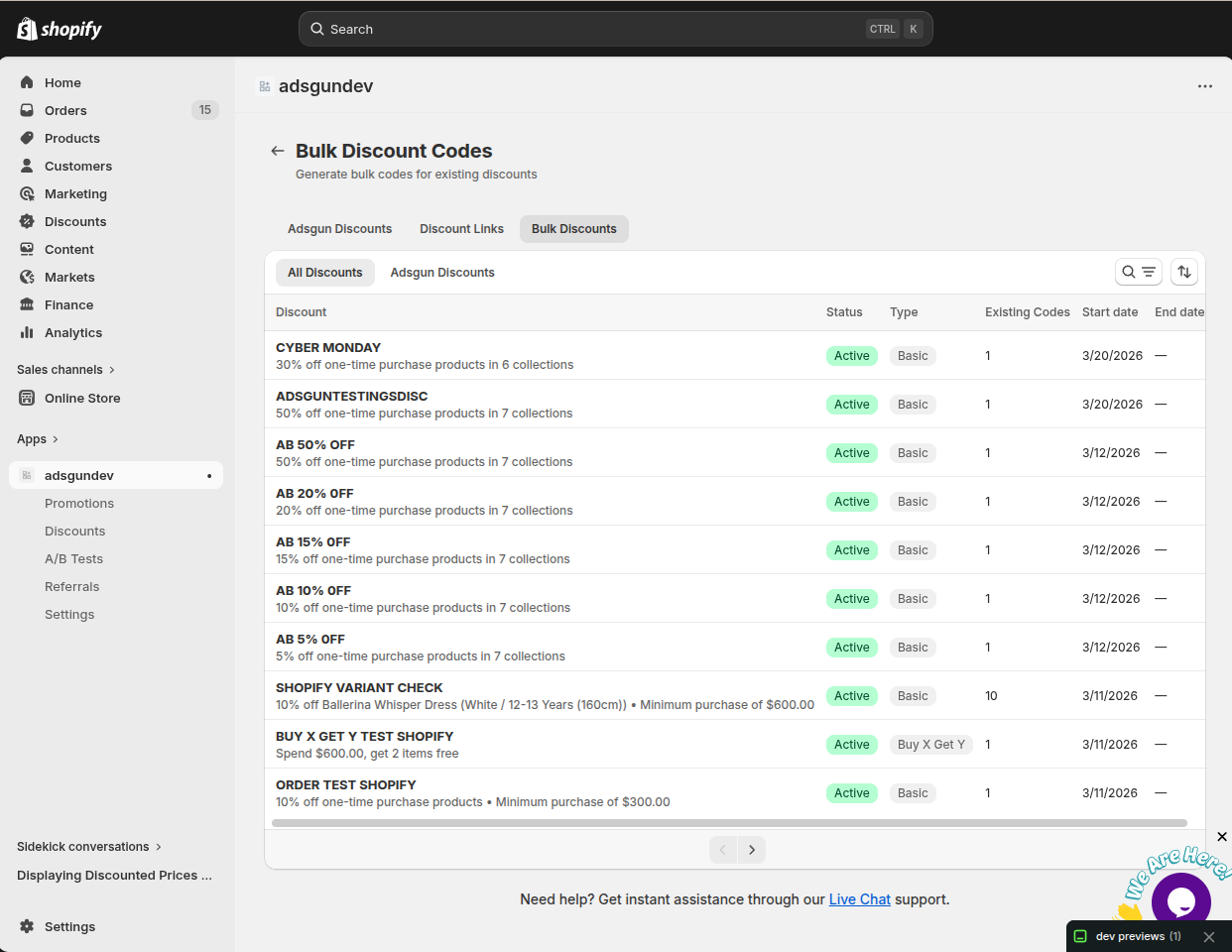
The list shows all your discounts – both native Shopify discounts and Adsgun Discounts. Each row shows the discount name, status, type, how many codes already exist for it, and its start and end dates. Click any discount in the list to open the bulk code generator for it.
3 Selecting a discount
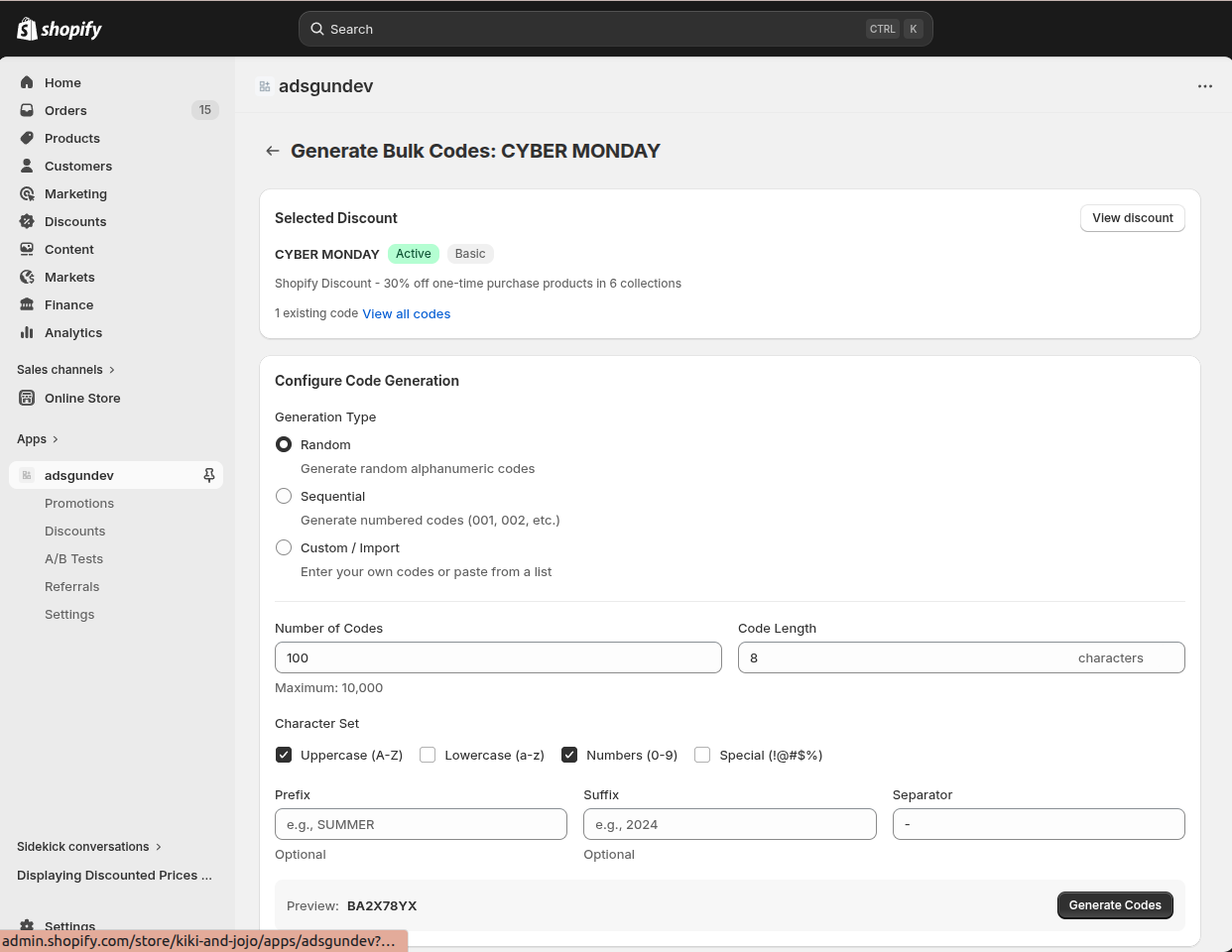
Click on any discount from the list to open its bulk code generation page. At the top you will see a Selected Discount summary showing the discount name, its status, type, a short description of its rules, and how many codes already exist for it.
4 Configuring code generation
The Configure Code Generation section is where you define how the codes will look and how many to create. Here is a full breakdown of every option available:
| Option | What it does | Example |
|---|---|---|
| Generation Type | Controls how the codes are formed. Choose between Random, Sequential, or Custom / Import. See Section 5 for details. | Random |
| Number of Codes | How many unique codes to generate in this batch. | 100 |
| Code Length | The number of characters in each generated code (applies to Random and Sequential types). | 8 |
| Character Set | Which types of characters to include in generated codes. You can mix and match: Uppercase (A-Z), Lowercase (a-z), Numbers (0-9), Special (!@#$%). | Uppercase + Numbers |
| Prefix | Optional text added to the beginning of every code. Useful for identifying the campaign the code belongs to. | SUMMER- |
| Suffix | Optional text added to the end of every code. | -2026 |
| Separator | The character placed between the prefix/suffix and the generated code. Defaults to a hyphen. | – |
As you adjust settings, the Preview at the bottom of the form updates in real time to show you an example of what the generated codes will look like.
5 Generation types
Adsgun supports three methods for generating bulk codes. Choose the one that fits your use case:
X7KP-A2NQ
CODE-0001
YOUR-CODE
6 Generating & exporting codes
Once you have configured all the options, click Generate Codes at the bottom right of the page. A popup will appear showing the full list of generated codes.
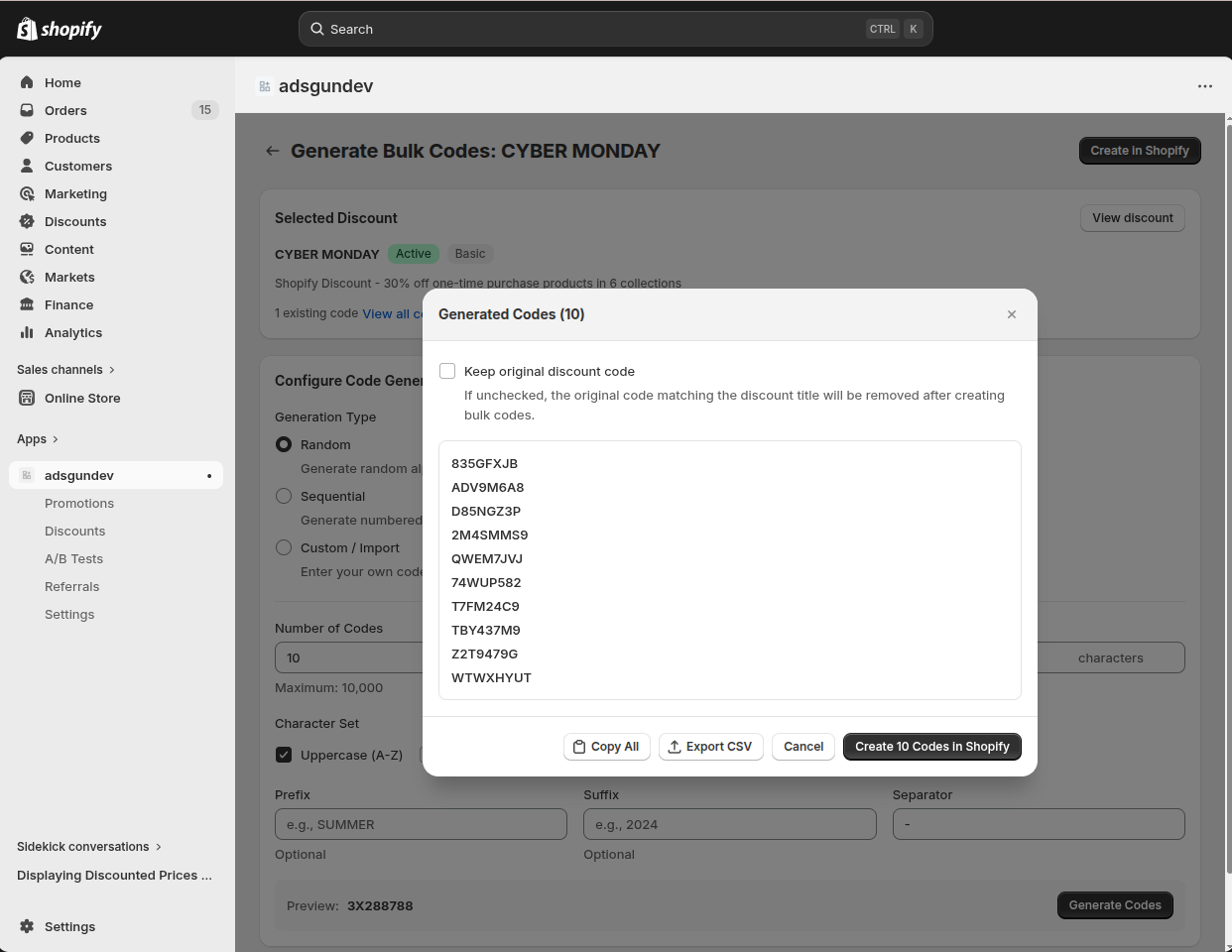
From the popup you have three options:
- Copy All: copies all generated codes to your clipboard as plain text, one code per line.
- Export CSV: downloads the codes as a CSV file. Useful for importing into email marketing platforms or sharing with a team.
- Create [N] Codes in Shopify: sends all the codes directly to Shopify and attaches them to the selected discount. This is the option to use if you want the codes to be active and redeemable in your store.
Keep original discount code
At the top of the popup there is a Keep original discount code checkbox. By default this is unchecked, meaning the original single code will be removed once the bulk codes are created in Shopify. Check this box if you want to keep the original code active alongside the new bulk codes.
7 Codes in Shopify Admin
After clicking Create in Shopify, all generated codes are pushed to your Shopify Admin and attached to the selected discount. You can verify this directly in Shopify.
-
Go to Shopify Admin → Discounts
Find the discount you generated codes for and open it. -
Check the Discount code section
You will see a note showing how many codes were created by the Adsgun app, along with a View all codes link. -
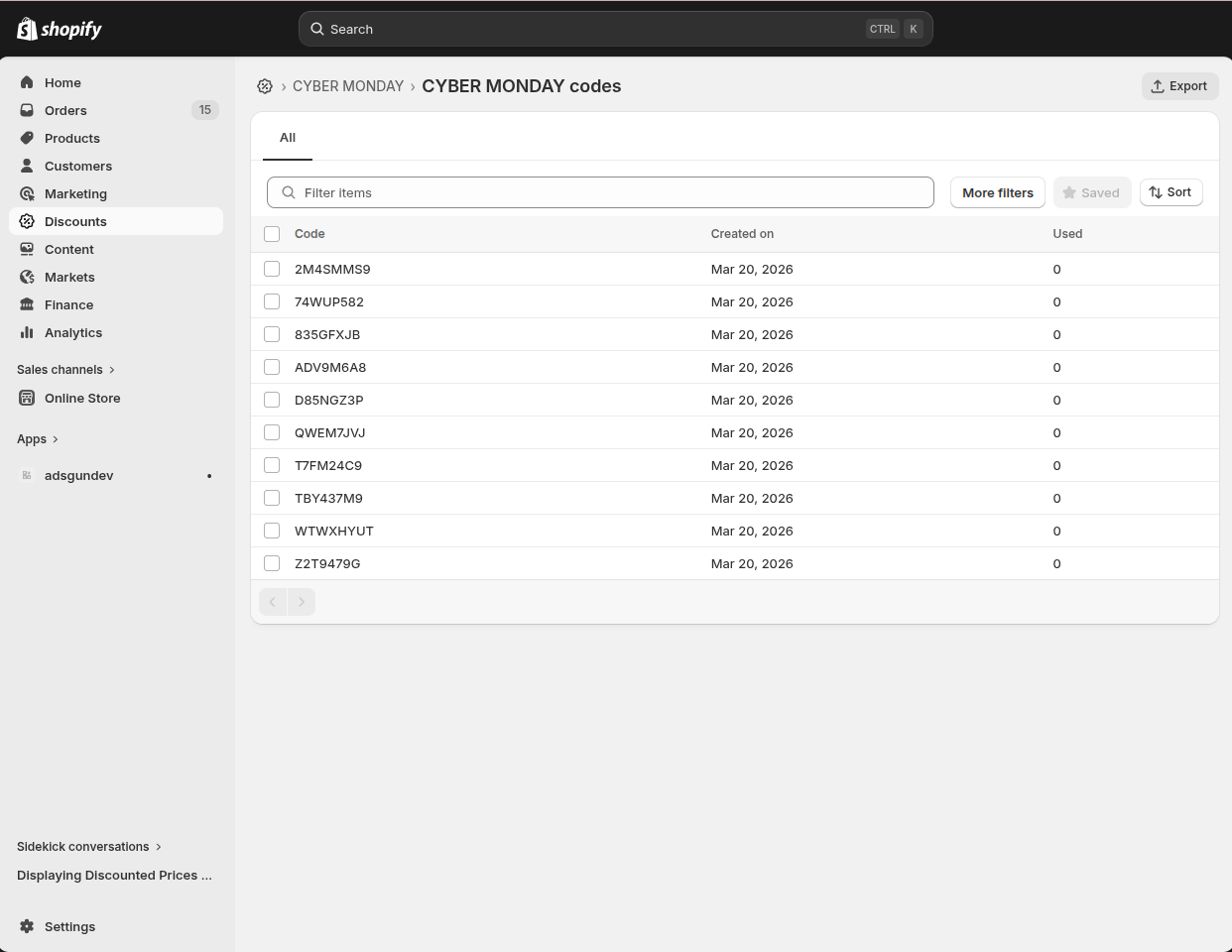
Click “View all codes”
This opens the full list of all individual codes attached to this discount, showing each code, when it was created, and how many times it has been used.
8 Common use cases
-
Email marketing campaigns
Generate a unique code per subscriber so each customer gets a personalized one-time-use offer. Use the Export CSV option to match codes to your email list in your marketing platform.
-
Influencer & affiliate partnerships
Give each influencer or affiliate their own unique code using a prefix that identifies them (e.g. ALEX-). Track how many orders each partner drives directly from the Shopify codes list.
-
Event giveaways & print materials
Generate codes in bulk and print them on flyers, packaging inserts, or event handouts. Each attendee or customer gets a code that works only once, preventing sharing.
-
Loyalty rewards
Reward specific customers with a private one-time discount without creating a public promotion. Generate a small batch, export the CSV, and distribute manually or through your CRM.