Discounts
Learn how discounts work in Shopify, how to create them, and how Adsgun integrates with them to give you more flexibility and power at checkout.
1 What are Shopify discounts?
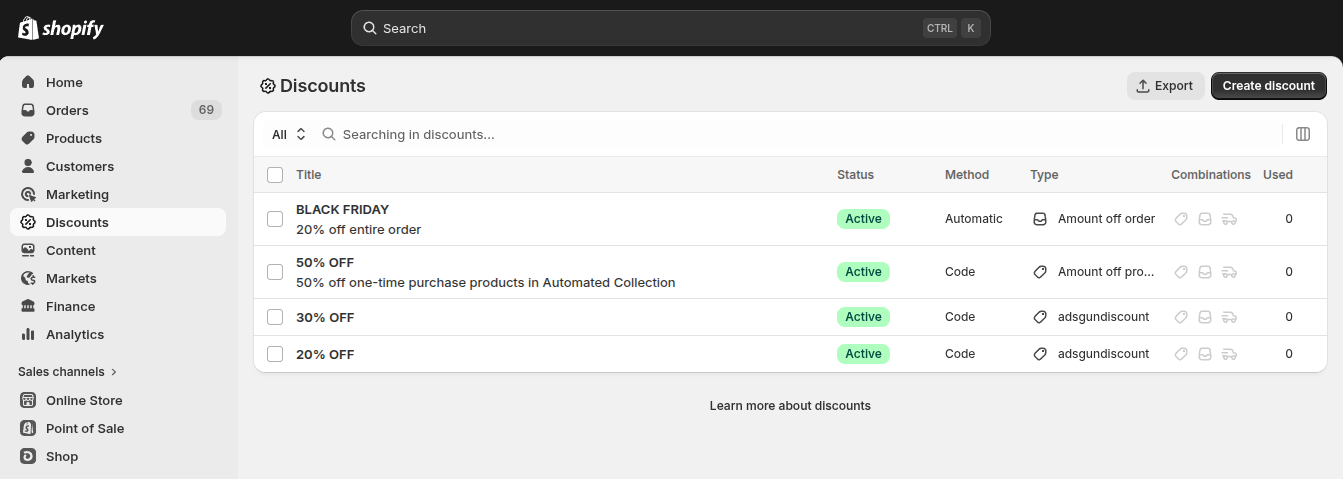
Discounts in Shopify are price reductions you can apply to products, collections, or an entire order. They are a core tool for running promotions, rewarding loyal customers, clearing stock, and driving conversions across your store.
Shopify discounts can be applied in two main ways: automatically when a customer meets certain conditions, or manually when a customer enters a discount code at checkout. Both methods can target specific products, collections, customers, or order thresholds.
2 Types of discounts
Shopify organizes discounts into four main types, each designed for a different use case:
Percentage discount
Reduces the price by a set percentage (e.g., 20% off). Works on specific products, collections, or the full order total.
Fixed amount discount
Reduces the price by a fixed currency amount (e.g., $10 off). Can be applied to specific items or the entire cart.
Free shipping
Removes shipping costs for eligible orders. Can be set with minimum order requirements or limited to specific countries or shipping rates.
Buy X get Y
Rewards customers who buy a certain quantity with a free or discounted item. Useful for bundle promotions and volume offers.
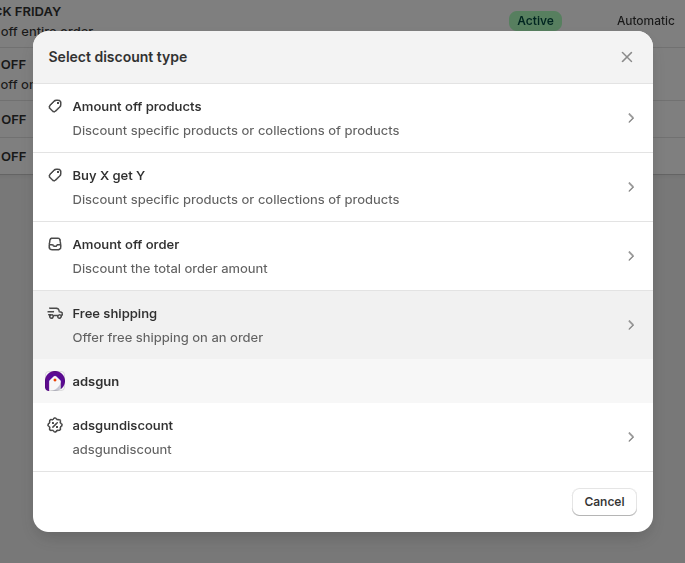
Each of these types can be set as either an automatic discount (applied instantly based on rules) or a discount code (applied when a customer enters a code at checkout).
3 Creating a discount in Shopify
Here is how to create a basic discount directly from your Shopify Admin. This applies to all native Shopify discount types.
-
Open your Shopify Admin
Go to your Shopify Admin panel and navigate to Discounts in the left sidebar. -
Click “Create discount”
Select the discount type: Percentage, Fixed amount, Free shipping, or Buy X get Y. -
Configure the discount
Set the discount value, eligibility conditions (minimum purchase, specific products or collections, customer segments), and usage limits. -
Set the date range
Optionally set a start and end date if this is a time-limited promotion. -
Save the discount
Click Save discount. The code or automatic rule is now active in your store.
4 Adsgun & native Shopify discounts
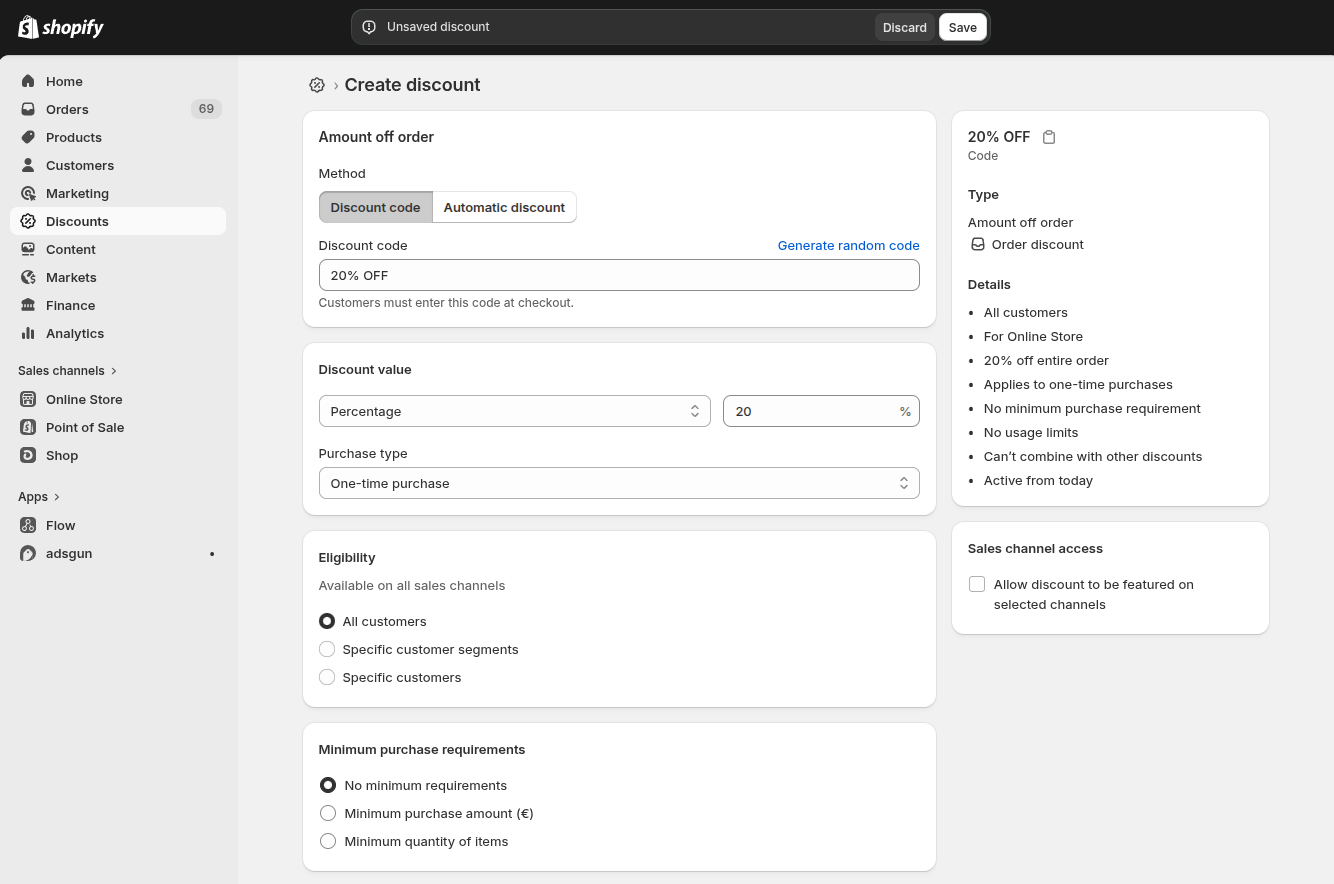
Adsgun integrates with native Shopify discounts to display strike-through pricing and automatically apply discounts in your store. However, there is one important thing to know about how this works.
What to do if you are using automatic discounts
If you have existing automatic discounts that you want to use with Adsgun, the fix is simple: recreate the same discount as a discount code instead of an automatic discount. The conditions, value, and eligibility can stay exactly the same. The only change is switching the method from automatic to code-based.
-
Find your automatic discount
In Shopify Admin, go to Discounts and locate the automatic discount you want to use with Adsgun. -
Note down all the settings
Copy the discount value, conditions, product/collection scope, and any usage limits. -
Create a new discount with the same settings
Click Create discount, choose the same discount type, but this time select Discount code as the method. -
Use this code in Adsgun
Copy the new discount code and use it inside Adsgun when setting up your campaign or display rule.
5 Adsgun Discounts
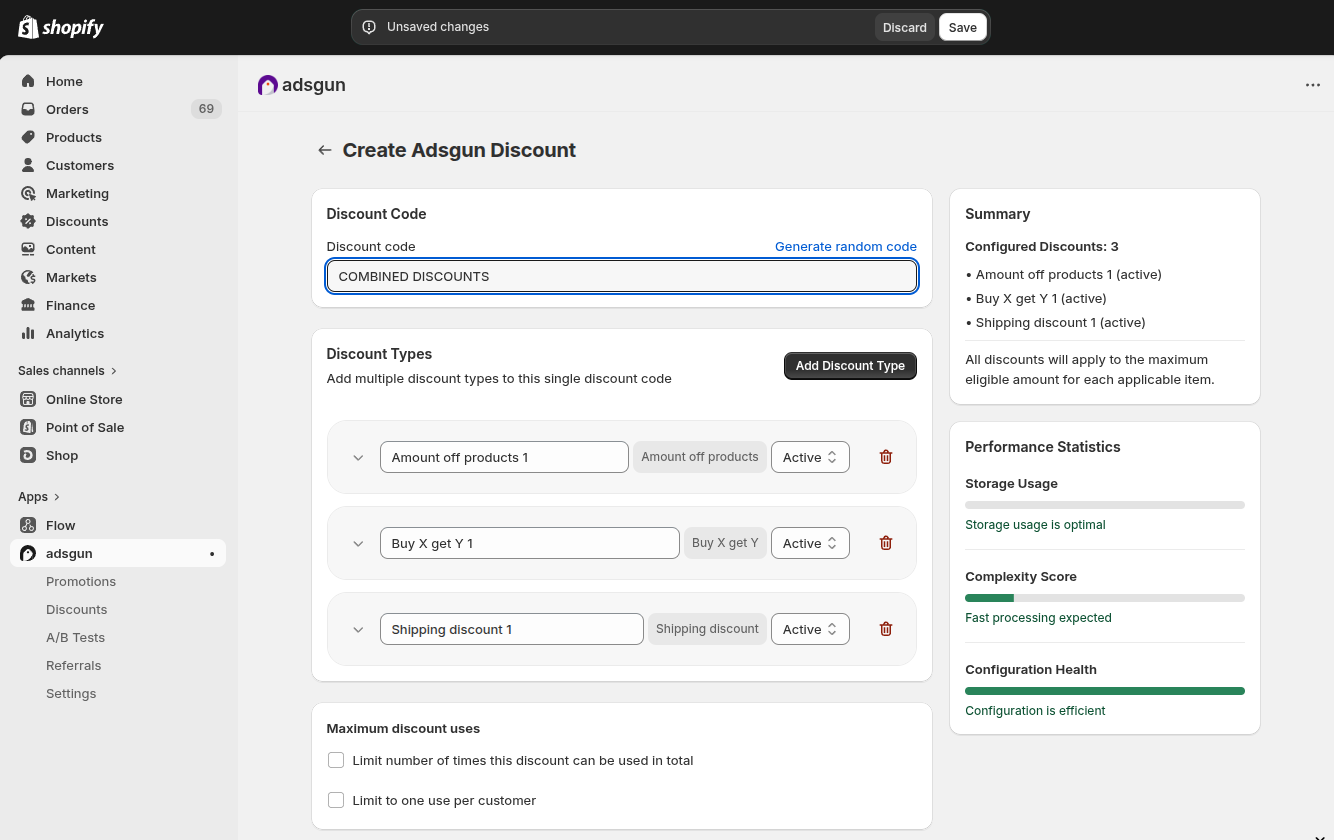
In addition to native Shopify discounts, Adsgun has its own built-in discount system called Adsgun Discounts. These are managed entirely within the Adsgun app and give you significantly more flexibility than what Shopify natively allows.
What are Adsgun Discounts?
Adsgun Discounts are custom discount codes you create and manage inside the Adsgun app. They are not stored in Shopify’s discount system but are applied seamlessly at checkout through Adsgun’s integration layer.
Combining multiple discount types in one code
With a single Adsgun Discount code, you can combine multiple discount rules at once. For example, a single code can apply a percentage reduction and free shipping and a fixed amount off, all at the same time. With native Shopify discounts, you would need multiple separate codes and customers can only stack a limited number of them.
No limit on stacked discounts per code
Shopify natively allows a maximum of 5 discounts to be combined at checkout at any given time. Adsgun Discounts remove this restriction, allowing you to build complex, multi-layered promotions without hitting Shopify’s ceiling.
How to create an Adsgun Discount
-
Open the Adsgun app
From your Shopify Admin, open the Adsgun app. -
Navigate to Discounts
In the Adsgun sidebar, click on Discounts to open the discount management section. -
Click “Create discount”
Click the button to create a new Adsgun Discount. Give it a name and a discount title. -
Add discount rules
Add one or multiple rules to this discount. You can combine a percentage off, a fixed amount, free shipping, or a Buy X Get Y rule within the same discount. -
Set eligibility and conditions
Configure minimum order requirements, product or collection scope, and any usage limits or expiration dates. -
Save and use the code
Save the Adsgun Discount. The discount is now ready to use in your Adsgun campaigns, display rules, or to share directly with customers.
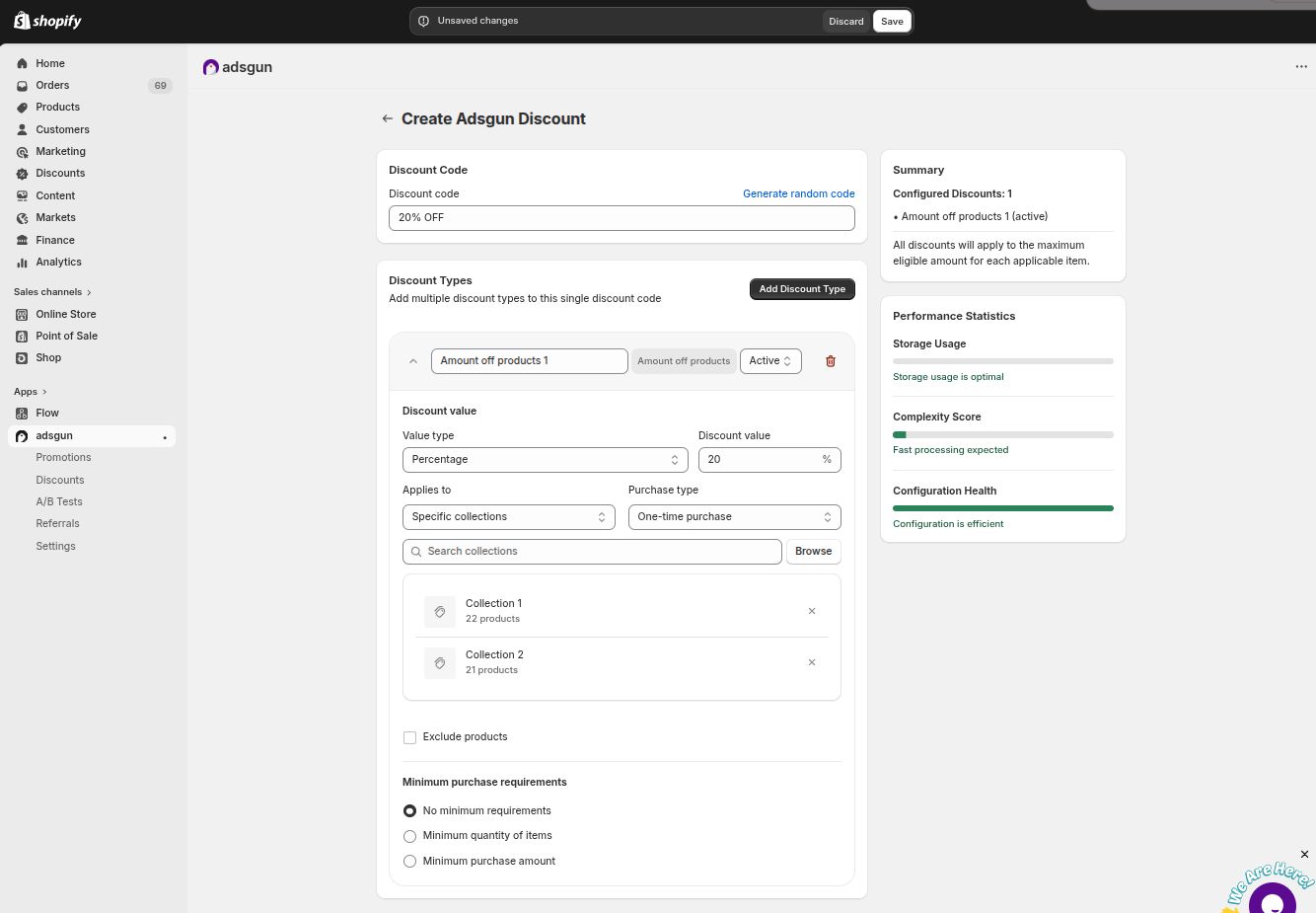
6 Native Shopify vs. Adsgun Discounts: comparison
Here is a quick side-by-side look at the key differences between using native Shopify discount codes and Adsgun Discounts:
| Feature | Native Shopify Discounts | Adsgun Discounts |
|---|---|---|
| Combine multiple discount types in one code | ✗ No | ✓ Yes |
| Max discounts stacked at checkout | 5 discounts | Unlimited |
| Managed in Shopify Admin | ✓ Yes | In Adsgun app |
| Works with Adsgun campaigns | ✓ Fully supported | ✓ Fully supported |