Dynamic Pricing Schema
The dynamic pricing schema tells Adsgun where your theme renders prices and how to update them in real time when a promotion is active. This is a required setup step – without it, discounted prices will not display correctly in your storefront.
1 What is the pricing schema?
Every Shopify theme renders prices differently. The price HTML structure, CSS class names, and Liquid template logic vary from theme to theme. Adsgun needs to know exactly where prices live in your theme’s HTML so it can intercept them and replace them with the correct discounted values when a promotion fires.
The dynamic pricing schema is a JSON configuration file that maps your theme’s price elements to Adsgun’s engine. It defines things like:
- Which CSS selector targets the price container in your theme
- What the price HTML looks like, including Liquid variables for the final and original price
- Which page template the price appears on (product page, cart, etc.)
2 Navigating to the schema
The dynamic pricing schema is set up from the Adsgun Settings page, not from the Promotions section.
-
Open the Adsgun app from your Shopify Admin.
-
In the Adsgun navigation, go to Settings.
-
Find the Dynamic pricing section. You will see the currently selected theme and a confirmation that the Adsgun extension is active.
-
Click Edit JSON file to open the schema editor.
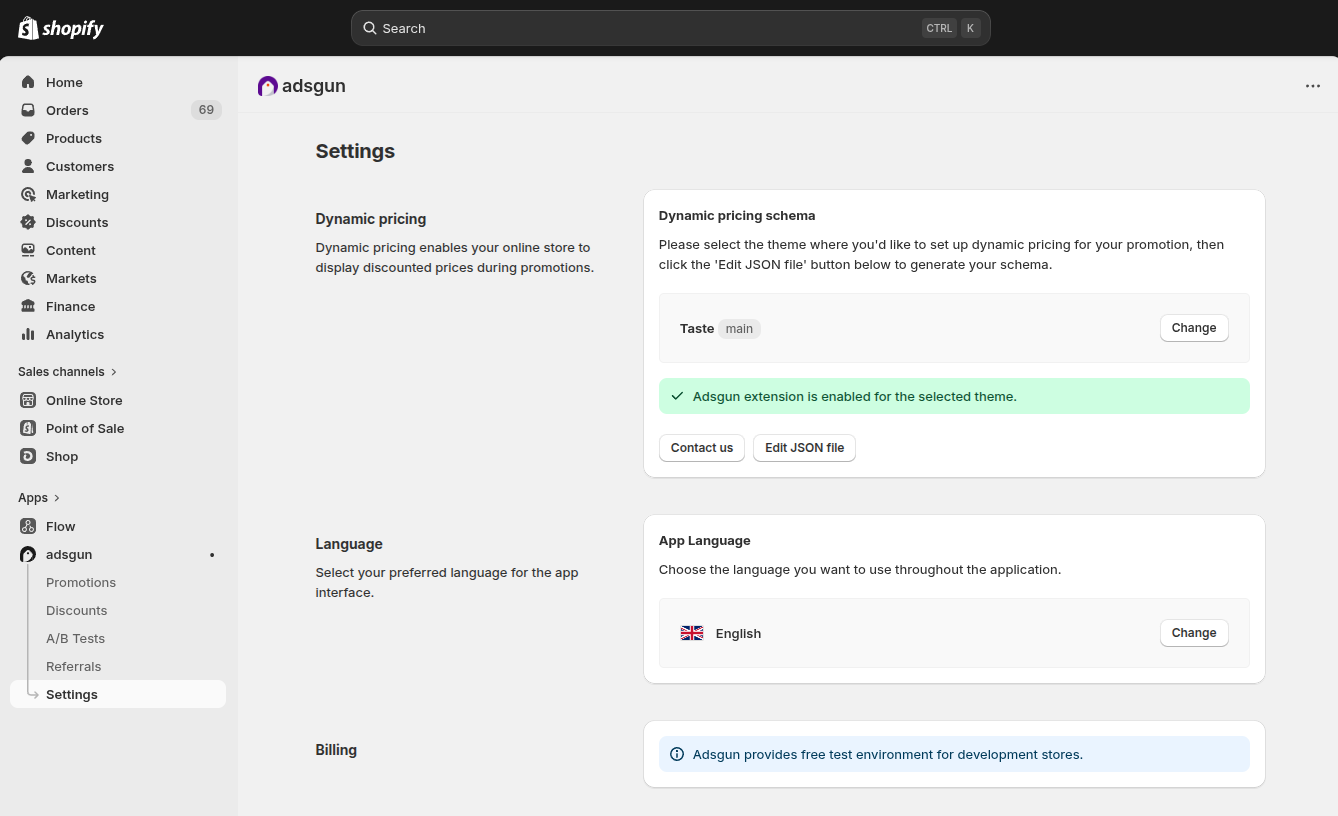
The schema is tied to a specific theme. If you want to set up dynamic pricing for a different theme (for example a development or staging theme), click Change next to the theme name before clicking Edit JSON file. Each theme has its own separate schema.
3 Auto-generating the schema
For most standard Shopify themes, Adsgun can generate the entire pricing schema for you automatically. This is the recommended approach for all merchants who are not on a heavily custom theme.
-
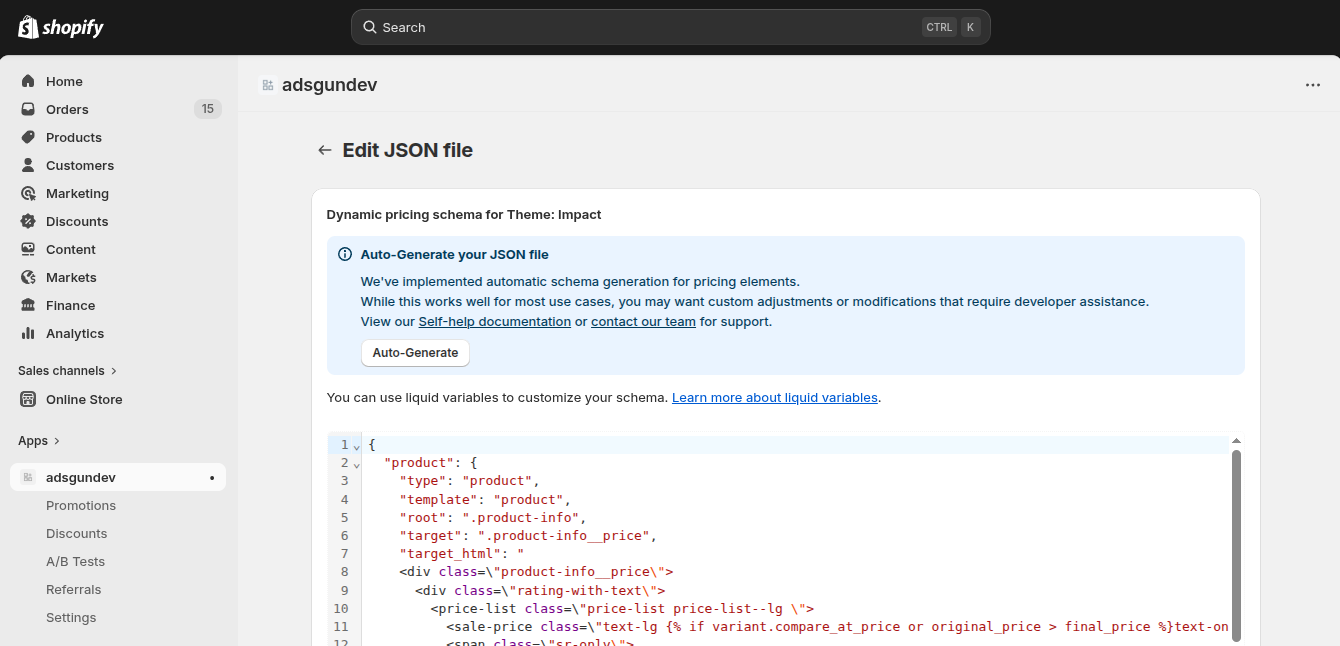
Open the schema editor
From Settings → Dynamic pricing, click Edit JSON file. -
Click “Auto-Generate”
In the blue info box at the top of the editor, click the Auto-Generate button. Adsgun will analyze your theme’s price templates and populate the JSON schema automatically. -
Check the “Valid JSON” indicator
At the bottom of the editor you will see a Valid JSON status indicator. As long as this is green, your schema is correctly structured and ready to use. -
Save the schema
Click Save to apply the generated schema to your theme.
4 Understanding the JSON structure
If you are curious about what the schema contains, or need to make manual adjustments, here is a breakdown of how it is structured. The schema is a JSON object with one entry per price element Adsgun needs to manage.
{
“product”: {
“type”: “product”,
“template”: “product”,
“root”: “.product__info-wrapper”,
“target”: “.price”,
“target_html”: “
<div class=“price”>
<div class=“price_container”>
<span class=“price-item”>
{{ final_price | money }}
</span>
</div>
</div>
“
}
}
Each entry in the schema corresponds to a specific price location on your storefront. The schema can include multiple entries – for example, one for the product page price and another for the cart line item price.
Schema key reference
| Key | What it does |
|---|---|
| “type” | The context of this price element. Typically matches the Shopify template type (e.g. product, cart). |
| “template” | The Shopify theme template file this price lives in (e.g. product, cart, index). |
| “root” | A CSS selector for the parent container that wraps the price element. Adsgun scopes its DOM search within this root to avoid conflicts with other price elements on the same page. |
| “target” | The CSS selector for the specific price element Adsgun should update when a promotion is active. |
| “target_html” | The HTML template Adsgun will inject to replace the existing price markup. This uses Liquid variables like {{ final_price | money }} and {{ original_price | money }} to render the correct prices dynamically. |
5 Liquid variables
Inside the target_html field of your schema you can use Liquid variables to render prices dynamically. Adsgun provides a set of variables that are evaluated at runtime based on the active promotion and the current product variant.
| Variable | Description |
|---|---|
| {{ final_price }} | The discounted price after the active promotion is applied. Use | money to format it as a currency string. |
| {{ original_price }} | The original price before the promotion discount. Used to render the struck-through original price alongside the sale price. |
| {{ variant.compare_at_price }} | The compare-at price set directly on the Shopify product variant. Useful when you want to show the RRP rather than the pre-promotion price. |
target_html. For example, you can show the strike-through price only when a discount is active using {% if original_price > final_price %}, exactly as seen in the auto-generated schema.
For a full reference of available Liquid variables and advanced usage examples, see the Schema Liquid variables documentation.
6 Manual edits & custom themes
If you are using a custom or heavily modified theme, the auto-generated schema may not match your theme’s actual HTML structure. In this case, you will need to manually adjust the schema to point to the correct CSS selectors and HTML template.
Steps for manual adjustment
-
Inspect your theme’s price HTML
Open your storefront on a product page and use your browser’s DevTools (right-click → Inspect) to find the HTML element that contains the price. Note the CSS class names of both the price wrapper and the price element itself. -
Update “root” and “target”
In the schema editor, update the “root” value to match the parent container’s CSS selector, and “target” to match the specific price element’s selector. -
Update “target_html”
Rewrite the “target_html” value to match how your theme renders the price HTML. Keep the Liquid variables (final_price,original_price) in place – only change the surrounding HTML structure to match your theme. -
Check the “Valid JSON” indicator
Make sure the indicator at the bottom of the editor stays Valid JSON as you edit. If it turns red, there is a syntax error in your JSON – check for missing quotes, commas, or brackets. -
Save and test
Save the schema, then activate a test promotion on your store and visit a product page to confirm the discounted price renders correctly.
7 Advanced schema keys
The following keys extend the base schema for specific use cases: URL-based targeting, cart elements, dynamically injected elements, and discount input placement.
Schema key reference
| Key | What it does |
|---|---|
| “path” / “skip_path” | Defines which URL path(s) this entry applies to, comma-separated. Use skip_path to exclude specific paths instead. |
| “method” | Used for discount_input entries. Defines how the element is inserted into the DOM. Available methods: before, after, prepend, append. Multiple methods can be combined, comma-separated. |
| “item_root” | Used in cart-type entries (cart_drawer, cart). Declares the CSS selector for a single line item within the root container. |
| “target_total” | Used in cart-type entries. CSS selector for the cart totals element that needs to be updated when a promotion is active. |
| “target_total_html” | Used in cart-type entries. The Liquid/HTML template that replaces the target_total element with updated totals. |
| “subscribe” | Used for elements injected by JavaScript at runtime, such as quick-add or quick-shop popups. Set to a custom event name, then call AdsGun._publish('event-name') from your theme code when the element is ready in the DOM. |
type contains cart (e.g. cart_drawer, cart) supports item_root, target_total, and target_total_html in addition to the standard keys.
Pre-built theme examples
Complete schema examples for popular Shopify themes are available in our reference document here
8 Validating your schema
The schema editor includes a built-in JSON validator that checks your schema in real time as you type. The status is shown at the bottom of the editor.
- Valid JSON – your schema is correctly structured and can be saved.
- Invalid JSON – there is a syntax error somewhere in the schema. You will not be able to save until this is resolved.
Common causes of invalid JSON include:
- Missing or extra commas between fields
- Unclosed quotes around string values
- Unclosed curly braces
{ }or square brackets[ ] - Using single quotes instead of double quotes (JSON requires double quotes)
Testing on your storefront
After saving a valid schema, the best way to confirm everything is working is to run a quick end-to-end test:
-
Create a simple test promotion with a discount code and set it to Public visibility on all pages.
-
Visit a product page on your storefront. The discounted price should replace the original price automatically.
-
Check that the strike-through original price also renders if your schema includes the
original_pricevariable in thetarget_html. -
If prices do not update, double-check that the
rootandtargetselectors in your schema actually match the HTML on your live storefront using browser DevTools.
9 Troubleshooting
Prices are not updating on the storefront
- Make sure the Adsgun extension is enabled for your theme (you should see the green confirmation in Settings → Dynamic pricing).
- Check that your schema has been saved and shows Valid JSON.
- Verify the promotion is active (not in Draft status) and set to the correct visibility and URL targeting.
- Inspect the price element in DevTools and confirm the
rootandtargetselectors in your schema match the actual CSS classes on the page.
Auto-Generate produced an incorrect schema
- This can happen with themes that have been heavily customized or use non-standard section structures. Try adjusting the
rootandtargetselectors manually to match your actual theme HTML. - Check the Pre-built Theme Examples to see if your theme has a known-good schema you can use as a starting point.
The schema editor shows “Invalid JSON” after auto-generation
- This is rare but can happen if the theme HTML contains special characters that break JSON string escaping. Contact Adsgun support via the Contact us button on the Settings page and share your theme name – the team can provide a corrected schema.
Prices update on the product page but not in the cart
- The cart price element uses different HTML and selectors than the product page. Make sure your schema includes a separate entry for the cart template, with the correct
rootandtargetvalues pointing to cart-specific CSS selectors.