
How to Auto-Apply Shopify Discount Codes (Without Making Customers Type Them)
Asking customers to type a discount code at checkout kills conversion. Learn how to auto-apply codes via URL parameters, and how Adsgun goes further with pre-checkout visibility.
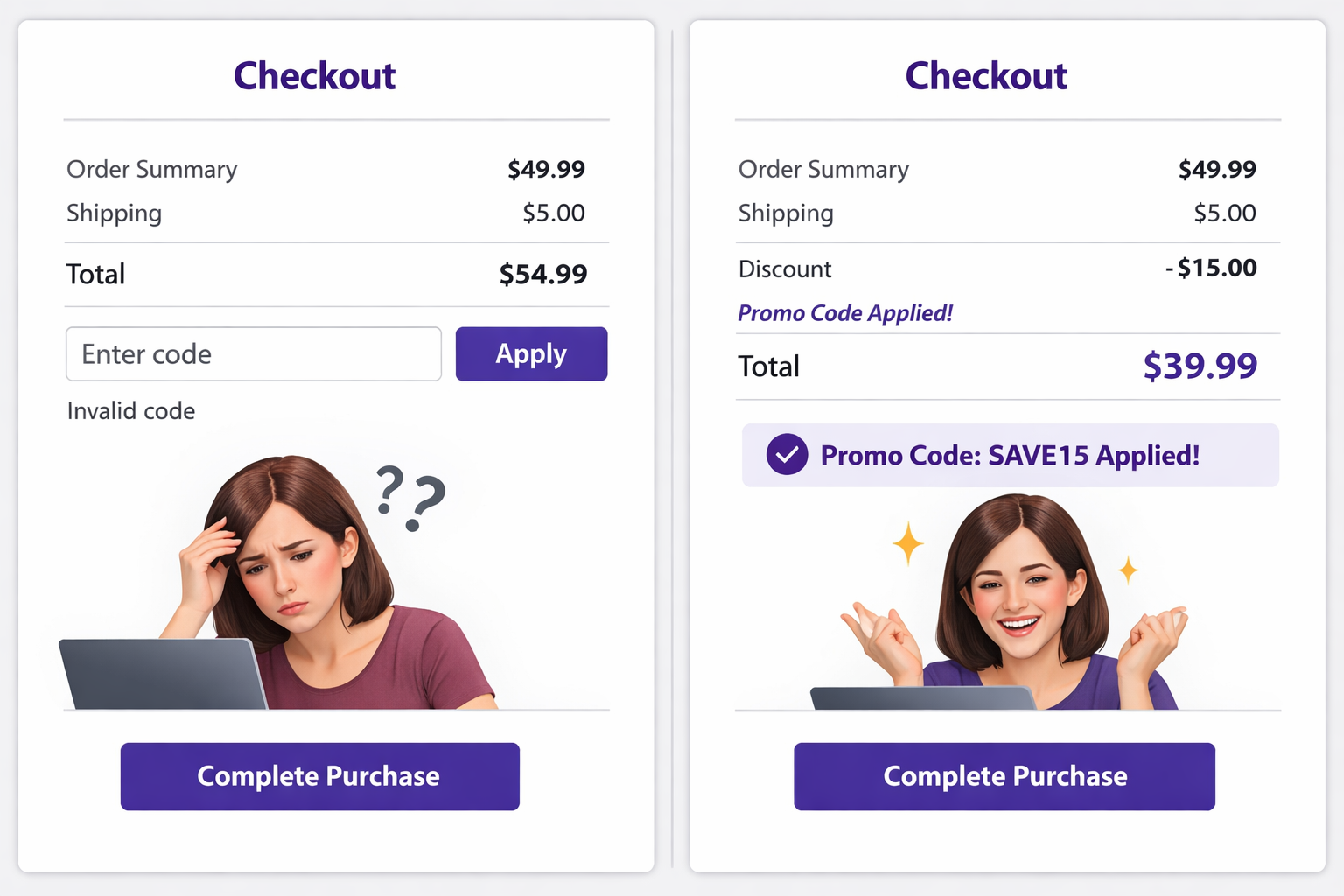
The Conversion Cost of Manual Code Entry
Learning how to auto-apply discount codes in Shopify is one of the highest-ROI things you can do for your marketing campaigns.
A customer receives an email: “Get 20% off with code SUMMER25.” They click the link, browse your store, add a product to cart, and proceed to checkout. There, they see a “Promo code” field, but the code is the last thing on their mind. This is exactly why auto-applying discount codes in Shopify is not optional if you want campaigns to actually convert. If customers remember the code, they type it. If they do not, they abandon or buy at full price.
This is exactly why learning how to auto-apply Shopify discount codes matters. If customers remember the code, they type it. If they do not, they either search through emails to find it (friction), assume they will find it later and complete the purchase without it (no discount), or abandon the cart and switch to a competitor (lost sale).
Studies show 30 to 40% of customers who receive discount codes never redeem them, even when they qualify. The primary reason: they forget about the code by the time they reach checkout.
This is a massive conversion leak. On a 2% conversion rate store, if half your customers have a code and 40% forget it, you are losing 0.4 percentage points — 20% of your conversions — to forgotten codes.
Why Customers Forget Codes
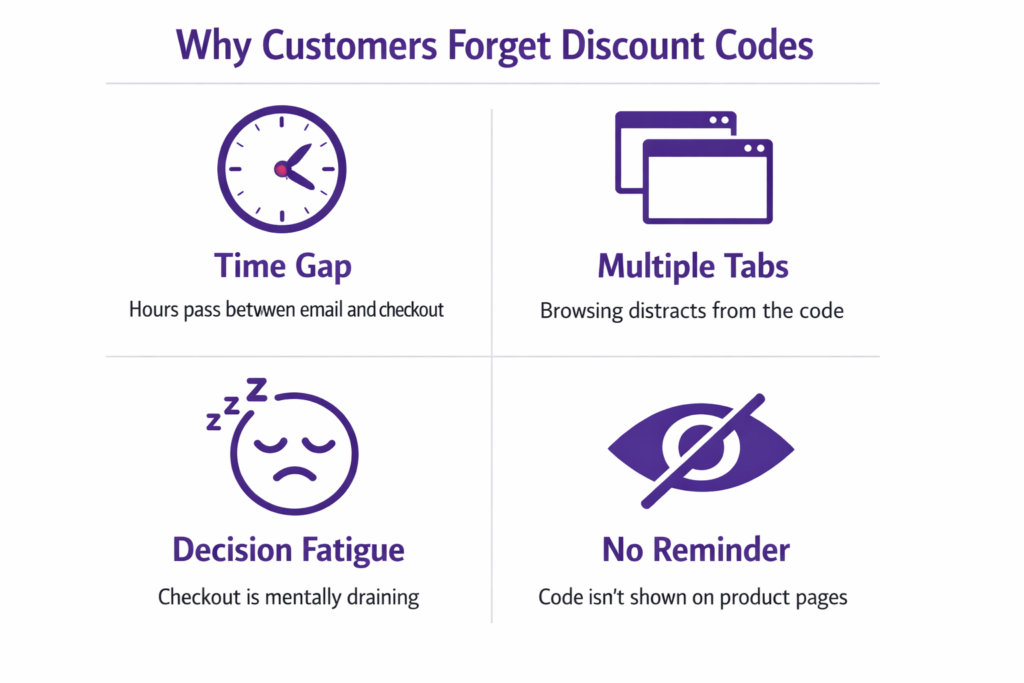
There are four core reasons customers fail to redeem a code they already have:
- Time gap – From email to checkout, hours or days pass
- Multiple tabs – They browse multiple products, maybe other sites
- Fatigue – By the time they reach checkout, decision fatigue sets in
- Invisibility – If the code isn’t shown on product pages, they forget it exists
The solution is simple: auto-apply the code so customers never have to think about it.
Three Ways to Auto-Apply Shopify Discount Codes
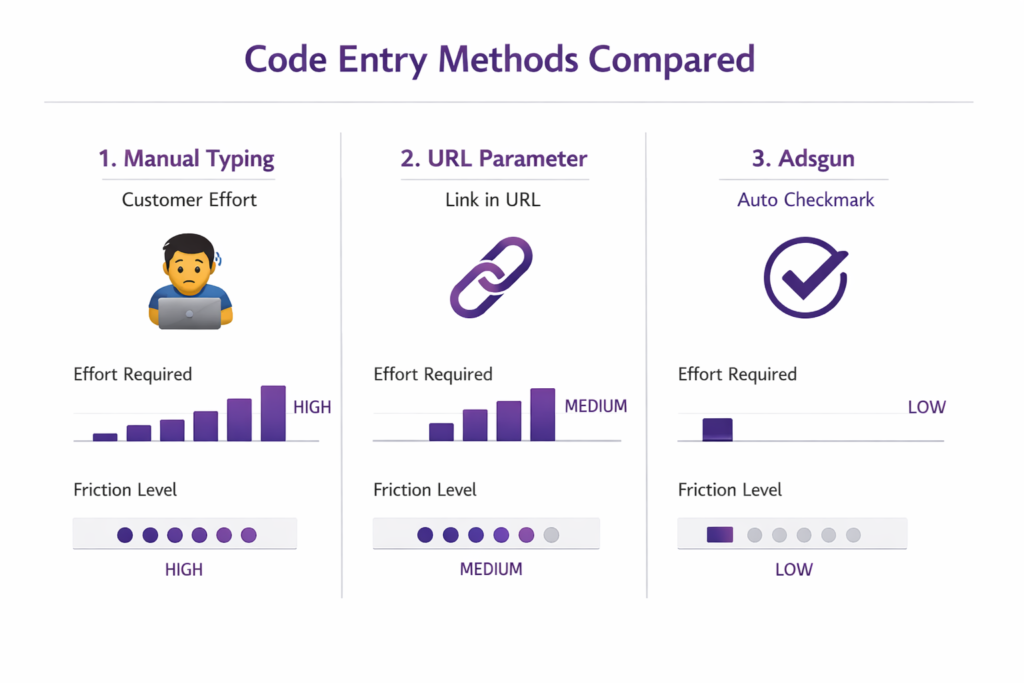
There are three approaches to auto-applying Shopify discount codes, each with different levels of friction and setup.
1. Shopify’s Native URL Parameter
Shopify allows you to pass a discount code directly in the URL:
mystore.com/products/winter-coat?discount=SUMMER25
When a customer lands on this URL, Shopify recognizes the discount parameter and automatically fills in the code at checkout.
Pros: Free and built into Shopify. No additional setup required. Works for any discount code and auto-applies at checkout.
Cons: Does not show the discount on the product page, so customers still see the full price until checkout. Only works if you control the link, meaning your emails, your ads, or your own site. If a customer manually navigates to your store, the discount parameter is lost. You also need to add ?discount=CODE to every link manually.
When to use: If you are sending email campaigns with links, this is a solid minimum approach. It is incomplete, however, because customers do not see their savings until checkout.
How to use it: In your emails or ads, structure links like this:
mystore.com/products/winter-coat?discount=SUMMER25
or for your homepage:
mystore.com/?discount=SUMMER25
2. Manual Link Construction
You can manually add ?discount=CODE to every link in your marketing materials.
- Email:
mystore.com/?discount=SUMMER25 - Social:
mystore.com/?discount=SOCIAL_20 - Paid ads:
mystore.com/?discount=GOOGLEADS
Pros: Free. Lets you track which channel drove which redemption.
Cons: Manual and error-prone. Tedious for large campaigns. Still does not show pricing on product pages. Does not work reliably with QR codes or shortened URLs where the parameter can get stripped.
When to use: If you have two or three active codes and want basic channel tracking.
How to Auto-Apply Shopify Discount Codes with Adsgun
Adsgun is a Shopify app built specifically to solve this problem end to end. It’s the most complete way to auto-apply Shopify discount codes because it handles visibility before checkout, not just code entry at checkout. It reads discount codes from URLs and handles everything automatically:
- Detects the code from the URL parameter
- Validates whether the code is active and eligible
- Calculates the discounted price
- Displays strike-through pricing on product pages before checkout
- Auto-applies the code at checkout so the customer never has to type it
Pros: Reads codes from URLs automatically. Shows strike-through “Was/Now” pricing on product and collection pages. Auto-applies at checkout with zero friction. Works with complex discounts including percentage, fixed amount, and tiered offers. Tracks which codes are used via built-in analytics. Supports bulk discount code generation for influencer campaigns. Works across email, social, paid ads, QR codes, and shortened URLs. Compatible with Shopify Markets for multi-currency stores.
Cons: Requires a paid plan after the free tier.
When to use: Any time you run discount code campaigns. Which, for most stores with active marketing, is most of the time.
You can learn more about how Adsgun promotions work in the Adsgun Help Center.
Complete Setup: Auto-Apply Shopify Discount Codes with Adsgun
Go to Settings > Discounts > Create Discount and configure:
- Type: Discount codes
- Code: SUMMER25
- Discount: 20% off
- Products: All products
- Active dates: June 1 to June 30
Save the discount.
Step 2: Install Adsgun
Visit apps.shopify.com/adsgun and install the app.
Step 3: Create a promotion
In Shopify Admin, go to Apps > Adsgun > Create Promotion.
Step 4: Select the discount code
Choose “Discount codes” mode and select SUMMER25 from your existing Shopify discounts.
Step 5: Enable auto-apply
Toggle on “Auto-apply at checkout.” This is the core feature that removes the need for customers to type the code.
Step 6: Enable on-page display
Toggle on “Show on product pages” so customers see the discounted price while browsing, not just at checkout. Choose a format such as “Was $100, Now $80” or “Save 20% with code SUMMER25.”
Step 7: Publish
Click Publish. The promotion goes live immediately or on your scheduled date.
Step 8: Use in campaigns
- Email:
mystore.com/?discount=SUMMER25 - Social: “Click for 20% off > mystore.com/?discount=SUMMER25”
- Paid ads:
mystore.com/?discount=SUMMER25&utm_source=googleads
Step 9: Test everything
Click your campaign link. Confirm the code auto-fills at checkout without typing. Confirm product pages show strike-through pricing. Complete a test purchase to verify end to end.
Real-World Campaign Scenarios
Email Campaign: Newsletter Subscribers
Code: NEWSLETTER20 (20% off for subscribers). The subscriber clicks the email link and lands on your store with NEWSLETTER20 active. Product pages immediately show “Was $100, Now $80.” They add the product to cart and the code auto-applies at checkout. No typing, no friction, higher conversion.
Influencer Campaign: Unique Codes Per Influencer
Codes: INFLUENCER_SARAH, INFLUENCER_MIKE (15% off each). The influencer posts a link using their specific code. Followers click through and see “Was $100, Now $85, Code: INFLUENCER_SARAH.” It feels personal, the savings are visible, and the code applies automatically at checkout. You can also use Adsgun’s bulk discount code generator to create unique codes for each influencer from a single promotion, rather than managing them individually. You track performance per influencer by monitoring which code drove sales.
Paid Ads: Campaign-Level Tracking
Code: GOOGLEADS15 (15% off from Google Ads). The ad link goes to mystore.com/?discount=GOOGLEADS15&utm_source=google. The customer lands, sees the discount, and completes the purchase without any extra steps. You can calculate precise ROI per campaign because every redemption is tied to a specific code.
Best Practices for Auto-Applied Codes
Make codes campaign-specific. Use EMAIL20 for email subscribers, SOCIAL15 for social media, and INFLUENCER_NAME for influencer campaigns. This makes performance tracking straightforward.
Set expiration dates. Codes should expire. This creates urgency and prevents stale codes from confusing customers long after a campaign ends.
Test every campaign link before sending. Click the link yourself. Confirm the code applies at checkout and that pricing displays correctly on product pages. Complete a test purchase.
Use clean links. If possible, use a link shortener to tidy up URLs for social posts and emails. A short link is easier to share and looks more trustworthy.
Monitor code performance. In Adsgun and Shopify, track how many customers used each code, what the redemption rate was per campaign, and which campaign had the highest ROI. Use this data to improve future campaigns. If you want to dig further into how Shopify handles discount visibility by default, the Shopify help docs on discount codes are a useful reference.
The Psychology: Visible Discounts Convert Better
Auto-applying codes reduces friction. But pairing it with visible pricing on product pages is what compounds the effect.
Without visibility, the customer journey looks like this: receives email with a code, forgets the code exists, reaches checkout and realizes the discount is missing, manually enters the code if they remember it, or abandons if they do not.
With visibility and auto-apply: receives email, clicks link, immediately sees “Was $100, Now $80” on the product page, adds to cart with full confidence, code auto-applies at checkout. Zero friction, high trust, stronger conversion.
This is why showing the discounted price before checkout is not just a nice-to-have. It reinforces the decision to buy at every step of the page. You can read more about the full impact of discount visibility in the Adsgun guide to Shopify promotion code visibility.
Ready to Reduce Checkout Friction?
Auto-apply discount codes in your Shopify store and show pricing upfront – those two changes alone can meaningfully lift your redemption rate.
If customers are forgetting to use your discount codes, your marketing spend is being wasted. Auto-applying codes and showing pricing upfront solves both problems at once.
Try Adsgun free. Set up a discount code campaign with auto-apply and visible pricing, and watch your redemption rate climb.




