
How to Schedule a Sale on Shopify (Automatic Start & End)
Tired of staying up until midnight to flip a sale on and off? Here's how to schedule a sale on Shopify so promotions start and end automatically.
The alarm goes off at 11:55 PM. You’re in bed. Your Black Friday sale is supposed to go live at midnight, and you haven’t activated it yet. You scramble out of bed, log into Shopify on your phone, find the discount code, and hit activate, hopefully before a single customer notices the delay.
This scenario plays out for thousands of ecommerce merchants every year. The fastest way to schedule a sale on Shopify and avoid this entirely is to use a promotion scheduler that handles both activation and pricing display automatically. This guide shows you exactly how to do that, from Shopify’s native options to a proper automated solution.
The Problem: Why Manual Sale Management Fails
Here’s what most merchants do today: plan a sale for Friday at 6 PM, set a phone reminder, log in at exactly 6 PM to activate the discount, then set another reminder to deactivate it at midnight. This works for one sale. For a store running multiple simultaneous promotions, scheduled sales across time zones, or recurring weekly flash sales, it becomes a serious operational burden.
Someone has to be on call. Sales slip through the cracks. Customers see discounts activate late or stay active too long.
The worst part? Your discount might be active, but your pricing display isn’t. We’ll cover that in a moment.
How to Schedule a Sale on Shopify: Native Options (And Their Limits)
Shopify offers a few built-in ways to schedule discounts, but none of them are truly automated end-to-end.
Launchpad (Shopify Plus Only)
Shopify Launchpad is a native scheduling tool exclusive to Shopify Plus plans, which start at $2,000+ per month. Even with access, Launchpad can schedule discount activation, but the discount price doesn’t visually appear on product pages until checkout. A customer browsing your store sees full prices. They only discover the deal at the payment screen, which is too late to influence the decision to add items to their cart.
Compare-At Price via CSV Upload
Some merchants bulk-update compare-at prices using CSV imports, then swap them back after the sale. This method is error-prone, doesn’t scale, and still requires manual deactivation. If you’re already using the compare-at price field for wholesale pricing, this approach breaks quickly. For a deeper look at why compare-at price falls short as a sale tool, read our full guide to compare-at price on Shopify.
Discount Start and End Dates
Shopify’s automatic discounts and discount codes both include start and end date fields. You can set a discount to activate Friday at 6 PM and expire Saturday at midnight. The discount itself works. But here’s the critical gap: Shopify’s discount date range doesn’t trigger a pricing display update on your storefront. Customers still see full prices on product pages and in the cart. The discount only appears at checkout.
A sale your customers can’t see isn’t really a sale. It’s a secret.
What a Proper Sale Scheduler Does
A true promotion scheduler handles three things at once: activating the discount at exactly the right moment, updating the pricing display across the entire store (product pages, collections, cart, and checkout), and deactivating everything automatically when the sale ends.
This matters enormously because the first moment a customer sees your sale price shapes whether they engage. If they browse product pages at 6:05 PM and see regular prices, then discover a discount later in their journey, trust erodes. If they see “Was $80, Now $56” the moment they land on your collection page, that’s a completely different psychological experience.
Schedule a Sale on Shopify with Adsgun: Complete Control, Zero Ongoing Work
Adsgun’s Promotion Scheduler gives you flexible timing options for both one-time and recurring promotions.
One-Time Sales
Set a specific start date and end date. Your promotion activates at exactly 6:00 PM on Friday and expires at 11:59 PM on Saturday. During that window, all eligible products show the discounted price with strike-through pricing and the discount applies at checkout. Outside that window, normal pricing resumes automatically.
Use case: Black Friday, Cyber Monday, seasonal clearance, one-off flash sales.
Recurring Promotions
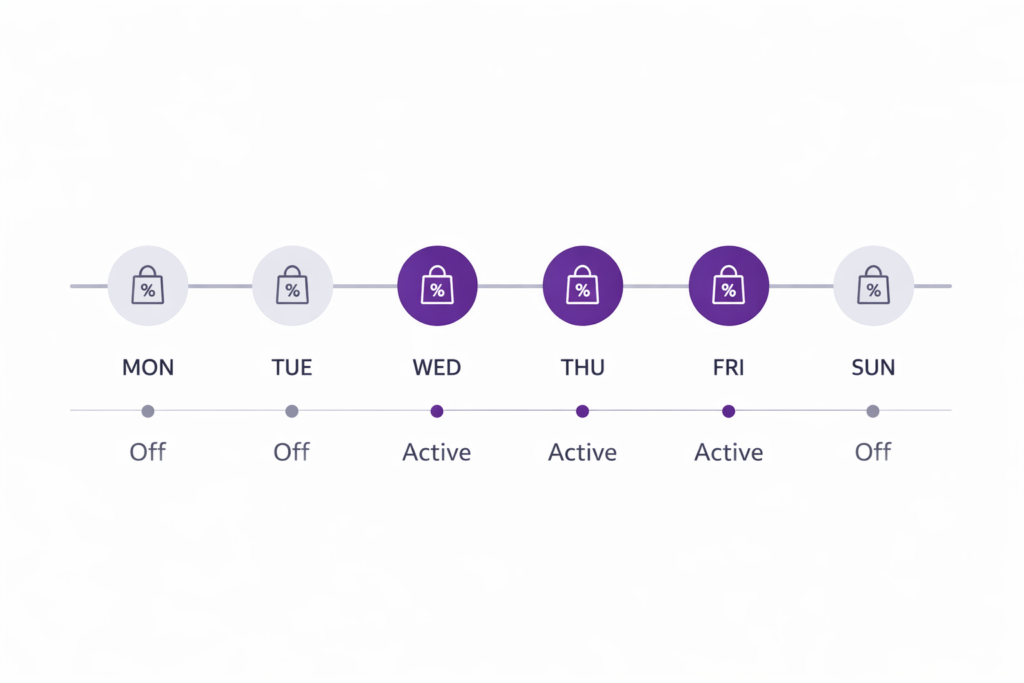
Adsgun lets you automate any repeating pattern:
- Every Friday 6 PM to midnight – Set it once and it runs every Friday automatically, no weekly setup required.
- Every first Monday of the month – Monthly member appreciation day, handled automatically.
- Every day in December – Your holiday promotion runs all month without a single manual action.
- Every 15th and 30th – Biweekly, paycheck-aligned promotions.
- Custom intervals – Any pattern your store’s calendar requires.
What Customers See During a Scheduled Promotion
When a promotion is active via the scheduler, the experience is consistent across your entire store. Product pages show the sale price with the original price struck through. Collection pages display sale badges alongside Was/Now pricing. The shopping cart shows per-item savings and total order savings. Checkout reinforces the deal with strike-through pricing. An optional announcement bar can display promotion details such as “20% OFF All Sneakers – Code Auto-Applied.”
The customer sees the whole picture: what they’re saving, why now is a good time to buy, and what they’d lose by waiting. This combination directly improves conversion rates. Research consistently shows that visible pricing increases buyer confidence and reduces cart abandonment.
Step-by-Step: How to Schedule a Sale on Shopify Using Adsgun
Here’s how to set up a one-time Friday flash sale from start to finish:
- Log into Shopify admin and open Adsgun from the app dashboard
- Click “Create New Promotion”
- Choose promotion type: select “Public Promotion” (visible to all store visitors)
- Name your promotion, for example: “Friday Flash Sale 20% Off Activewear”
- Define your discount: set discount type (percentage off, fixed amount, free shipping), set the amount (20% in this example), and choose eligible products by collection, tag, or price range
- Activate the Promotion Scheduler: check the “Schedule this promotion” box, select “One-time,” set start date and time (Friday, 6:00 PM), set end date and time (Saturday, 11:59 PM), and save
- Customize the display: choose badge style, strike-through colors, and announcement bar text such as “Flash Sale Live! 20% Off Activewear Until Midnight”
- Preview across mobile and desktop, then publish
That’s it. On Friday at 6:00 PM, Adsgun automatically activates the promotion across your store. At midnight, it deactivates. You don’t need to touch anything.
Advanced: Stacking Scheduled Promotions
The real power emerges when you layer multiple scheduled promotions. Imagine your VIP member discount runs continuously (15% off for customers with the “VIP” tag). On Fridays, you run a flash sale (20% off for everyone). During Black Friday week, you run a deeper site-wide sale (30% off).
With Adsgun’s discount stacking, all three can coexist:
- VIP member during BFCM Friday: 15% + 20% + 30% = stacked savings
- Regular customer during Friday flash only: 20%
- Regular customer during BFCM only: 30%
Each layer has its own schedule. The VIP discount is always active. The Friday flash runs on a recurring schedule. The Black Friday promotion is a one-time event set weeks in advance.
Adsgun’s strike-through pricing reflects the cumulative savings so the customer always sees exactly how much they’re saving in total. For more on how discount codes and promotion visibility work together, see our guide to Shopify promotion code visibility.
When to Schedule a Sale on Shopify: Real-World Timing Strategies
Weekly Flash Sales Friday evening is peak online shopping time. A 6 PM to midnight flash sale catches the weekend browsing rush. A recurring schedule means zero weekly overhead after the initial setup.
Seasonal and Holiday Sales Set Black Friday, Cyber Monday, and your holiday sale all in advance. They execute automatically without any further action on your end.
Paycheck-Aligned Sales Many consumers shop around payday. Scheduling sales for the 15th and 30th of each month aligns with typical consumer cash flow patterns.
Member Appreciation Days Regular customers feel valued when they receive automatic VIP pricing on the first Monday of each month. A recurring schedule runs it indefinitely.
Avoiding Common Scheduling Mistakes
Forgetting the end date. A flash sale that runs for a week isn’t a flash sale. It’s a regular sale. Set a hard end time every time. Adsgun enforces it automatically.
Scheduling during off-peak hours. A flash sale at 2 AM on a Tuesday won’t move inventory. Schedule around your audience’s actual shopping patterns.
Not communicating the schedule. Email your list the day before: “Flash sale starts Friday at 6 PM.” Create anticipation before the promotion even begins.
Overlapping too many promotions. When customers see a large savings number without context, it can create confusion rather than excitement. Keep simultaneous promotions to two or three layers with clear logic behind each.
Stop Managing Sales Manually
Staying up until midnight to flip a discount on is an operational problem that shouldn’t exist in 2026. Adsgun’s Promotion Scheduler handles the entire process: your discounts activate at exactly the right moment, your pricing display updates automatically across your store, and everything deactivates on schedule without you touching a thing.
Ready to reclaim your evenings? Start your free 7-day trial and schedule your first automated promotion today. No credit card required.



