
What Is Compare at Price on Shopify? Full Guide
Learn what Compare at Price on Shopify really does, why your discounts aren't showing, and how to display strike-through pricing.
The Hidden Problem with Shopify’s Compare at Price
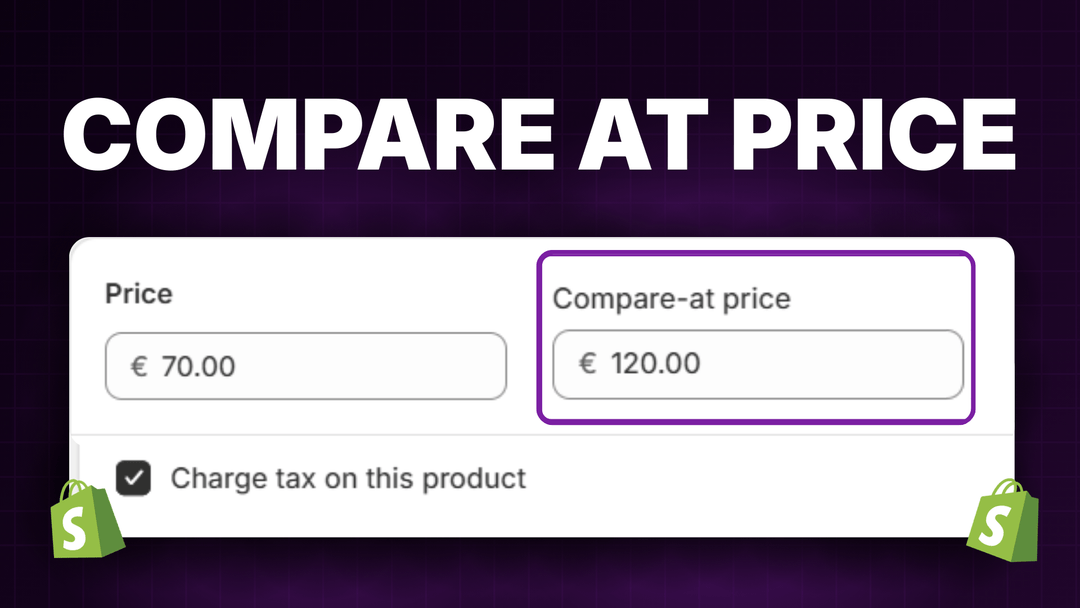
If you’ve ever set up a sale on Shopify, you’ve probably seen the “Compare at price” field. It’s that little box where you enter the original price so customers can see how much they’re saving. Sounds simple enough, right?
Here’s the problem: compare at price works great for one-off manual markdowns, but the moment you start running real promotions with discount codes or automatic discounts, everything falls apart. Your customers land on your product pages, see full prices, and leave never knowing there was a deal waiting for them at checkout.
And that’s just the surface. Compare at price also creates operational headaches when managing sales across hundreds of products, and quietly distorts your revenue reporting in ways most store owners don’t realize until it’s too late.
Let’s break down how this all works, what it’s costing you, and how to fix it.
What Is Compare at Price on Shopify?
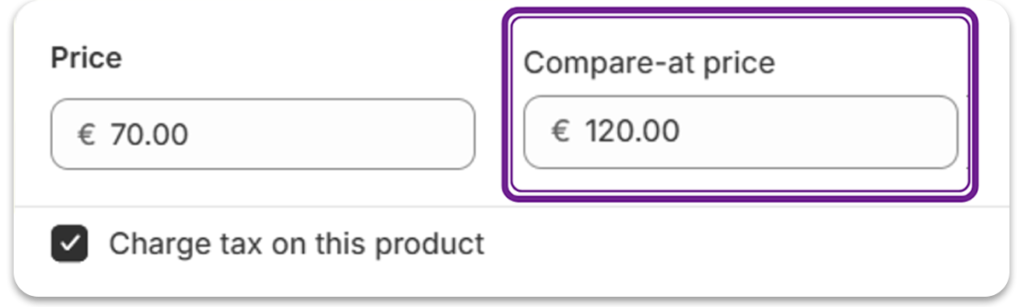
Compare at price is Shopify’s built-in feature for showing original prices alongside sale prices. When you fill in this field, your theme displays the original price with a strikethrough next to your current selling price. This creates the classic “was $50, now $35” effect that shoppers love.
The feature exists because visible savings drive purchases. When customers see they’re getting a deal, they feel smarter about buying and more motivated to act quickly.
However, compare at price has a major limitation: it only works when you manually change product prices. If you’re running a Shopify discount code or automatic discount, this field doesn’t update automatically. Your products still show full prices everywhere until the customer reaches checkout.
Why This Matters for Your Shopify Conversion Rate
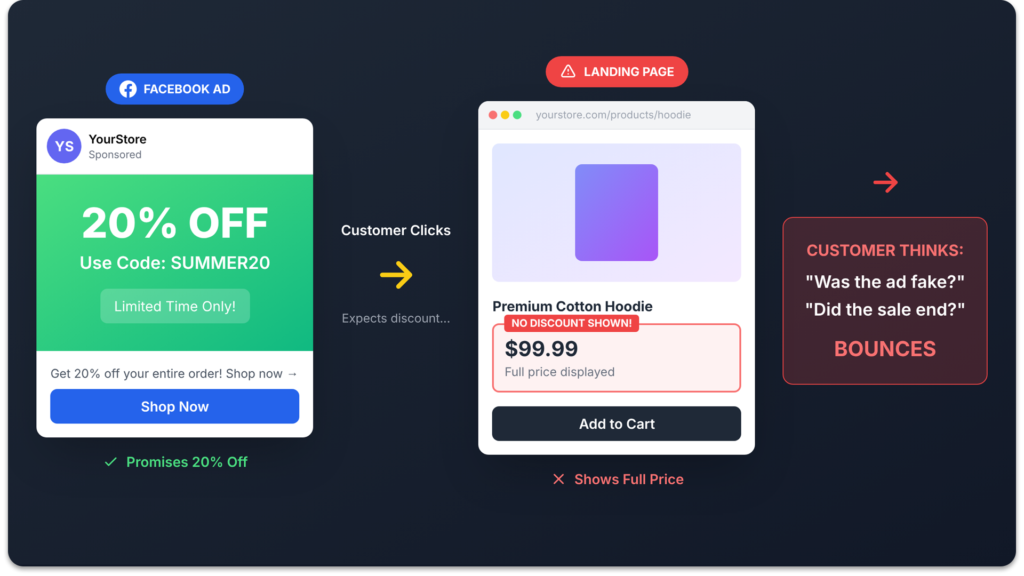
Think about how people actually shop online. They browse your collection pages, click on products that catch their eye, and make quick decisions about whether something is worth buying. Most of this happens before they ever add anything to cart and around 70% of shoppers never even reach the cart page.
If your Shopify discounts only appear at checkout, you’re hiding your best selling point until it’s too late. Research in retail psychology shows that strike-through pricing creates urgency, builds trust through transparency, and helps customers feel confident they’re making a good decision. But none of this works if the comparison isn’t visible when it matters most.
You’re essentially running secret sales that only reveal themselves to the small percentage of visitors who make it all the way to checkout.
The Operational Nightmare of Running Sales with Compare at Price
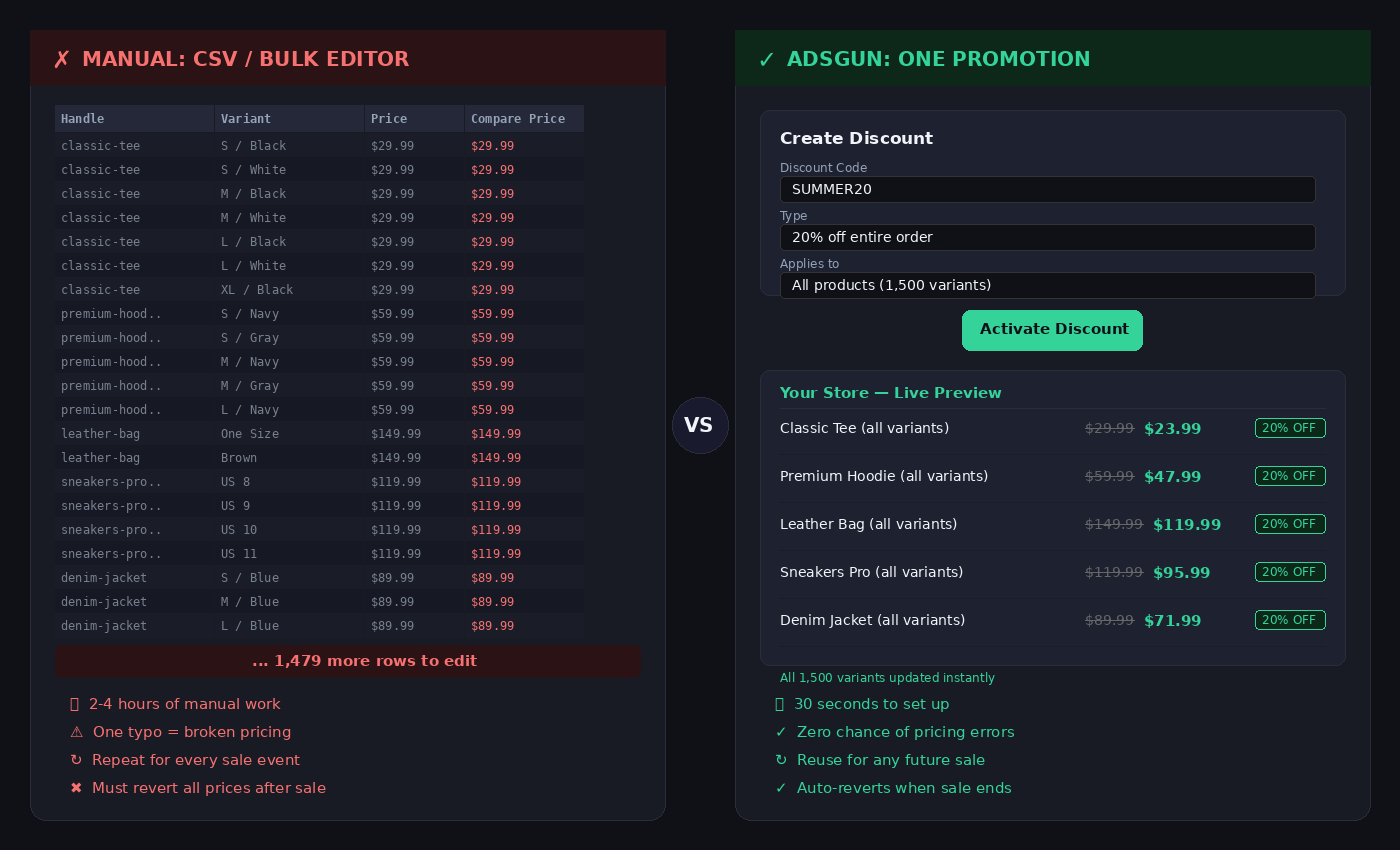
Even if you decide to use compare at price for a promotion, actually executing it is far harder than it looks.
Let’s say you want to run a 20% off sale across 500 products. Each product has three variants: small, medium, large. That’s 1,500 individual price fields you need to update manually. You need to set each variant’s price to the sale amount and enter the original price in compare at price. Even with CSV exports, this takes hours, and one wrong cell means incorrect pricing on your live store.
Then the sale ends. Now you need to revert all 1,500 prices back to their originals and clear the compare at price fields. Miss one product and it stays on sale indefinitely. We’ve seen stores where products were accidentally discounted for months because someone forgot to revert a compare at price change buried in a spreadsheet.
And compare at price only supports one sale price per product at a time. You can’t run a 20% off for email subscribers and a different 15% off for your Instagram audience simultaneously. It’s one price for everyone, no matter how they found your store.
With real Shopify discounts, none of this is an issue. You create the promotion once, set your rules, and it applies automatically. No bulk edits. No reversions. Zero risk of forgotten markdowns.
The Reporting Problem No One Talks About
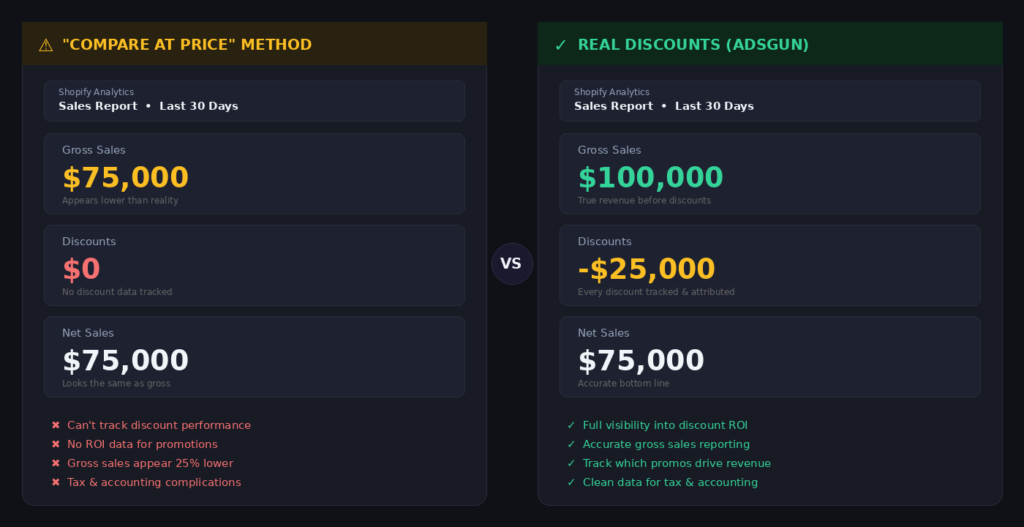
There’s another issue with compare at price that most store owners don’t discover until they start looking closely at their numbers. It has nothing to do with what customers see, it’s about what you see in your Shopify analytics.
When you use compare at price, you’re changing the actual product price. A $100 product marked down to $75 means Shopify records that sale as $75 in gross revenue. There’s no discount line item. No record that the original price was $100. In your reports, gross sales show $75, discounts show $0, and total sales show $75.
Now compare that to using a real Shopify discount. The product price stays at $100, and a $25 discount is applied. Shopify records $100 in gross sales, $25 in discounts, and $75 net. Same money in your pocket, but a completely different picture in your reports.
Scale this up and the difference becomes impossible to ignore. A store selling 1,000 units during a promotion would see $75,000 in gross revenue with compare at price versus $100,000 gross with $25,000 in tracked discounts using real discounts. Same actual revenue, but the first version makes your business look 25% smaller.
How Inaccurate Reporting Affects Your Business
This creates real problems. Your average order value appears lower than it actually is. Your discount spending is invisible, so you can’t measure how much promotions are actually costing you. And if you hand these numbers to an accountant, investor, or partner, they’re seeing an incomplete picture of your business.
This isn’t a theoretical concern. Merchants on the Shopify Community have been raising this exact issue for years, frustrated that compare at price gives them no way to properly track discount performance in their reports.
Because Adsgun works with real Shopify discounts and not compare at price, this problem doesn’t exist. Your gross revenue stays accurate, your discount spending is fully tracked, and every metric in your Shopify analytics reflects the true story of your business.
How Adsgun Makes Compare at Price Work Everywhere
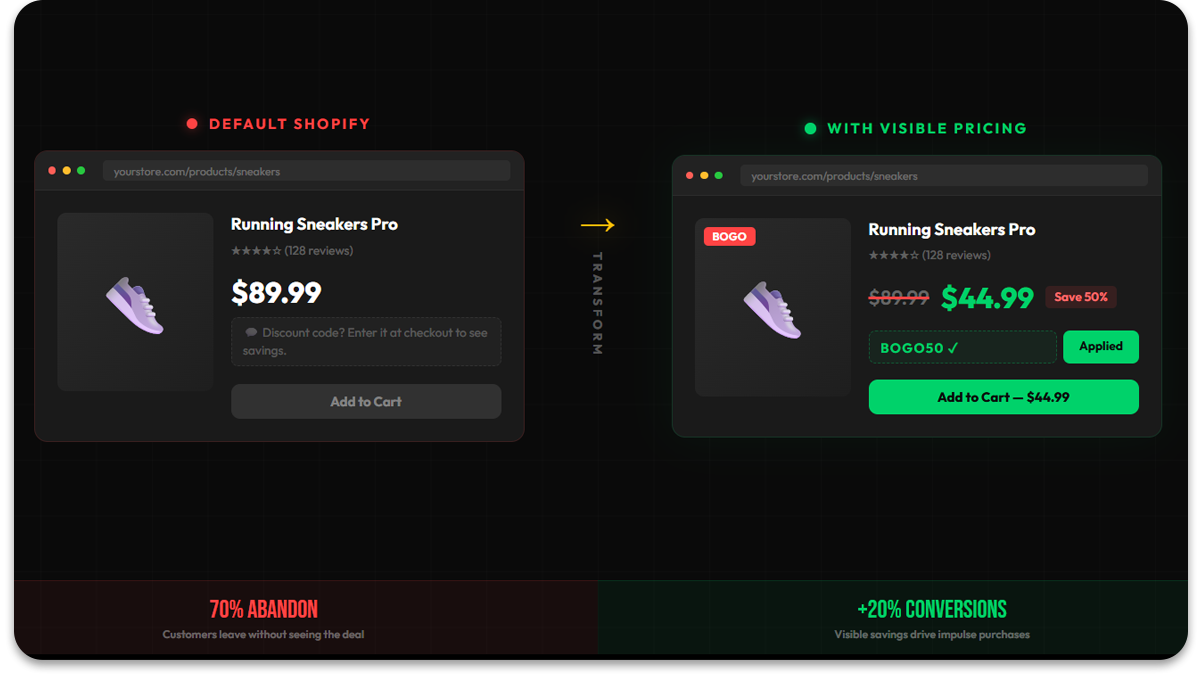
This is exactly the problem Adsgun was built to solve all three of them. The visibility gap, the operational burden, and the reporting distortion.
Adsgun connects your Shopify discount codes and automatic discounts to your storefront display. When a customer visits your store with an active promotion, they see the discounted prices immediately on collection pages, product pages, and in the cart. No waiting until checkout. No confusion about pricing.
Here’s what this looks like in practice. A customer clicks your Instagram ad promoting 25% off with code SUMMER25. They land on your store, and every eligible product shows the original price crossed out with the sale price displayed prominently. The compare at price effect you’ve been missing with discount codes suddenly works exactly as it should.
Customers immediately see the value they’re getting. They don’t have to wonder if the discount is real or try to calculate savings in their head. Everything is transparent from the first click, which builds trust and keeps them moving toward checkout.
Setting Up Visible Discounts With Adsgun
Getting started with Adsgun takes just a few minutes. The app integrates directly with your existing Shopify discounts, you don’t need to recreate anything or change how you set up promotions.
Once installed, you configure which promotions should display visible pricing and where. Adsgun can show strike-through prices on your collection pages, product detail pages, and cart. You can also display a savings summary so customers always know exactly how much they’re saving.
The setup works with any Shopify theme, and for store owners who aren’t developers, the Adsgun support team handles the configuration free of charge. There’s no coding required on your end.
What makes this particularly powerful is how it works across all your marketing channels. Whether customers arrive from email campaigns, paid ads on Facebook or TikTok, or organic search, they see the same consistent discounted pricing throughout their shopping journey. This eliminates the disconnect between your promotional messaging and your actual store display.
Strategies to Maximize Impact With Visible Pricing
Making your discounts visible is the foundation. Here’s how to get the most out of it.
- Close the gap between your ads and your store. If your Facebook ad says “25% off everything this weekend,” customers expect to see 25% off the moment they land. When that expectation is met instantly with crossed-out prices and visible savings, bounce rates drop and time on site increases. When it’s not met, when they see full prices and have to hunt for a code – they leave. It’s that simple.
- Show a savings breakdown in the cart. A customer with three items in their cart who sees “You’re saving $47 on this order” feels good about checking out. That single line of reinforcement can be the difference between a completed purchase and an abandoned cart. Adsgun can display this automatically so customers always know exactly how much value they’re getting before they hit the payment page.
- Stack visibility with urgency. Visible discounts become even more effective when paired with time pressure. A product showing “$120 $160” alongside “Sale ends in 2 days” gives customers both a reason to buy (the savings) and a reason to buy now (the deadline). Neither element works as well alone.
- Let your analytics tell you what works. Because real Shopify discounts track everything, redemption rates, total discount spend, revenue per promotion, you can actually compare campaigns. Did your 20% off sitewide sale outperform last month’s buy-two-get-one? With compare at price, you’d never know. With proper discount tracking, the answer is in your reports.
(Want more ideas? See our full guide on how to push sales on Shopify.)
Frequently Asked Questions
What is the difference between compare at price and discount codes on Shopify?
Compare at price is a manual price change. You lower the product’s actual selling price and enter the original in a separate field. Shopify treats the lower price as the real price, so there’s no discount recorded in your reports. Discount codes and automatic discounts work differently: the product keeps its full price, and the discount is applied as a separate line item at checkout. This means Shopify tracks the full gross revenue and the discount amount separately, giving you accurate analytics and cleaner accounting.
Does compare at price affect my Shopify analytics and reporting?
Yes, and this is one of the most overlooked issues. When you use compare at price, Shopify records the sale at the lower price with no discount line item. Your gross revenue appears lower than it should, your average order value drops, and there’s no way to track how much you’ve given away in discounts. If you use real Shopify discounts instead, gross revenue stays at the full product price and discounts are tracked separately. Which is standard accounting practice and essential for any store that takes its metrics seriously.
Why is my compare at price not showing on collection pages?
This is one of the most common Shopify complaints. If compare at price displays correctly on product pages but not on collection pages, it’s usually because your variants have inconsistent pricing. Collection pages show the most general information across all variants. So if some variants have a compare at price of $0.00, or some are empty while others have values, the collection page won’t display the sale pricing. Make sure every variant has a consistent compare at price that’s higher than its selling price.
Can I use compare at price with discount codes at the same time?
Technically yes, but it creates confusion. If you set a compare at price and also apply a discount code, the customer sees the strikethrough price on the product page and then gets an additional discount at checkout. This can lead to deeper discounts than you intended and makes it nearly impossible to track what’s actually happening in your reports. It’s generally better to pick one approach. If you’re running discount code promotions, use a tool like Adsgun to display the discounted prices visually without touching the compare at price field.
How do I show strike-through prices for discount codes on Shopify?
Out of the box, Shopify doesn’t display strike-through pricing for discount codes or automatic discounts on product or collection pages. The discount only becomes visible at checkout. To show crossed-out prices throughout your store when running discount code promotions, you need either a third-party app like Adsgun or custom theme code. Adsgun connects directly to your existing Shopify discounts and displays the savings on collection pages, product pages, and in the cart automatically.
Is compare at price bad for SEO?
Compare at price itself doesn’t directly hurt SEO, but it can indirectly affect it. If your store frequently changes product prices for sales (which compare at price requires), structured data like product schema may show fluctuating prices to Google. More importantly, the poor user experience of invisible discounts leads to higher bounce rates and lower engagement, both of which are signals Google pays attention to. Showing consistent, visible pricing through real discounts tends to keep visitors on your site longer.
How do I bulk edit compare at price for hundreds of products?
Shopify offers two methods: the built-in bulk editor (select products, click Bulk Edit, and update the Compare at Price column) or CSV export/import. Both work, but both require you to manually revert everything after the sale ends. For stores with hundreds of products and multiple variants, this process is time-consuming and error-prone. Using Shopify’s native discount system eliminates the need for bulk price edits entirely. You create the promotion once and it applies automatically.
The Bottom Line
Compare at price seems like a simple feature, but relying on it for promotions creates three compounding problems: your discounts are invisible to most shoppers, managing prices manually at scale is error-prone and time-consuming, and your revenue reporting gets quietly distorted in ways that affect every business decision you make.
The fix is straightforward: use real Shopify discounts and make them visible everywhere customers look. When shoppers see the savings upfront, they convert. When your reports reflect actual gross revenue and discount spend, you make better decisions. And when promotions apply automatically without bulk price edits, you save hours and eliminate mistakes.
Adsgun makes this automatic by connecting your existing Shopify promotions to your storefront display. Instead of hoping customers make it to checkout to discover their discount, you show them the value immediately, which is exactly how effective retail has always worked.
If you’re ready to stop losing customers to invisible discounts and start getting accurate data on your promotions, making your discounts visible across your entire store is the place to start.




