
Shopify Automatic Discount Not Showing on Product Page: Here’s the Fix
Shopify's automatic discounts work perfectly but only at checkout. Discover why this happens by design and three approaches to fix it, including why Adsgun is the most reliable solution.
The Problem: Your Discount Isn’t Actually Missing
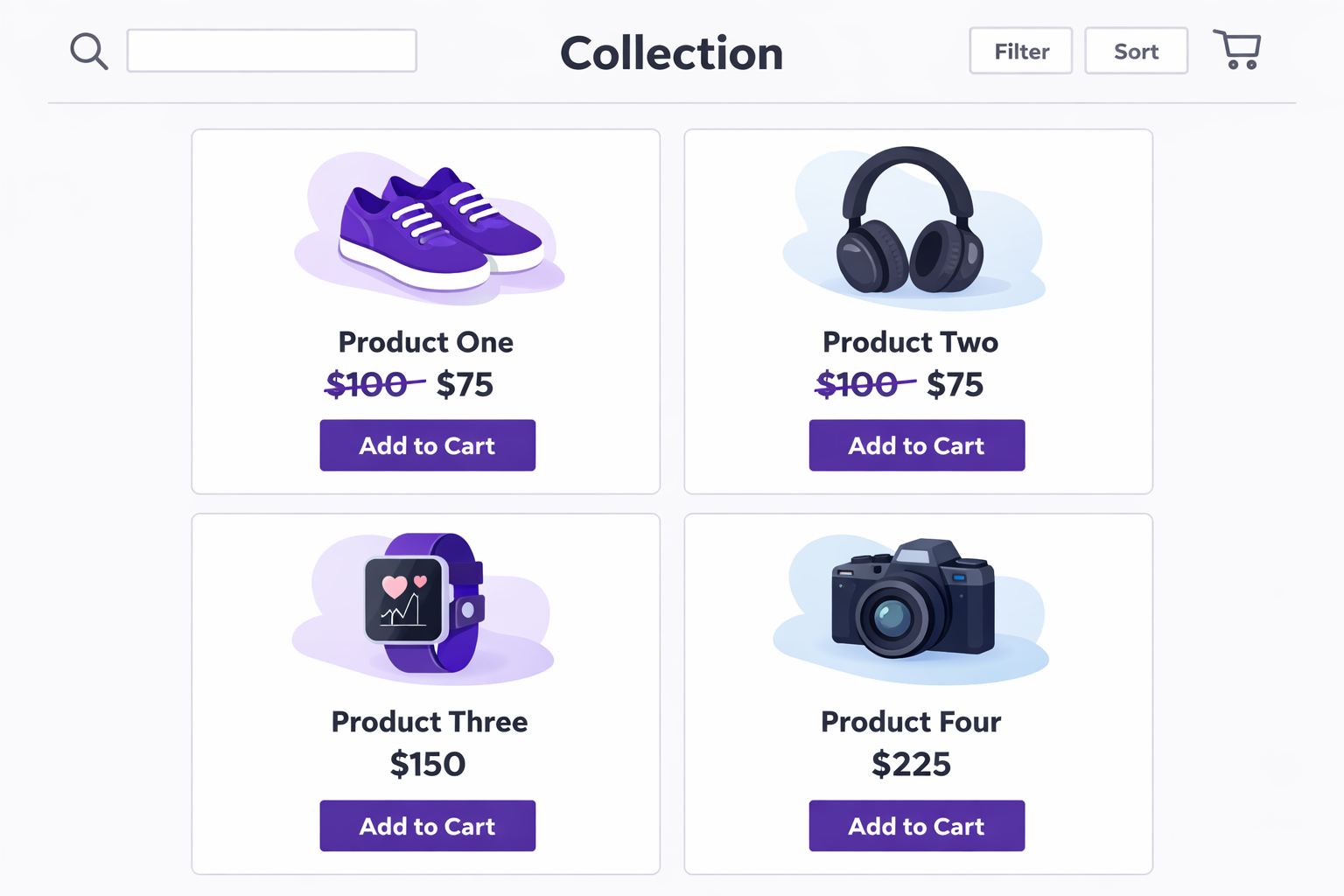
You’ve set up a Shopify automatic discount. You tested it. It works perfectly at checkout. Customers see the savings, they’re happy, the discount applies. But when you look at your product page, collection page, or even your cart page, the price shows the full amount with no indication of the discount.
This is frustrating. It feels like a bug. But it’s not a bug. It’s how Shopify was built.
Your customers are visiting your store, they see a $100 product, they add it to the cart, they get to checkout and discover it’s actually $80. By then, they’ve made a mental commitment to the purchase. But here’s the problem: according to the Baymard Institute, roughly 70% of shoppers abandon their carts before completing a purchase, and a large share of those drop off well before checkout ever loads. They browse, they see full prices, they think your products are expensive, and they leave without ever knowing about the discount.
This post explains exactly why Shopify discounts don’t show on product pages, what that costs you, and three approaches to fix it, including the most robust solution that scales with your business.
Why Shopify Automatic Discounts Hide Until Checkout
Shopify’s discount system was built from the ground up with a checkout-first architecture. When you create an automatic discount in Shopify, here’s what happens behind the scenes:
- You set the discount rules (15% off when cart total exceeds $50, for example)
- Shopify stores these rules in its discount engine
- The rules are NOT applied to product data. They sit separately in the checkout system.
- When a customer reaches checkout, Shopify evaluates all the discount rules and applies them to the cart
The product itself doesn’t know about the discount. The price field on a product in Shopify is just a price; it’s not connected to the discount engine. That separation was an architectural choice that made sense when Shopify was built, but it creates a real problem for modern stores running multiple concurrent promotions.
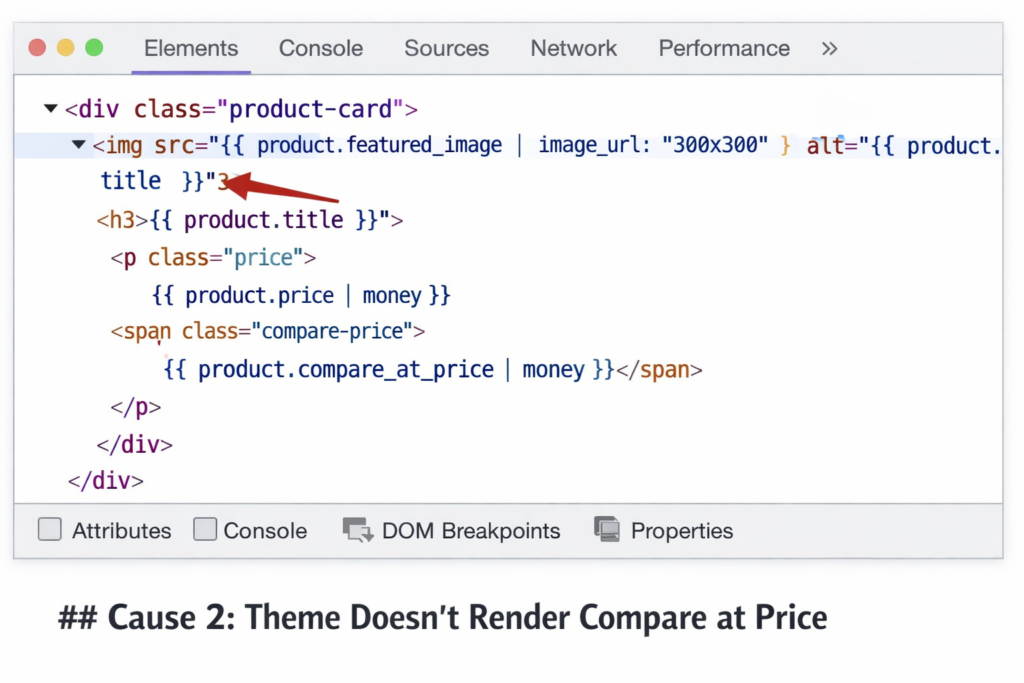
Shopify added “compare at price”What Is Compare at Price on Shopify? Full Guide as a workaround. Merchants could manually set a higher compare price and show it struck through. But that’s not a discount, it’s just a suggested retail price with no connection to your actual discounts. It doesn’t track analytics properly, it requires manual updates, and it can’t express complex discount logic like “20% off for customers with tag ‘VIP’.”
The result: your powerful discount rules are invisible to shoppers until they’re already committed to purchase.
The Real Cost: 70% of Shoppers Never See Your Offer
Let’s put numbers on this.
Assume you run a Shopify store with 10,000 monthly visitors. According to industry benchmarks from Triple Whale and KISSmetrics, a typical ecommerce funnel looks roughly like this:
- 5,400 visitors reach collection or product pages (54%)
- 950 proceed to add something to cart (9.5% of visitors, 18% of page visitors)
- 150 reach checkout (1.5% of visitors, 15% of cart adds)
- 9,850 shoppers never see your discount
If your automatic discount is 20% off, those 9,850 people have no idea it exists. Many of them bounce from product pages because they think your prices are too high. They don’t realize there’s a savings waiting at checkout.
Even among the 150 who reach checkout, some will be surprised by the discount appearing suddenly and worry it’s a trick, or they’ll assume it’s exclusive to them and won’t trust it.
The solution isn’t complicated: show the discount on the product page where it matters most, where shoppers are making the decision to click or bounce.
Three Approaches to Fix It
Approach 1: Manually Set Compare at Price
The native Shopify workaround. Go to your product, set a higher “Compare at Price,” and Shopify will show it struck through.
Pros:
- No setup cost
- Simple to understand
- Built into Shopify admin
Cons:
- Manual. You have to update it for every product every time you change discounts.
- No connection to your actual automatic discounts. It’s just a number you enter.
- Doesn’t reflect complex discount rules (tiered discounts, customer tags, purchase minimum)
- Creates accounting issues. Your gross revenue reporting gets muddled when compare at price doesn’t match your actual discount.
- If your discount is 15% off and prices vary by product, you have to calculate 15% off for each SKU manually.
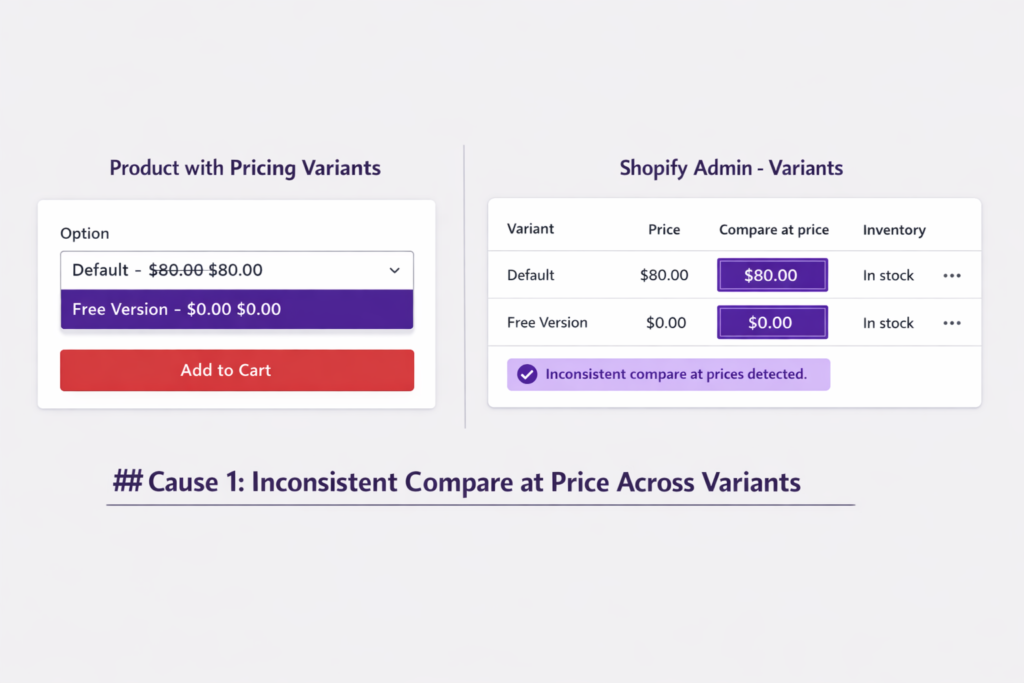
- Inconsistency. Variants often have different compare at price values, leaving some products showing the discount and others not.
This approach works if you have a few products and a flat discount that rarely changes. For most growing stores, it breaks down fast.
Approach 2: Custom Code in Your Theme
Some merchants (or their developers) add custom Liquid code to their theme to calculate discounts and show them on product pages. This can work.
Pros:
- Connects to real Shopify discounts
- Can calculate dynamic prices based on discount rules
Cons:
- Requires a developer. Not a no-code solution.
- Fragile. Custom code is stored in theme files, and any theme update overwrites it.
- Slow to implement. 4-8 hours of developer time.
- Hard to debug when it breaks (and it will break when the theme updates)
- Only works if you’re using a Liquid-accessible discount API, which limits which discount types work
- Doesn’t handle all discount types equally (automatic discounts vs. codes vs. tiered discounts)
This is a bandage. It works until your theme updates, then it’s gone.
Approach 3: Adsgun App (The Reliable Solution)
Adsgun is purpose-built to solve exactly this problem. It reads your real Shopify discounts (automatic discounts, discount codes, and compare at price) and displays strike-through pricing on every page where it matters: product pages, collection pages, cart, and checkout.
How it works:
- Install Adsgun from the Shopify App Store
- Connect it to your store (1 click)
- Create a promotion. Select your discount, choose where to display it, enable strike-through pricing.
- Adsgun reads the discount in real time and shows the actual discounted price on every page
- When the discount changes or expires, the prices update automatically
- You get full analytics on how many customers saw the discount and when they purchased
Pros:
- No code required. Anyone can set it up in 5 minutes.
- Works with all discount types (automatic, codes, compare at price)
- Theme-agnostic. Uses Shopify’s app framework, so it survives theme updates.
- Real-time updates. Prices change instantly when you change discounts.
- Analytics. See how discount visibility affects conversion.
- Handles multiple simultaneous promotions (a feature Shopify’s native system struggles with)
- Works across all channels: product pages, collections, cart, checkout, email campaigns
- Scheduler. Set a promotion to activate at a specific time, even recurring every week.
This is the modern approach. No developer, no fragility, no manual updates.
Step-by-Step: Setting Up Adsgun
Here’s how to get discounted prices showing on your product pages in minutes:
Step 1: Install Adsgun
Go to the Shopify App Store, search for “Adsgun,” and click Install. Approve the permissions (Adsgun needs to read your products, discounts, and orders to work).
Step 2: Create Your First Promotion
In the Adsgun app, click “Create Promotion.” Choose the discount you want to display (your automatic discount, a discount code, or a specific compare at price). Select which products or collections to show it on (or leave it as “all products”).
Step 3: Enable Strike-Through Pricing
Toggle on “Show strike-through pricing” and choose the display style. Adsgun will show “Was $100 | Now $80” on product pages and collections.
Step 4: Pick Your Pages
Check the boxes for where to display the discount: Product Pages, Collection Pages, Cart, Checkout. You can enable them selectively.
Step 5: Publish
Click Publish. Within minutes, your discounted prices will be live on your store.
That’s it. You’ve done what would take a developer 8 hours via code, and it took you 5 minutes. And unlike code, it will keep working when your theme updates next month.
Why Adsgun Is the Most Reliable Fix
Research on discount visibility backs this up. A pricing A/B test study by GrowthRock found that showing a savings percentage on product listing pages and product detail pages meaningfully increased conversion rates when different products had different discount levels. Customers aren’t doing math in their heads across a page of products with two prices each. When you surface the savings clearly, more of them click.
The math applies to Adsgun users too. Stores that switch to showing strike-through prices on product pages consistently see more shoppers add to cart simply because the value of the purchase becomes clear before they ever reach checkout.
Adsgun does this because:
- It reads real discounts rather than manual compare at price values that get out of sync
- It updates in real time. When you change a discount, the prices change immediately across your entire site.
- It survives updates. Because it’s a Shopify app and not custom code, theme updates don’t touch it.
- It handles complexity. If you’re running a 15% off automatic discount AND a buy-one-get-one promotion AND a VIP customer tag discount, Adsgun calculates and displays the actual final price correctly.
- It provides analytics. You can see how many customers saw the discount and whether they converted, so you know if a promotion is working.
The alternative approaches require maintenance. This one just works.
One Important Note on Analytics
If you’ve been using “compare at price” to show discounts, switching to real Shopify discounts (either automatic or codes) will clean up your analytics in Shopify. Instead of showing $100 revenue with no discount line item, you’ll see $80 revenue plus a $20 discount. This is the accurate picture of your business, but if you’re used to seeing $100, the change might surprise you at first.
This is actually a good thing. It means your analytics are now accurate, which helps you make better business decisions. And Adsgun’s analytics layer sits on top of Shopify’s, so you can see not just that a discount was applied, but how many shoppers saw it on the product page.
Ready to Fix This?
Your Shopify automatic discounts are powerful. But if they’re hidden until checkout, you’re leaving revenue on the table. Shopify’s native tools (compare at price or custom code) are either manual or fragile. There’s a better way.
Start your free 7-day trial of Adsgun and show strike-through pricing on every product page, collection page, and cart. See how many more shoppers add to cart when they know about your discount before checkout.




