How to Run Different Promotions for Different Ad Campaigns on Shopify
Your Google Ads, Meta, and email audiences convert differently. Learn how to run different Shopify promotions per ad campaign and track which offer actually drives profit.
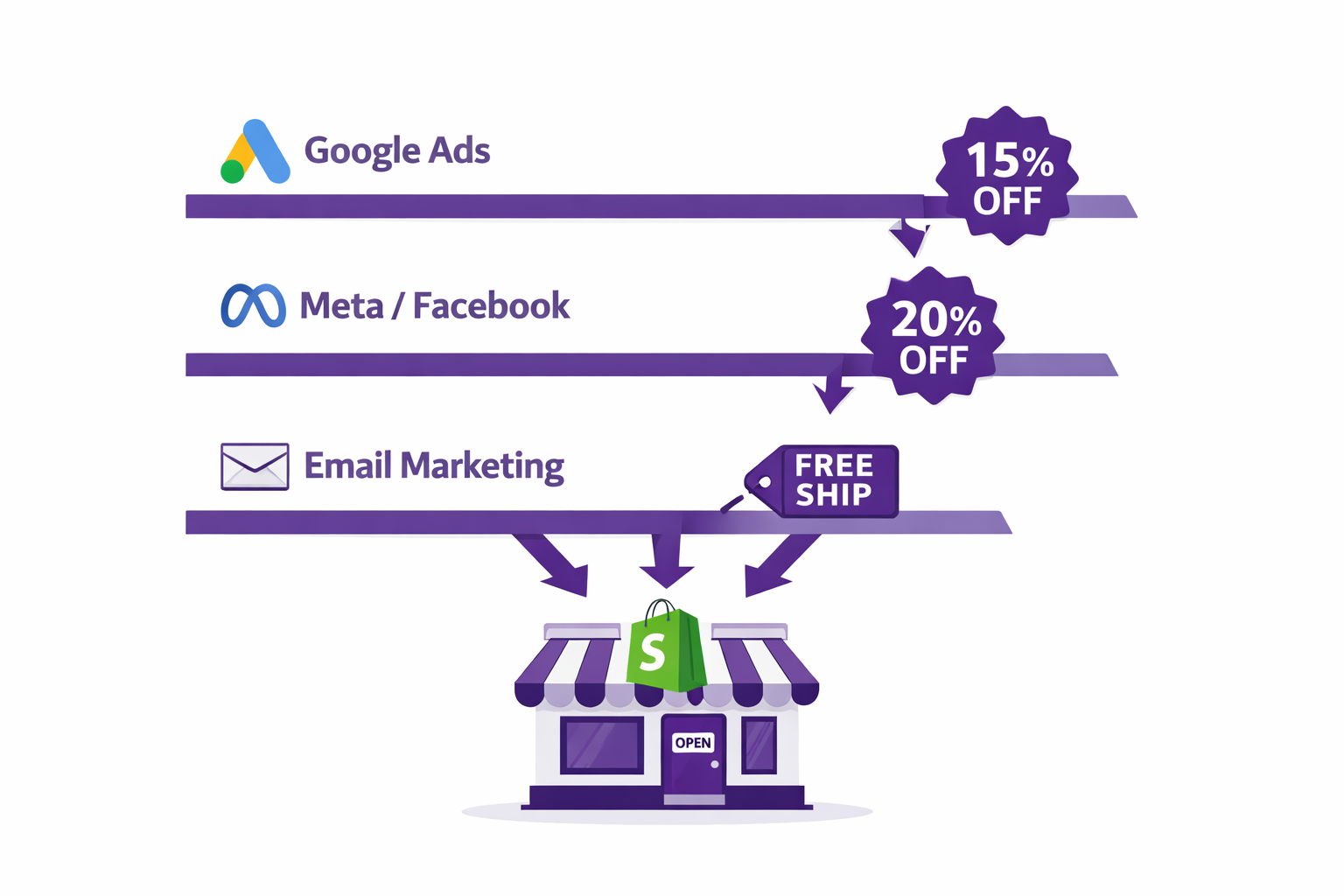
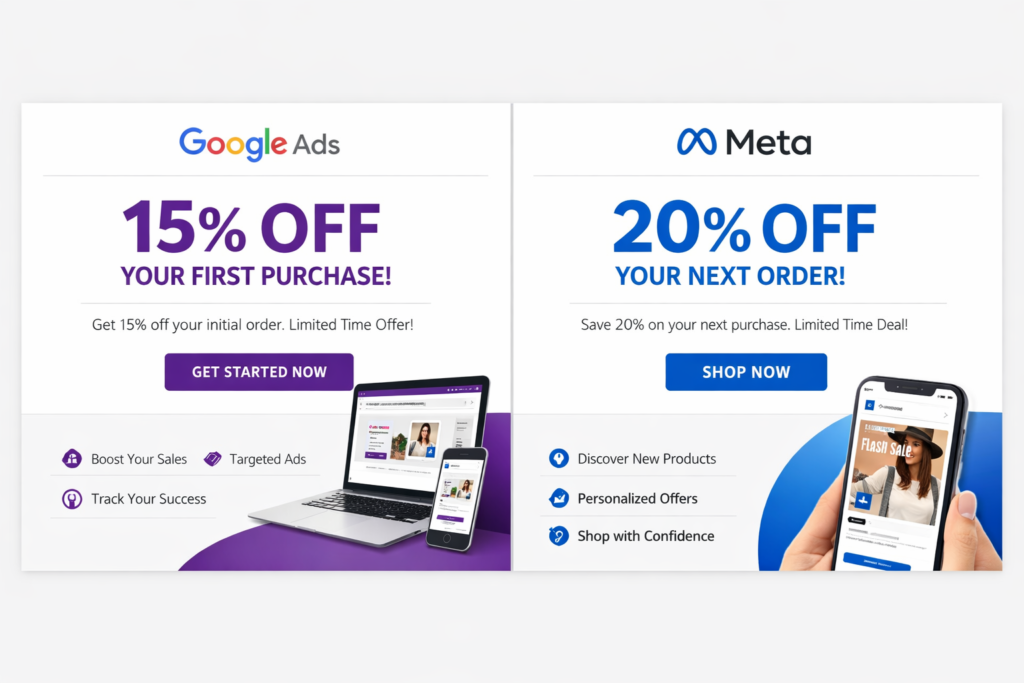
You are running paid ads. Google Ads on search, Meta on social, YouTube on video. Each channel has different audience dynamics, different competitive intensity, and different willingness to pay.
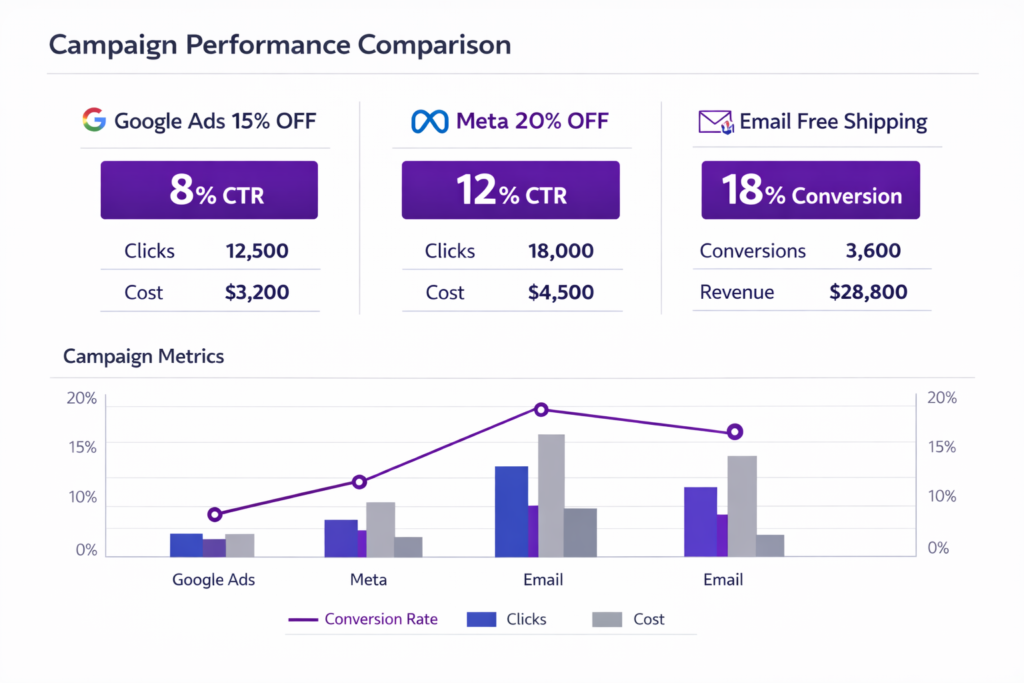
Your data shows that running shopify different promotions per ad campaign is not just a nice-to-have. It is the difference between knowing what works and guessing. Google Ads searchers are highly intentional, and a 12% discount converts at 6%. Meta users are browsing casually, so a 20% discount converts at 4%. Your email list, your warmest audience, converts at 8% even with just free shipping.
So you want to test different offers across channels. Show Google Ads traffic 12% off, show Meta traffic 20% off, show email subscribers free shipping. And you want to know which audience, at which discount level, drives the most profitable orders.
The challenge is that most Shopify merchants run one sitewide discount. Everyone sees the same offer. You cannot test audience-specific discounts, and you cannot attribute sales to specific campaigns.
The solution is URL-targeted promotions. Each ad campaign goes to a unique URL parameter. Adsgun reads that parameter and activates the matching promotion automatically, in real time, across your entire store.
What Are URL-Targeted Promotions on Shopify?
A URL-targeted promotion is a discount that activates based on a URL parameter. When a visitor lands on your store through a specific ad link, Adsgun reads the parameter in that URL and activates the matching promotion automatically, no coupon code required.
Here is how it looks in practice:
- Normal store visit:
yourstore.com/products/...– no special discount - Google Ads campaign:
yourstore.com/products/...?campaign=google_summer_12– activates “Google Summer 12% Off” - Meta campaign:
yourstore.com/products/...?campaign=meta_summer_20– activates “Meta Summer 20% Off” - Email campaign:
yourstore.com/products/...?campaign=email_summer_free_ship– activates “Email Free Shipping”
When a visitor clicks the Google ad, they land on your store with campaign=google_summer_12 in the URL. Adsgun reads that parameter, sees that this visitor should receive 12% off, and displays the discounted prices across product pages, cart, and checkout. Automatically.
Same visitor, different URL parameter, different discount. And all of this happens without the customer noticing. They simply see the prices that match the ad they clicked.
This is what Adsgun calls Discount Links, and it is one of the most practical ways to connect your ad spend directly to a measurable, channel-specific offer.
Why Running Different Shopify Promotions per Ad Campaign Matters
Most merchants optimize ads without optimizing the offer. They test landing page copy, ad creative, audience targeting, and bid strategy, but they never test the actual offer. They run a sitewide “20% off” for everyone.
Running different Shopify promotions per ad campaign lets you optimize at a much deeper level.
Find your highest-converting audience-offer combination. Maybe Google Ads with 15% off drives $50 in average order value. Meta with 25% off drives $45. Email with free shipping drives $75. Now you know exactly where to allocate budget.
Test price sensitivity per channel. Google Ads searchers might need a smaller discount because they are already looking to buy. Email subscribers might convert on free shipping alone, which protects your margins.
Control customer acquisition cost (CAC) per channel. Running 20% off to a channel where 12% converts just as well is margin you are giving away. Campaign-specific offers optimize CAC across every source.
Reduce spend on low-performing channel-offer combos. If Meta with 20% is not driving profitable orders, test 25% or reallocate the budget entirely. Now you have the data to make that call.
For a broader look at making discounts visible across your store, see Shopify Promotion Code: Make It Visible and Boost Sales 20%.
How URL Targeting Works Inside Adsgun Promotions
Adsgun’s Promotions feature is the core of how URL targeting gets configured. A promotion in Adsgun is a wrapper around your discount that defines who sees it, when, and on which URLs. You create a promotion, attach a Shopify discount code (percentage, fixed amount, free shipping, or Buy X Get Y), and then set the URL parameter that triggers it.
Once the promotion is live, every visitor who arrives via the matching URL parameter sees the discounted prices across your product pages, collection pages, cart, and checkout without having to enter a code.
How to Set Up Shopify Different Promotions per Ad Campaign: Step by Step
Part 1: Create Promotions in Adsgun
- Promotion 1: Google Ads Offer
- Open Adsgun and click Create New Promotion
- Name it: “Google Ads 15% Summer Campaign”
- Attach a 15% off Shopify discount code
- Set URL trigger: parameter name
campaign, valuegoogle_summer_15 - Add display elements: strike-through in your brand color, badge text “Google Exclusive”, announcement bar “Google Ad Special: 15% Off”
- Save and publish
- Promotion 2: Meta Ads Offer
- Click Create New Promotion
- Name it: “Meta Ads 20% Summer Campaign”
- Attach a 20% off Shopify discount code
- Set URL trigger: parameter name
campaign, valuemeta_summer_20 - Add display: badge text “Social Exclusive”, announcement bar “Social Media Special: 20% Off”
- Save and publish
- Promotion 3: Email List Offer
-
- Click Create New Promotion
- Name it: “Email Subscriber Free Shipping”
- Attach a free shipping Shopify discount code
- Set URL trigger: parameter name
campaign, valueemail_summer_free_ship - Add display: announcement bar “Email Subscriber Perk: Free Shipping”
- Save and publish
Part 2: Update Your Ad Campaigns with URL Parameters
You now have three promotions waiting to be triggered. Update your ad landing page URLs in each platform.
Google Ads: In your Google Ads account, update the final URL at campaign or ad group level: yourstore.com/products/summer-collection/?campaign=google_summer_15
Meta / Facebook Ads: In Meta Ads Manager, set the landing page URL: yourstore.com/products/summer-collection/?campaign=meta_summer_20
Email Campaign: In your email tool (Klaviyo, Omnisend, or Mailchimp), update the CTA button link: yourstore.com/products/summer-collection/?campaign=email_summer_free_ship
Part 3: Test Before You Launch
Click through each link and verify the right promotion activates on each. Check that the badge, strike-through pricing, and announcement bar display correctly. Add to cart and proceed through checkout to confirm the discount applies at payment.
Part 4: Monitor Performance in Adsgun
In Adsgun, each promotion tracks its own analytics: clicks, purchases, revenue, and average order value. Review these numbers alongside your ad platform costs (Google Ads spend, Meta spend) to calculate true ROI per campaign-offer combination.
This is the data that lets you scale the winners and cut the underperformers.
Real-World Example: Testing Multiple Shopify Promotions Across Channels
Here is a practical scenario with three parallel campaigns running simultaneously.
Campaign A – Google Search: 12% off URL parameter: ?campaign=google_search_12 Hypothesis: Searchers are already purchase-ready. A smaller discount is enough.
Campaign B – Meta Prospecting: 20% off URL parameter: ?campaign=meta_prospecting_20 Hypothesis: Cold traffic needs a stronger incentive to convert.
Campaign C – Email Warm List: Free shipping URL parameter: ?campaign=email_warm_freeship Hypothesis: Email subscribers are loyal. Free shipping is enough to close the sale.
After one week of testing:
| Campaign | Clicks | Purchases | CVR | Revenue | AOV |
|---|---|---|---|---|---|
| Google 12% | 1,200 | 48 | 4% | $12,000 | $250 |
| Meta 20% | 2,000 | 60 | 3% | $10,500 | $175 |
| Email Free Ship | 300 | 42 | 14% | $8,400 | $200 |
Insights from the data:
Google 12% is the most profitable channel with the highest AOV. Increase budget here. Meta 20% has lower CVR than expected. Test 25% next week or reduce spend. Email free shipping has the highest CVR but a lower AOV. Consider adding an upsell or a minimum order threshold to lift AOV on this channel.
Without campaign-specific offers, you would never see this breakdown. You would just see total store revenue with no way to attribute it by channel and offer.
Combining URL Targeting with Other Adsgun Features
URL-targeted promotions work even better when layered with other Adsgun features.
Scheduler: Set a campaign-specific link that is only active during certain dates or hours. For example, “Google Ads 15% off only on Fridays” runs as a recurring weekly flash sale. See how Adsgun handles A/B Testing to also compare two versions of the same channel offer against each other.
Discount stacking: A VIP customer who clicks your Google Ads link can receive both the campaign discount (15%) and their VIP loyalty discount (10%), resulting in 25% total. Adsgun handles the stacking automatically.
Announcement bars: Each campaign shows its own messaging. Google traffic sees “Google Exclusive: 15% Off.” Meta traffic sees “Social Media Special: 20% Off.” The personalization starts from the moment they land.
For a deeper look at how Shopify automatic discounts behave before a visitor even clicks an ad, read Why Shopify Discounts Don’t Show Until Checkout.
URL Parameter Best Practices
Naming conventions: Use lowercase, underscores, and include the discount level in the value so it is easy to read at a glance. google_search_12 tells you the channel, audience type, and offer all at once. Avoid shorthand like ?c=gs12 because it makes debugging much harder.
URL structure: You can add the parameter to any page on your store: a product page, a collection, or the homepage. Adsgun reads the campaign parameter regardless of where it appears in the URL.
Combining with UTM parameters: Adsgun campaign parameters work alongside Google Analytics UTM parameters without conflict. Use both simultaneously so GA tracks your traffic source while Adsgun activates the right promotion:
yourstore.com/products/sneakers/?utm_source=meta&utm_medium=cpc&utm_campaign=summer&campaign=meta_summer_20
GA reads the UTM data for attribution. Adsgun reads the campaign parameter to trigger the promotion. Both work independently.
FAQ: Campaign-Specific Shopify Promotions
Can I change the offer mid-campaign?
Yes. Edit the promotion in Adsgun at any time and update the discount percentage or switch to a different offer type. Changes apply immediately to all future visitors who arrive via that URL parameter.
What if someone bookmarks the campaign link?
The parameter persists in the bookmark. When they return via that saved link, the promotion activates again. This is generally a positive outcome since you are rewarding repeat engagement from your campaign audience.
What if two URL parameters are both present in a URL?
Adsgun applies the highest-priority matching promotion it finds. If you have overlapping parameters, assign clear priority levels inside Adsgun to control which promotion wins. See the Promotions help page for how priority works.
How do I know which offer is most profitable?
Check Adsgun analytics per promotion for clicks, conversions, revenue, and AOV. Cross-reference that with your ad platform’s cost data (CPC, total spend) to calculate profit per channel-offer combination.
Ready to Test Different Promotions per Ad Campaign on Shopify?
Campaign-specific discounts are one of the highest-leverage optimizations available to Shopify performance marketers. Instead of running a sitewide offer that treats every visitor the same, you test multiple offers with different audiences and scale what works.
Setup takes about 10 minutes. Testing can start immediately.
Start your free 7-day trial and create your first campaign-specific promotion today. No credit card required.