
Shopify Discount Not Applied to All Products: Why & How to Fix
Your Shopify discount is only showing on some products? Discover why it happens and how to fix eligibility rules step by step.
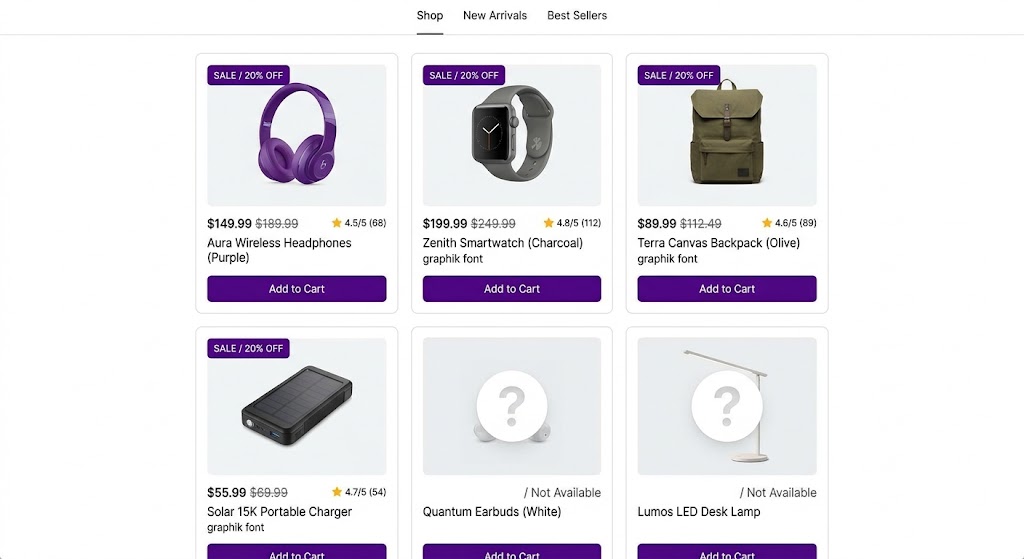
The Mystery: “Why Isn’t My Discount on That Product?”
You create an automatic discount: 20% off everything. You expect it to apply to all products. But when you browse your store, you notice the discount is only showing on some products. Others show no discount. If you are dealing with a Shopify discount not applied to all products, this situation is more common than you might think.
You check the discount settings, and it seems like it should apply to everything. What’s going on?
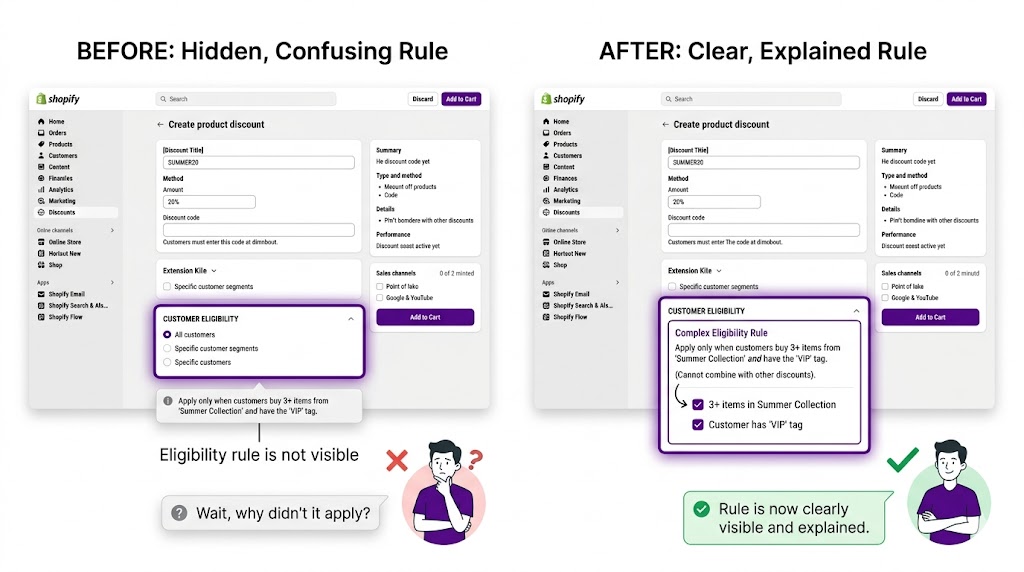
Usually, it’s an eligibility rule you didn’t notice or forgot about.
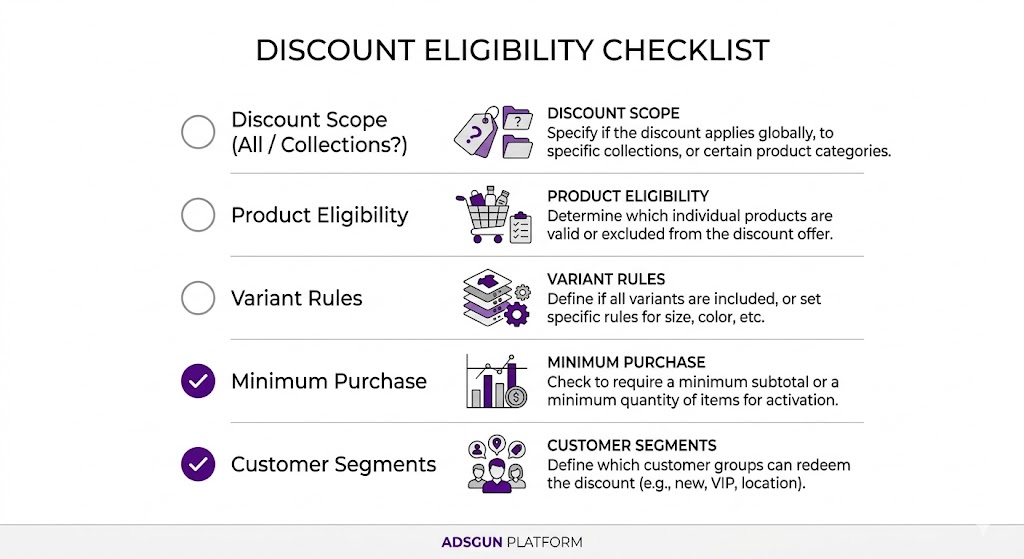
Checklist: Why Your Discount Isn’t Applying
1. Discount Scope: Collections vs. All Products
When you create an automatic discount in Shopify, the first question is: does it apply to all products, or specific products?
If you set it to “Specific collections”:
The discount only applies to products in those collections. If a product isn’t in the selected collection, no discount.
How to check:
o to Settings > Discounts > Your Discount. Look for “Products” or “Collections” section. What’s selected?
If it says “Specific collections,” which collections?
Check the list. Is every product you want to discount in one of those collections? If a product is outside those collections, it won’t get the discount.
How to fix:
Option A: Change the discount scope to “All products” (if you want it to apply everywhere).
Option B: Add the missing product to the collection (if the product should be in the collection).
2. Product-Level Exclusion
Some discounts allow you to select specific products to exclude or to include only certain products.
How to check:
In your discount settings, is there a “Product selection” or “Include/Exclude products” section? Is there a list of excluded products?
How to fix:
If products are listed in the exclude section that shouldn’t be there, remove them. Or switch to “Include all products” mode.
3. Product Type Rules
Some discounts have rules based on product type. For example, “20% off all products with type “clothing”” would only apply to products tagged with that type.
How to check:
Does your discount have a “Product type” filter? Is it set to a specific type, or “all types”?
How to fix:
If you want all products discounted, set product type to “All types” or remove the filter.
4. Variant-Level Rules
Less common, but some discounts apply only to specific variants, such as size “Large”.
How to check:
Is there a “Variants” or “Product options” rule? Is it filtering by a specific variant?
How to fix:
Remove the variant filter, or add all variants you want to the include list.
5. Minimum Purchase Requirement
A discount might be set to “20% off orders over $100.” If the customer hasn’t reached $100 in cart value, the discount doesn’t apply.
But this is a cart-level rule, not a product-level one. So why would you see it on some products but not others?
The confusion: If the minimum is high, for example $500, most single products will not trigger it when added alone to cart. In a cart with multiple items, the discount might apply.
How to check:
Does your discount have a minimum order value, minimum purchase quantity, or minimum cart requirement? If so, individual products will not show the discount in product page contexts.
How to fix:
Lower the minimum, or remove it if you want the discount to apply to all purchases.
6. Customer Segment Rules
Shopify discounts can target specific customers:
- Customers with a specific tag, for example “VIP”
- Customers in a specific country
- First-time customers only
- Returning customers only
If your discount has a customer segment rule, it will not show for other customers.
How to check:
Does your discount have a “Customer selection” or “Customer segment” rule? Is it set to “All customers,” or specific customers?
How to fix:
If you want all customers to see it, set it to “All customers.”
Why Adsgun Makes This Clearer
Even when eligibility rules are correct, customers often don’t understand why a discount applies to some products but not others.
With Adsgun, you can make the eligibility transparent:
- Products that are eligible for the discount show the strike-through price
- Products that are NOT eligible show the full price with no indication of a discount
- This makes it clear to customers: “This product is on sale, that one isn’t”
Without this visual clarity, customers might think the discount is broken (“Why is that product full price?”) or get confused about what they’re buying.
Debugging Tip: Check a Specific Product
If you’re not sure whether the discount should apply to a product, check the discount settings directly:
- Go to the product in Shopify admin
- Note its collection(s), product type, variants, etc.
- Go to Settings > Discounts > Your Discount
- Check: does this product match the eligibility rules?
If the product matches the rules but still doesn’t show the discount in your store, the issue is visibility, not eligibility. (That’s where Adsgun comes in.)
Ready to Clarify Eligibility?
If your discounts are applying selectively and customers are confused, it’s time to make eligibility visible.
Try Adsgun free for 7 days. Show strike-through pricing on eligible products and full price on others. Make the discount offer crystal clear.




