
How to Stack Multiple Discounts on Shopify
What happens when a VIP customer uses a referral code during a flash sale? Learn how Shopify discount stacking works and how to combine unlimited discounts in one clean display.
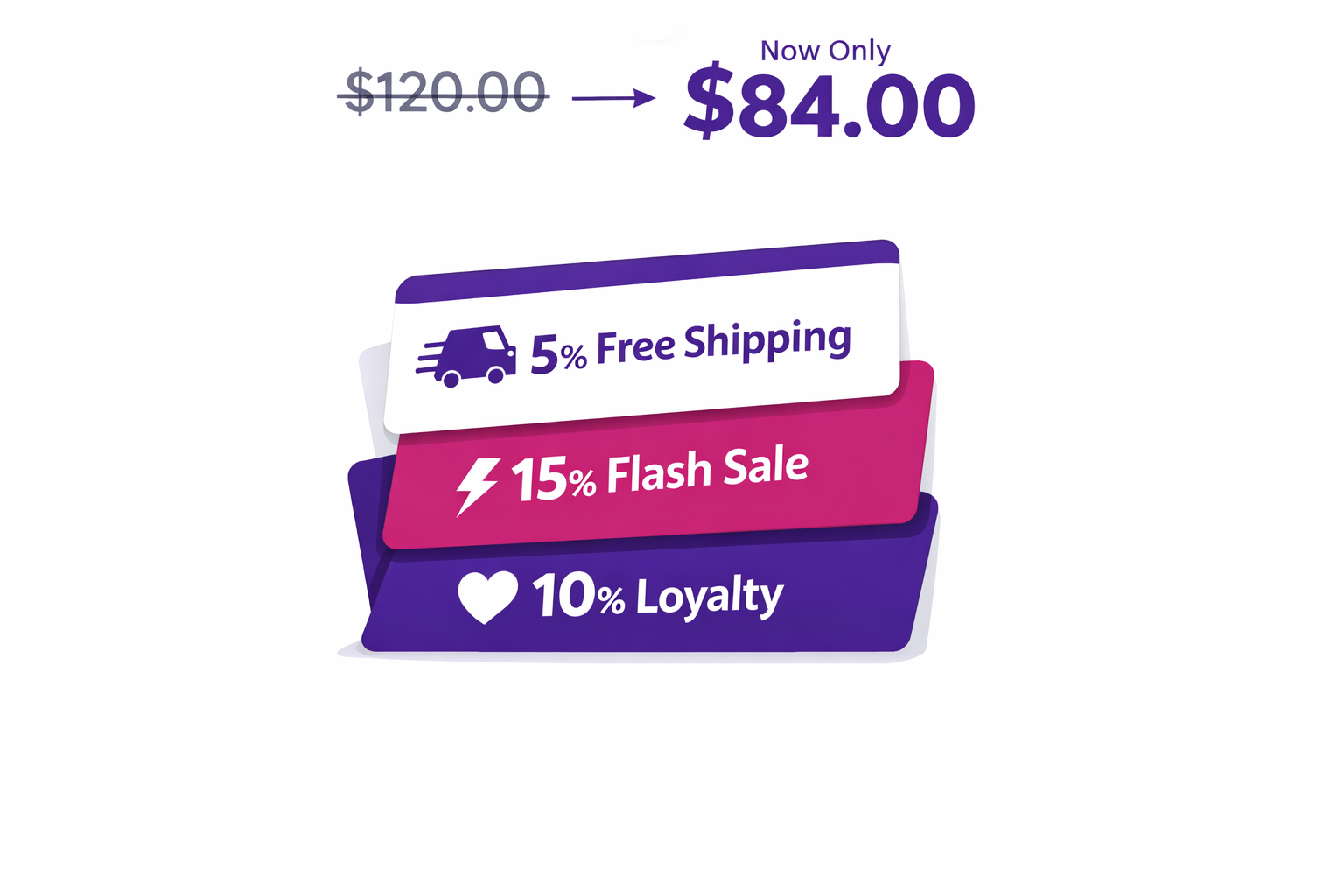
Your customer logs in to your store. They’re tagged “VIP” (15% off always). You’re running a flash sale (20% off). They have a referral code from a friend (10% off). They’re also eligible for free shipping (normally $15). Understanding Shopify discount stacking is the key to making all of these work together smoothly and showing customers one clean, compelling price.
In Shopify’s native system, here’s what happens at checkout:
- The VIP discount applies (15% off)
- The flash sale discount applies (20% off)
- The referral code applies (10% off)
- Free shipping applies (saves $15)
But wait. How does this work mathematically? Does the customer get 15% + 20% + 10% = 45% off? Or does each percentage apply to the remaining amount after the previous discount? How many codes can actually be applied?
And how does the customer understand what they’re saving?
These are the real challenges of discount stacking in Shopify. The platform supports it, but with significant limitations and UX challenges.
Shopify’s Native Discount Stacking Rules
Shopify discount stacking follows a specific set of rules that every merchant should understand before building a promotional strategy.
- Automatic discounts and discount codes can combine. A customer can apply one automatic discount (from your admin) plus multiple discount codes (entered by the customer or auto-applied via Flow).
- Maximum of 5 discount codes per order. A single customer cannot stack more than 5 discount codes in one order. This is a hard limit.
- Stacking method: Discounts apply in order from most restrictive to least restrictive (Shopify’s logic). The display shows each as a separate line item.
- Display: Each discount appears as its own line in the order summary:
- Discount (VIP): $20
- Discount (Flash Sale): $25
- Discount (Referral Code): $15
- Free Shipping: $15
- Total savings: $75
The math works, but the UX is messy. The customer sees four separate discount lines. They don’t see a clean “Was $200, Now $125” display. They see a confusing list.
It’s also worth noting that Shopify does not allow two product-level discounts to stack on the same line item. If two product discounts target the same product, Shopify applies only one (typically the higher value). This is an important constraint for merchants running complex loyalty or tiered pricing setups.
When the 5-Code Limit Becomes a Problem
For many merchants, five discounts are not enough.
Real scenario:
- Customer loyalty discount (membership benefit)
- Product-specific discount (discount on a specific category)
- Bundle discount (buy 3 or more and save)
- Flash sale discount
- Free shipping discount
- Referral reward discount
That’s six discounts. Shopify allows five. One doesn’t apply. Which one? Shopify decides. The merchant has no control, and the customer is confused.
Another scenario for B2B merchants:
- A wholesale pricing tier (discount 1)
- A volume discount for ordering 10 or more units (discount 2)
- A seasonal bulk discount (discount 3)
- Free shipping for bulk orders (discount 4)
- A loyalty tier bonus (discount 5)
- A promotional code the customer holds (discount 6)
Again, six discounts. One doesn’t apply.
For merchants trying to build sophisticated loyalty systems, the five-code limit is a real constraint. If you’re running into problems beyond just stacking, you might also want to read about why Shopify discounts don’t show until checkout and how to fix visibility issues across your store.
How Adsgun Solves Shopify Discount Stacking
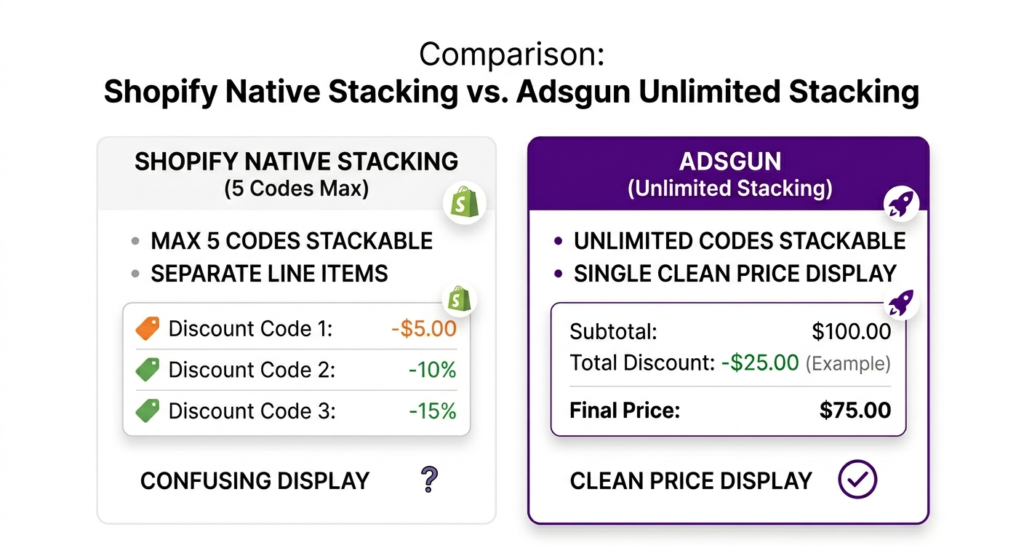
Adsgun solves this by creating its own discount engine that can combine 20 or more discounts in a single promotion and still display cleanly as one Was/Now price.
How the Stacking Engine Works
Instead of creating five separate discount codes, you create:
- One Adsgun promotion that acts as the master discount
- Stacking rules defined within that promotion:
- Apply 15% if the customer has the VIP tag
- Apply an additional 20% for the flash sale
- Apply an additional 10% for a referral
- Apply free shipping on top
- The result: One clean display showing “Was $200, Now $125” with a badge showing “SAVE $75”
The customer sees one price, not multiple discount line items. The math is clean. The display is elegant.
Technical Difference
- Shopify native: Five separate discount applications, each with its own logic and display
- Adsgun: One master discount with layered conditions, displayed as a single cumulative Was/Now price
Real-World Example: Tiered Loyalty + Flash Sale Stacking
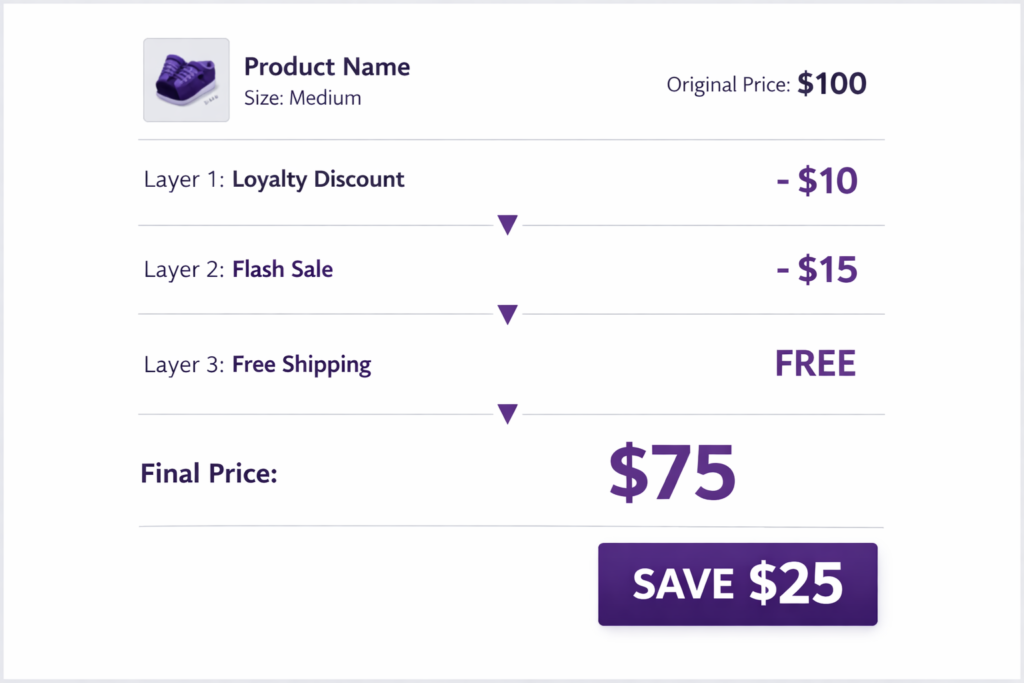
Promotion in Adsgun:
- Name: “VIP Flash Sale Stack”
- Base discount: 10% off all products
- Stacking rules:
- IF customer has tag “VIP”: apply additional 15%
- IF customer has tag “Loyalty_Gold”: apply additional 20%
- IF promotion is active (scheduler-based): apply additional 15% flash sale
- Always: free shipping
Scenarios:
- Regular customer, no tags: 10% off + free shipping. Display: “Was $100, Now $90”
- VIP customer: 10% base + 15% VIP = 25% off + free shipping. Display: “Was $100, Now $75”
- Loyalty Gold customer: 10% base + 20% Gold = 30% off + free shipping. Display: “Was $100, Now $70”
- VIP customer during flash sale: 10% base + 15% VIP + 15% flash = approximately 40% off + free shipping. Display: “Was $100, Now $60” with a “VIP Flash Sale” badge
All of these discounts stack seamlessly. One promotion. One clean display. Multiple conditions.
Step-by-Step Guide to Shopify Discount Stacking with Adsgun
Step 1: Plan Your Stacking Rules
Before creating anything in Adsgun, map out your logic:
- Base discount: What does everyone get? (e.g., 10% off)
- Conditional discounts: What additional savings apply based on conditions?
- VIP tag: +15%
- Flash sale timing: +20%
- Referral condition: +10%
- Free shipping: always
Step 2: Create the Promotion in Adsgun
- Open Adsgun
- Click Create New Promotion
- Promotion type: Select “Public” (or “Customer Account” if VIP-only, or “URL-Targeted” if campaign-specific)
- Name: “Stacked VIP Flash Sale”
- Base discount: 10% off all products
Step 3: Add Stacking Conditions
In the promotion settings, look for “Stacking” or “Advanced Conditions”:
- Condition 1: IF customer has tag “VIP” – apply additional 15%
- Condition 2: IF scheduler is active (Flash Sale window) – apply additional 20%
- Condition 3: Always – free shipping
Step 4: Customize Display
- Strike-through color: Your brand color
- Sale price color: Green or a contrasting color
- Badge: “VIP Flash Sale” or “Stacked Savings”
- Display format: Show the final cumulative price as “Was $100, Now $60”
- Optional: Show a breakdown such as “You save $40 (10% loyalty + 15% VIP + 15% flash)”
Step 5: Test
- Create a test customer account
- Tag them “VIP”
- Add a product to cart
- Verify the discount reflects the VIP stacking
- Log out and add the same product without the tag
- Confirm only the base discount applies
Step 6: Publish
The promotion is live. Customers with appropriate tags and conditions automatically see the stacked discount.
Combining Stacking with Scheduled Promotions
For maximum flexibility, combine stacking with Adsgun’s promotion scheduler:
Scenario: A retail store wants different discount tiers throughout the year.
- Off-season (Jan–Feb): Base 5% loyalty for VIP
- Regular season (Mar–Oct): Base 10% loyalty for VIP + 15% for Gold tier
- Holiday season (Nov–Dec): Base 20% for all, plus 25% for VIP, plus 30% for Gold
Each tier is a separate promotion in Adsgun with its own scheduler. During October, the “Regular season” promotion is active. In November, it automatically disables and the “Holiday season” promotion enables. Customers automatically see different stacked discounts based on the season, with no manual intervention needed.
Display Strategies: How to Show Stacked Discounts Clearly
When stacking discounts, the display matters enormously. A customer confused about how they got 40% off might doubt the deal or abandon the order.
Good display strategies:
- Simple Was/Now: “Was $100, Now $60.” Simple, clear, no confusion.
- Breakdown (optional): “Was $100, Now $60. You save $40: 10% loyalty + 15% VIP + 15% flash.” Shows the math and builds trust.
- Badge with percentage: “Was $100, Now $60” with a “Save 40%” badge for quick visual confirmation.
Avoid:
- Showing all discounts as separate line items (confusing, can look like fraudulent stacking)
- Showing an approximate final price without any breakdown
- Burying stacking terms in fine print
Adsgun handles display automatically. You choose the format, and it renders consistently across product pages, cart, and checkout. This is closely related to how strike-through pricing for discount codes works across your store.
FAQ: Shopify Discount Stacking
Q: If I stack discounts, am I giving away too much margin?
A: It’s a business decision. Stack discounts strategically, not universally. Consider limiting stacking to VIP customers or specific promotional windows. Use conversion and AOV data to determine whether the increased sales outweigh the margin impact.
Q: Can I limit stacking (for example, only allow 2 discounts to combine)?
A: Yes. When setting up stacking rules in Adsgun, you define exactly which discounts can combine with which. You control the logic fully.
Q: Does stacking work for free shipping?
A: Yes. Free shipping can be part of a stacked promotion. Adsgun calculates its value and includes it in the total savings display.
Q: Will stacking confuse customers?
A: Not if displayed clearly. A single “Was $100, Now $60” price is crystal clear. If you want to show a breakdown, you can, but the clean Was/Now display is usually enough.
Ready to Stack Discounts Without Hitting the Code Limit?
Shopify’s five-code limit is a real constraint for sophisticated merchants. Adsgun’s unlimited stacking engine lets you combine 20 or more discounts in a single promotion while displaying the result as one clean Was/Now price.
No more juggling multiple codes. No more hitting hard limits. Just elegant, stacked discounts that drive conversions.
Start your free 7-day trial and create your first stacked promotion today. No credit card required.




