Shopify Google Ads Promotions: Show Discounted Prices to Ad Traffic Only
Your Google Ad promises 20% off but your landing page shows full prices. A Shopify Google Ads discount with URL-targeted promotions fixes this disconnect: ad traffic sees the deal instantly, Quality Score improves, and CPC drops alongside higher conversions.
Why Your Google Ad Promise Breaks on the Landing Page
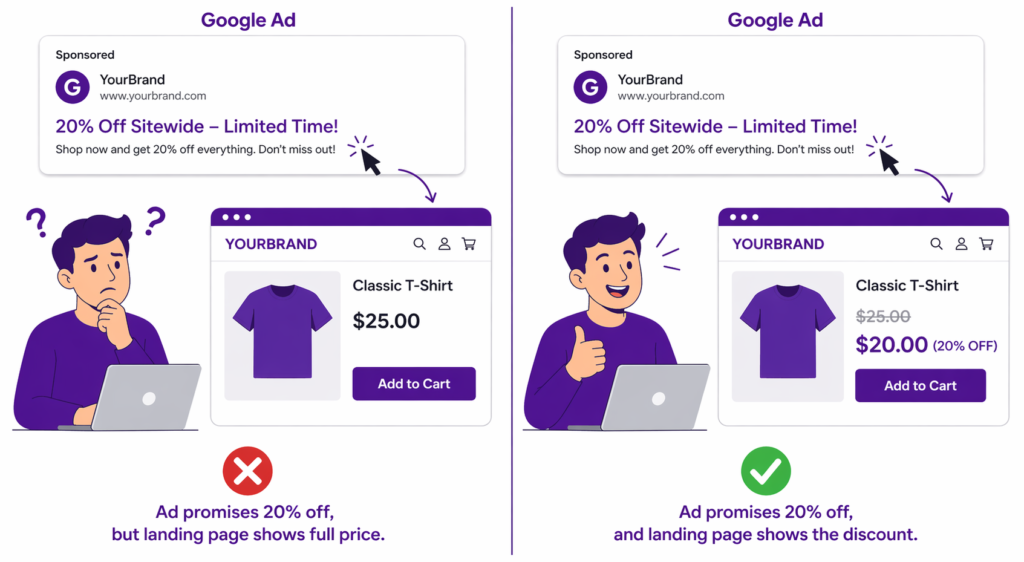
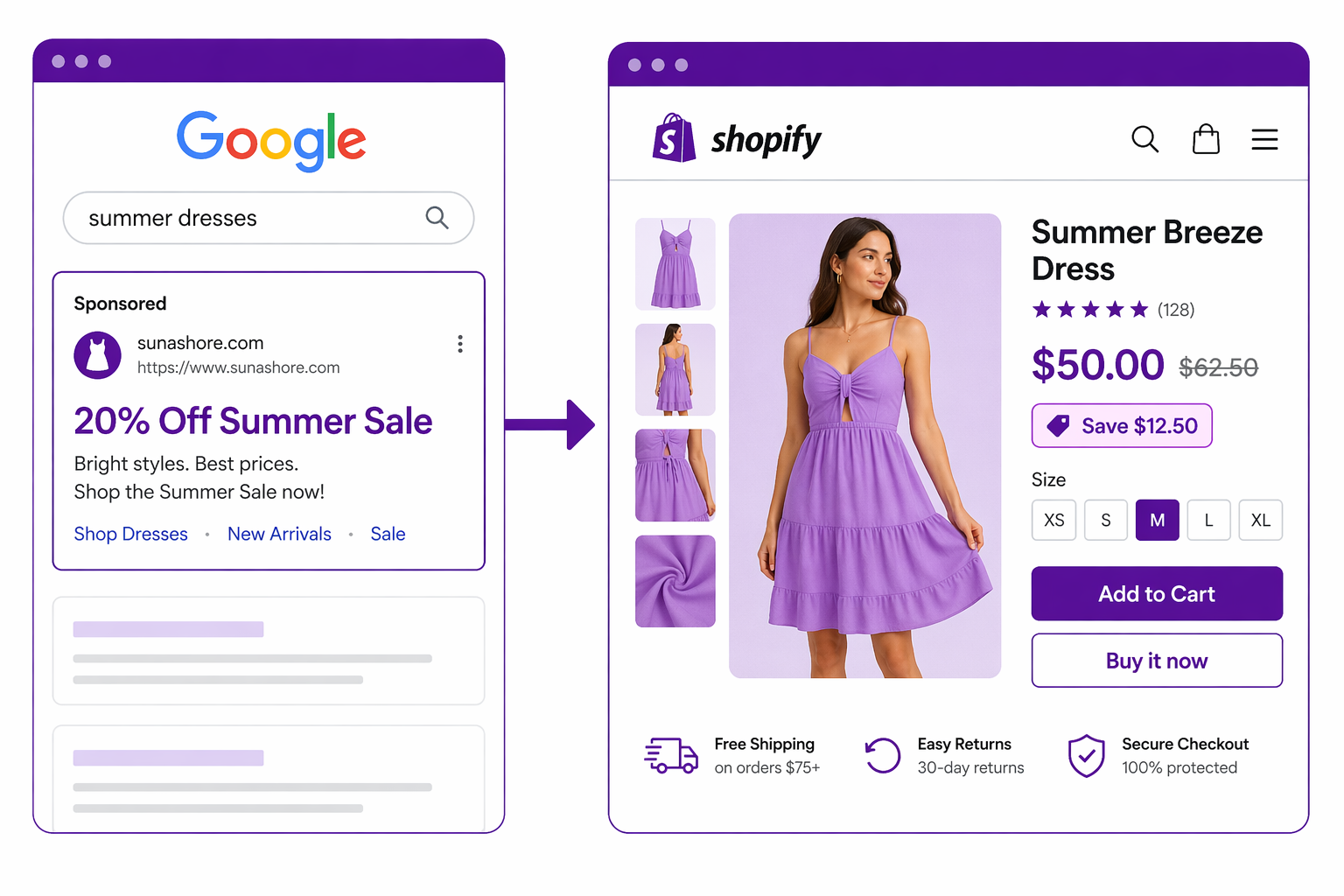
Your Google Ad headline reads: “Summer Sale: 20% Off Everything.” Someone clicks it. They land on your Shopify store. They see a product at full price, $50. No discount visible, no strike-through, no “save $12.50” message. They are confused. The ad promised 20% off, but the page shows full price. They bounce. You paid for that click (let us say $2). The conversion did not happen. Cost per click wasted. This is the fundamental problem: most Google Ads promise a discount, but the landing page does not show the savings until checkout. A shopify google ads discount that is invisible until the final step is not really a discount from the shopper’s perspective, it is a hidden surprise they never stuck around long enough to find.
How Google Quality Score Ties Your CPC to Landing Page Experience
A properly configured shopify google ads discount does more than close a single abandoned click. It directly improves how Google scores your campaign. Google’s own documentation lists landing page experience as one of the three components of Quality Score, alongside expected click-through rate and ad relevance.
If an ad promises a discount and the landing page does not display that discount prominently, Google flags it as poor landing page experience. Your Quality Score drops.
The math (illustrative, exact CPC varies by auction):
- Quality Score 3/10: higher CPC, lower ad rank
- Quality Score 7/10: meaningfully lower CPC, higher ad rank
- Quality Score 10/10: lowest CPC, top of the page
A Quality Score improvement from 3 to 7 can reduce your CPC by 25-35%. Over a year, on high-volume campaigns, that compounds into significant savings. Industry analysis of non-branded keywords found that ads rated “Above average” for both landing page experience and ad relevance had CPCs roughly 36% below average.
The lever: Make the landing page show the discount immediately. Google sees “ad promised discount, page shows discount” as a consistent experience, which lifts your landing page score and ultimately your Quality Score.
How Adsgun URL-Targeted Promotions Power Your Shopify Google Ads Discount
Adsgun’s URL-targeted promotion type detects Google’s click ID (`gclid`) automatically.
Here’s the flow:
- You create a promotion in Adsgun: “Google Ads Summer Sale 20% Off”
- You set it to trigger on `gclid`, which is Google’s automatic click ID that Adsgun captures
- In Google Ads, you use your store URL as the final URL
- A customer clicks your Google Ad
- The landing page loads with the `gclid` parameter attached (Google adds it automatically through auto-tagging)
- Adsgun detects the parameter and activates the 20% discount
- The customer sees strike-through pricing from the moment the page loads
- The ad promise matches the landing page reality
- Google reads this as excellent landing page experience
- Your Quality Score improves and your CPC drops
All of this is automatic. You do not need to do anything extra, because Google adds the `gclid` parameter to every click as long as auto-tagging is enabled in your Google Ads account.
Step-by-Step: Setting Up a Shopify Google Ads Discount
Let us set up a concrete campaign: “Google Ads traffic gets 20% off summer sale.”
Step 1: Create Your Shopify Google Ads Discount in Adsgun
- Open Adsgun in your Shopify admin
- Click “Create Promotion”
- Name it: “Google Ads Summer Campaign”
- Attach a 20% discount code
- Set promotion type to URL-Targeted
- In the URL parameter field, enter `gclid`, which is the parameter Google attaches to every paid click
- Set visibility to show on product pages, collections, cart, and checkout
- Publish
Step 2: Get the Adsgun URL
The simplest approach is to use `https://yourstore.com/` as your landing page. Google automatically appends `?gclid=XXXXXXXXX` to every click, Adsgun detects it, and applies the promotion.
If you prefer a product-specific landing page, use something like `https://yourstore.com/products/summer-sale`. The `gclid` will still be appended by Google, and Adsgun will still detect it.
You can also build a discount link manually if you want to combine the gclid trigger with a fallback `adsguncode` parameter.
Step 3: Set Up Your Google Ads Campaign
- Log into Google Ads
- Create or edit your Summer Sale campaign
- Go to “Ads & Extensions” and select your ad
- Edit the “Final URL” field
- Set it to `https://yourstore.com/` or your summer sale landing page
- Confirm that auto-tagging is enabled in Account Settings (so Google appends `?gclid=…` to every click)
- Save and publish
Step 4: Optional, Add UTM Parameters
For Google Analytics tracking, you can use:
`https://yourstore.com/?utm_source=google&utm_medium=cpc&utm_campaign=summer_sale`
Adsgun still detects the `gclid` parameter (Google adds it behind the scenes even when UTMs are present), and applies the discount.
Step 5: Launch and Monitor
- Your ads go live
- Click-through rate should improve because the ad promise now matches the landing page
- Conversion rate should improve because the discount is visible
- Quality Score should improve because landing page experience is now excellent
- CPC should decrease over the next 1 to 2 weeks as Quality Score catches up
Step 6: Measure the Impact
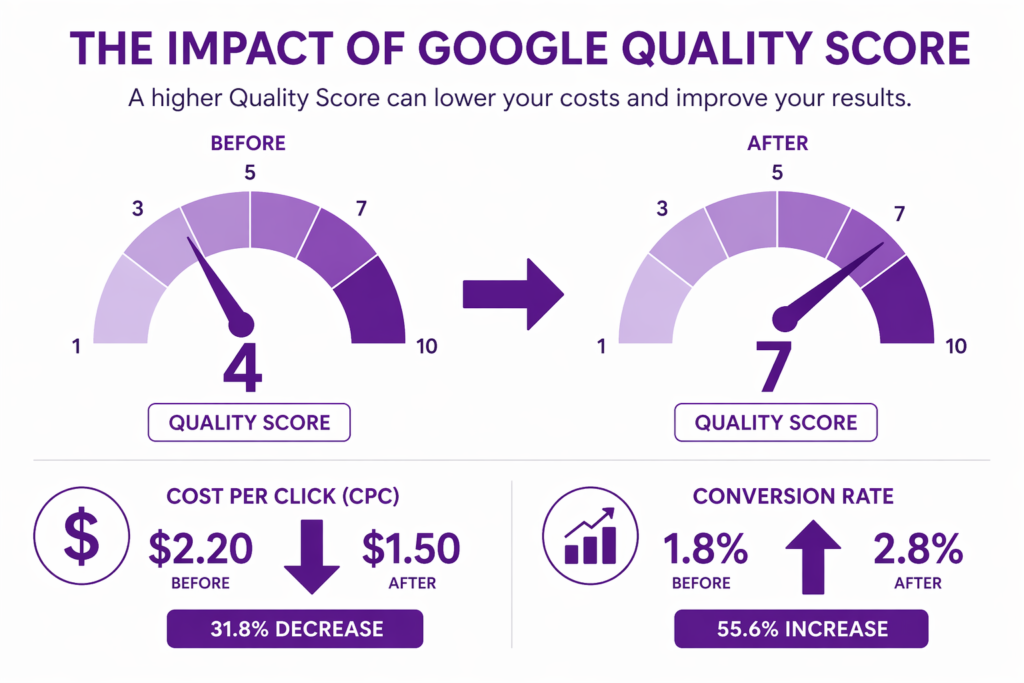
Compare before and after implementation. A typical improvement pattern looks like this:
- Before: Quality Score 4, CPC $2.20, conversion rate 1.8%
- After: Quality Score 7, CPC $1.50, conversion rate 2.8%
The difference compounds. Lower CPC plus higher conversion equals dramatically better ROAS.
Advanced: Multiple Google Ads Campaigns With Different Promotions
You can run 10 or more Google Ads campaigns simultaneously, each with a different promotion:
- Campaign 1: “Summer Sale 20% Off” uses Adsgun promotion A
- Campaign 2: “Flash Friday 30% Off” uses Adsgun promotion B
- Campaign 3: “New Customer 15% Off” uses Adsgun promotion C
Each campaign has a different final URL with its own UTM or custom parameter:
- Campaign 1 URL: `https://yourstore.com/?utm_campaign=summer_sale`
- Campaign 2 URL: `https://yourstore.com/?utm_campaign=flash_friday`
- Campaign 3 URL: `https://yourstore.com/?utm_campaign=new_customer_offer`
You create three separate Adsgun promotions, each triggered by a different parameter value.
Now:
- Visitors from Campaign 1 see 20% off
- Visitors from Campaign 2 see 30% off
- Visitors from Campaign 3 see 15% off
All from the same product pages. All without custom landing pages. All traffic sees the exact discount the ad promised.
Analytics show which campaign drove the most revenue, which lets you double down on winners and kill underperformers without rebuilding landing pages.
The Quality Score Math: What Better Landing Pages Are Worth
Here is an illustrative example to show the compounding effect:
Baseline Campaign:
- Monthly clicks: 10,000
- CPC: $2.00
- Monthly ad spend: $20,000
- Conversion rate: 2% (200 conversions)
- Revenue: Revenue: $40,000 at $200 average order value
- ROAS: 2.0x
After Implementing a URL-Targeted Shopify Google Ads Discount
- Monthly clicks: 10,000 (same traffic)
- CPC: $1.45 (Quality Score improvement + better landing page)
- Monthly ad spend: $14,500
- Conversion rate: 2.6% (higher because the discount is now visible)
- Conversions: 260
- Revenue: $52,000
- ROAS: 3.6x
The delta
- Ad spend reduced by $5,500 per month, or $66,000 per year
- Conversions increased by 60 extra orders per month, or 720 per year
- Revenue up $12,000 per month, or $144,000 per year
- ROAS improved roughly 80%
The actual numbers will vary by vertical, auction competition, and baseline performance. The pattern holds: lower CPC from Quality Score plus higher conversion from visible pricing equals dramatic improvement.
Common Mistakes With URL-Targeted Google Ads Promotions
Mistake 1: Using the wrong parameter name
Google’s click ID is `gclid`. Facebook’s is `fbclid`. TikTok’s is `ttclid`. Do not mix them up. Use `gclid` for Google Ads.
Mistake 2: Not setting up the final URL correctly in Google Ads
If your Google Ads final URL does not point to the store where Adsgun is installed, the parameter never reaches the landing page and the discount does not activate.
Mistake 3: Creating a promotion but not publishing it
The promotion must be published (live) in Adsgun. A draft promotion does not activate for any traffic, paid or organic.
Mistake 4: Not verifying the discount displays
After setup, test it:
- Open one of your live ads in an incognito window
- Click through it yourself
- Confirm the discount displays on the landing page
- Confirm the discount applies in cart and at checkout
Testing catches errors before they hurt a live campaign.
Mistake 5: Changing the discount after campaigns are live
If you lower the discount mid-campaign, update the ad copy at the same time. A mismatch between ad promise and landing page reality hurts Quality Score, which is exactly what you were trying to fix.
Combining Your Shopify Google Ads Discount With Other Channels
The same Adsgun promotion can power multiple channels at once:
- Google Ads:URL includes `utm_campaign=summer_sale`, Adsgun activates promotion A
- Facebook Ads: URL includes `utm_campaign=summer_sale`, same promotion A activates
- Email campaigns: URL includes `utm_campaign=summer_sale`, same promotion A activates
- Instagram bio: separate private link if you want followers-only pricing
All visitors who hit the shared parameter see the same discount, but each channel’s performance is tracked separately in Google Analytics.
This is powerful because you can test whether Google Ads or Facebook Ads is more efficient with an apples-to-apples comparison. Same offer, same landing page, different traffic source.
Best Practices for Google Ads Plus Adsgun
Match ad copy to discount. If your ad says “20% Off,” make sure the Adsgun promotion is 20%. A mismatch hurts Quality Score more than running no discount at all.
Check Quality Score weekly. If scores trend up, your optimization is working. If they trend down, audit the landing page first.
One offer per campaign. Do not run a “20% off” campaign and a “30% off” campaign pointing to the same landing page. Each campaign needs a distinct offer reflected on the page.
Use the Adsgun scheduler for time-limited campaigns. If your ad runs June 1 through June 30, set the promotion to auto-activate on June 1 and auto-disable on June 30. No manual toggling, no risk of running the offer a day too long.
Monitor Quality Score trends, not single snapshots. A 7 today and a 4 next month means something is slipping. Treat it like any other campaign KPI.
Close the Disconnect Today
Google Ads success hinges on matching ad promise to landing page reality.
When ad copy says “20% Off Summer Sale” and the landing page shows “$50 $62.50 Save $12.50,” Google reads excellent landing page experience. Your Quality Score improves. Your CPC drops. Your conversion rate rises.
The result: better ROAS, lower customer acquisition cost, and a higher profit margin on paid traffic.
This is why URL-targeted promotions are one of the highest-impact features for any Google Ads account running on Shopify.