
Shopify Strike-Through Price Not Working: Complete Troubleshooting Guide
Your Shopify strike-through prices aren't showing. We walk through 6 diagnostic checks to pinpoint the exact cause and the fix for each.
Shopify Strikethrough Price Not Showing: What’s Causing It?
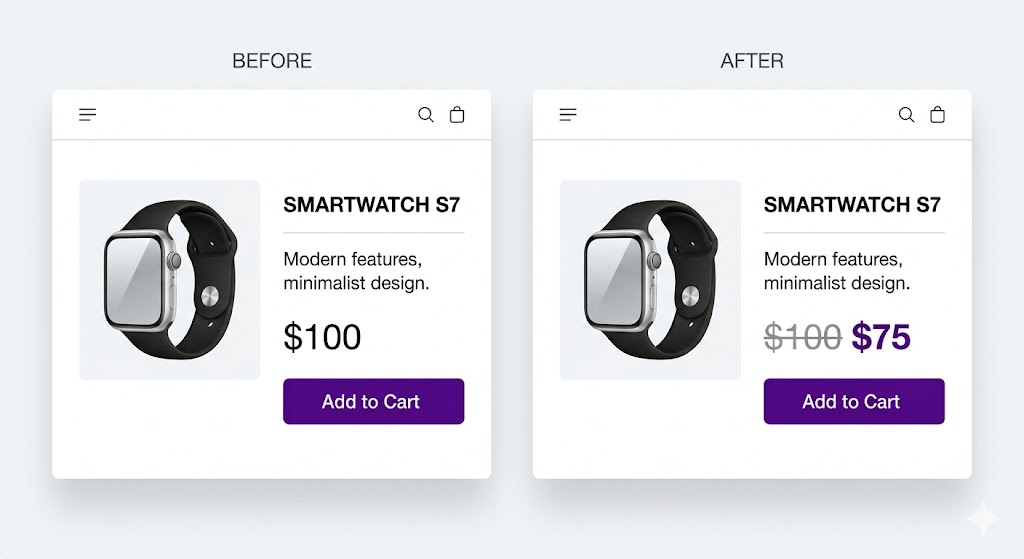
You’ve had strike-through pricing working fine on your Shopify store. If you’re dealing with shopify strikethrough price not showing, it can feel like something suddenly broke.
Here’s the systematic way to diagnose and fix it.
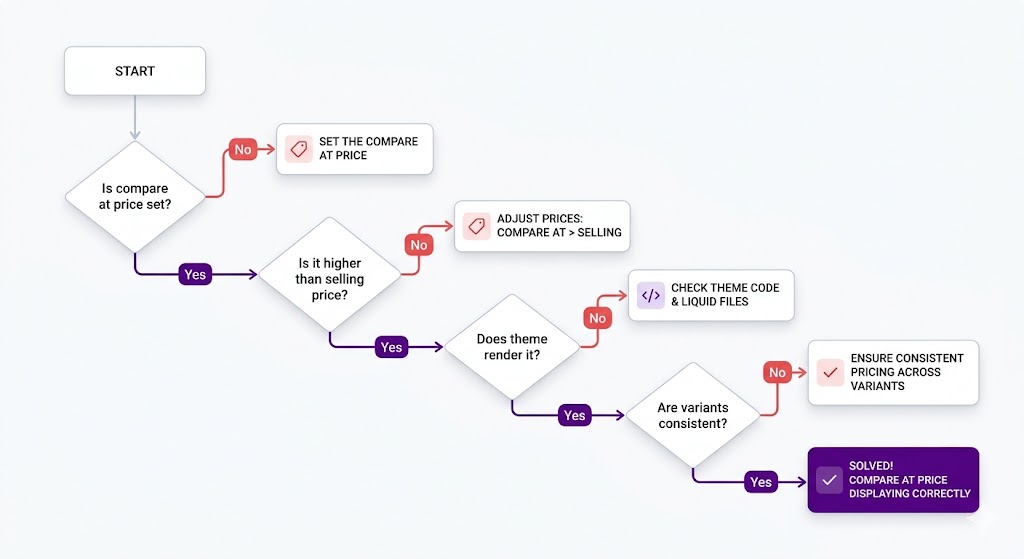
Check 1: Is Compare at Price Actually Set?
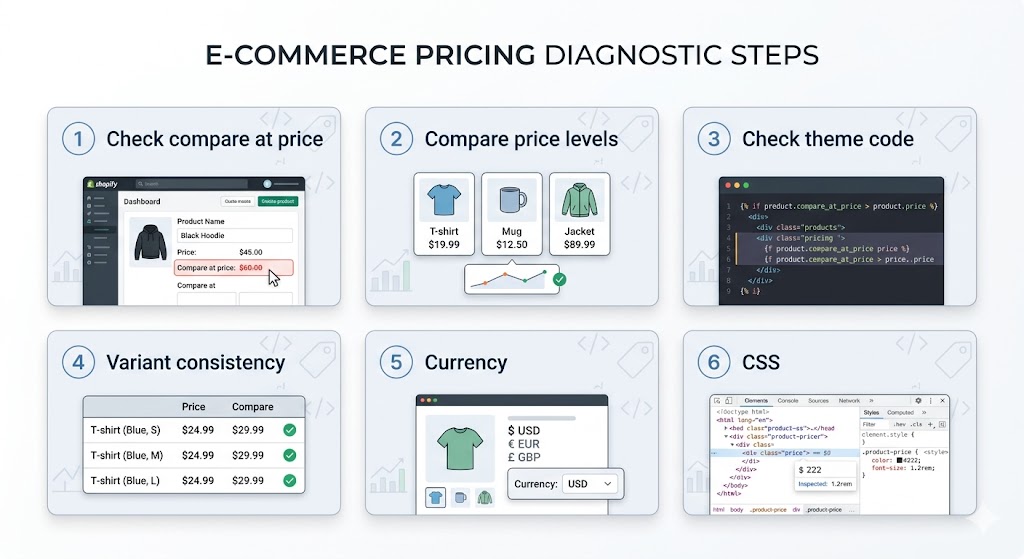
First things first: is there a compare at price value set on the product?
How to check:
- Go to your Shopify admin
- Click Products
- Click on a product where you expect to see strike-through
- Scroll to Pricing
- Look for “Compare at price” field
If it’s empty or blank, that’s your problem. There’s no compare at price set, so there’s nothing to strike through.
How to fix:
Set a compare at price value higher than the selling price. If the selling price is $75, set compare at price to $100 (or whatever the original price was).
If you have multiple variants, you need to set compare at price on ALL variants individually. Check the “Variants” section below the pricing fields.
In most cases, the shopify strikethrough price not showing issue comes down to how compare at price is configured.
Check 2: Is Compare at Price Higher Than Selling Price?
This is sneaky. You might have set compare at price, but if it’s equal to or lower than the selling price, Shopify won’t show it struck through.
How to check:
Look at the two fields:
- Selling price: $75
- Compare at price: $100
Compare at price needs to be HIGHER.
The mistake: If they’re both $100, or both $75, Shopify assumes there’s no discount and hides the strike-through display.
How to fix:
Change compare at price to be higher than selling price. Even $0.01 more will trigger the strike-through display.
Check 3: Does Your Theme Actually Render Compare at Price?
Not all Shopify themes display compare at price. Some themes show the selling price only.
How to check:
- View a different Shopify store using your same theme (if possible)
- Check if they show compare at price on their products
- If not, your theme simply doesn’t support it
You can also check your theme’s documentation or contact theme support.
How to fix:
Option A: Switch to a theme that supports compare at price (most modern themes do).
Option B: Contact your theme support and ask if they can enable compare at price display. Many will do this on request.
Option C: Use an app like Adsgun that doesn’t depend on theme support.
Check 4: Are All Variants Consistent?
If you have a product with variants (sizes, colors, etc.), each variant has its own compare at price.
If some variants have compare at price set and others don’t, the product might show a strike-through on some variants but not others. Or if the default variant (the first one) doesn’t have compare at price, the product page might not show strike-through at all.
How to check:
Go to your product > Variants section. Look at the “Compare at price” column. Are all variants set to the same value?
The problem:
When you set compare at price on one variant, Shopify doesn’t automatically copy it to all other variants. Each variant is independent. If half your variants have $100 compare at price and the other half have $0 or blank, you have inconsistency.
How to fix:
You have two options:
Option A: Manually edit each variant and set compare at price to $100. Click into each variant, set the value, save.
Option B: Bulk edit. In the Variants section, click the “Compare at price” column header and select “Set compare at prices.” Set all variants to the same value at once.
Check 5: Currency and Markets
If you’re using Shopify Markets (selling in multiple currencies), compare at price might be inconsistently set across markets.
How to check:
Go to Settings > Markets. For each market (US, CA, etc.), check a product’s compare at price. Is it set in all markets?
The problem:
If you set compare at price only in your primary market (USD) but not in other markets (CAD, EUR), the strike-through won’t show for customers in those markets.
How to fix:
For each market, go to a product and set compare at price to the appropriate value for that currency. You can bulk edit this by going to Products > Edit > Variants > Compare at price.
Check 6: Is CSS Hiding It?
Rarely, custom CSS is hiding the compare at price element even though it exists in the HTML.
How to check:
- Right-click on the product page where you expect to see the strike-through
- Select “Inspect Element”
- Look for an HTML element containing “compare_at_price” or similar text
- Look in the Styles panel to see if there’s a CSS rule with
display: noneorvisibility: hidden
If the element exists in HTML but CSS hides it, that’s your problem.
How to fix:
Contact your theme support or a developer to find and remove the CSS rule hiding the element.
If you’ve gone through these steps and still see the shopify strikethrough price not showing problem, the issue is usually deeper than a simple setting.
The Pattern: Compare at Price Is Fragile
Notice what all these checks have in common: they all involve manually setting values on products, checking theme support, managing variants separately, coordinating across markets, and hoping CSS doesn’t interfere.
Compare at price is powerful for simple cases, but it’s fragile at scale. One misconfiguration and strike-through disappears.
Best Fix for Shopify Strikethrough Price Not Showing
Instead of troubleshooting compare at price, use Shopify’s actual discount system (automatic discounts or discount codes) with Adsgun.
Adsgun reads the discount, calculates the price automatically, and displays strike-through pricing. There’s no compare at price to set, no variants to manage individually, no CSS to worry about.
It works because Adsgun doesn’t depend on any of the fragile pieces:
- It doesn’t rely on theme support
- It handles variants automatically
- It works across all markets automatically
- It’s immune to CSS because it uses Shopify’s app framework
No troubleshooting. It just works.
Ready to Fix This?
If you’re spending time troubleshooting compare at price, it’s time to upgrade. Fixing the shopify strikethrough price not showing issue manually can be time-consuming and error-prone.
Try Adsgun free for 7 days and see strike-through pricing that works every time, every page, every variant.




