
Shopify Discount URL Parameters: Activate Promotions From Any Link
URL parameters tell your store which visitor came from which campaign. Use a Shopify discount URL parameter to show different prices to different audiences, automatically, from the moment they land.
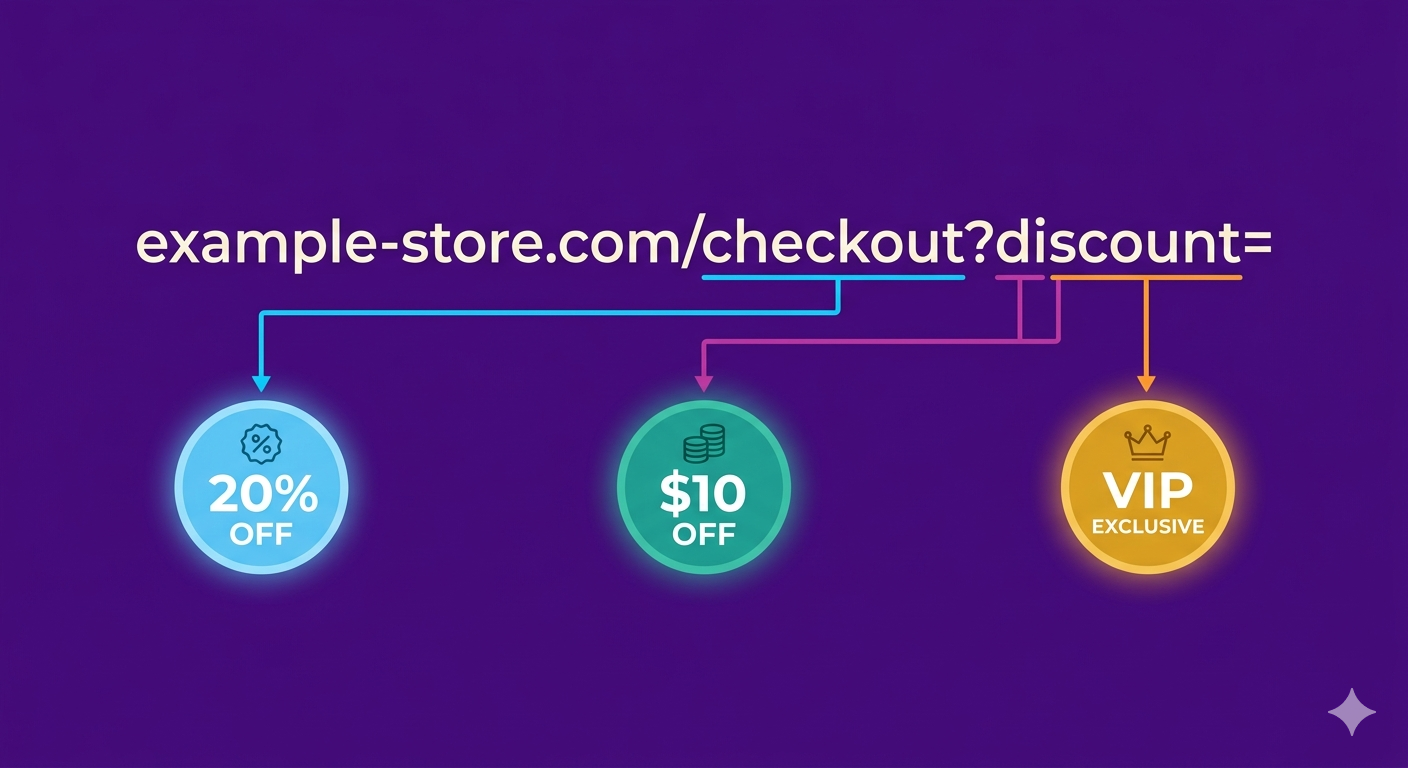
What Are Shopify Discount URL Parameters and How Do They Work?
A Shopify discount URL parameter is a piece of information added to the end of a web address that tells your store something about the visitor. You’ve seen them before:
https://example.com/products/summer-tee?campaign_id=instagram_july
Everything after the ? is a parameter. In this case, campaign_id=instagram_july tells your store: “This person came from the Instagram July campaign.”
URL parameters work like this: a link includes a parameter you create, a visitor clicks the link, your store receives the parameter value, and your store can now treat this visitor differently based on that parameter. Think of it as a digital tracking tag that travels with the visitor. When they click your link, the tag arrives with them, and your store recognizes them as part of a specific group.
Shopify’s Native Discount URL: What It Does and What It Doesn’t
Shopify has a built-in way to apply discounts via URL. You can create a link like this:
https://example.com/discount/SUMMER20?redirect=/products/summer-tee
When someone clicks this link, Shopify automatically applies the SUMMER20 discount code to their cart and redirects them to the product page.
What this does: it applies the discount code immediately. What this doesn’t do: show the discount on the product page or anywhere before checkout.
The customer lands on your store, sees the full retail price, and doesn’t realize they’re getting a deal. They add items to their cart, proceed to checkout, and only then see the discount reflected in their order total. By that point, many customers have already left or are second-guessing their purchase.
This is the fundamental problem Shopify’s native URL discount approach doesn’t solve: visibility. The discount exists, but the customer doesn’t see it where it matters most — on the product page, collection page, and shopping cart. For a deeper look at why this happens by design, our guide on showing discounted prices on Shopify product pages breaks down all three methods and their trade-offs.
How Adsgun’s URL-Targeted Promotions Work
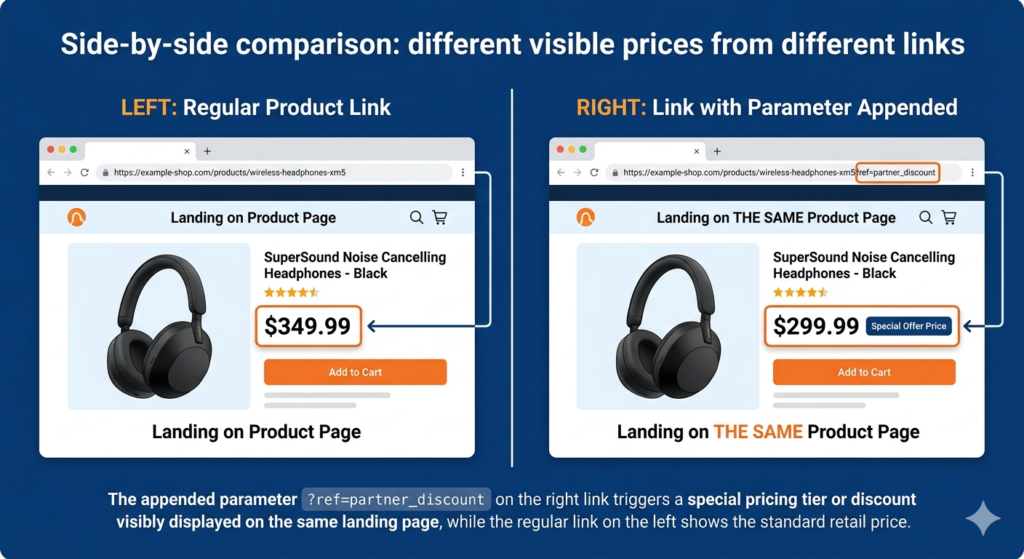
Adsgun solves this by combining two things: real Shopify discounts, which track accurately in your analytics, and URL parameter detection, which activates discounts only for visitors matching specific parameters.
Here’s how it works. You create a promotion in Adsgun and define a trigger. The trigger is a URL parameter. For example:
campaign_id=summerpromo=vip10src=instagramemail_campaign=weekly_newsletter
Now, when a visitor arrives at your store with that parameter in their URL, Adsgun detects it and activates the matching promotion. Here’s the crucial part: the visitor sees strike-through pricing on every page, including product pages, collections, cart, and checkout.
The same product that shows $50 to a regular visitor shows “$50 $62.50 You save $12.50″ to the visitor from your Instagram campaign. This happens in real time, automatically, with no code entry required. If you’re already familiar with how auto-applying Shopify discount codes works, URL-targeted promotions take that one step further by making the savings visible before checkout.
Step-by-Step: Setting Up a Shopify Discount URL Parameter with Adsgun
Let’s walk through a real example. You’re running a Google Ad campaign for summer sales and want everyone from that campaign to see a 20% discount.
Step 1: Create the Promotion in Adsgun
Log into your Shopify admin and open Adsgun. Click “Create Promotion” and name it something like “Summer Google Ads Campaign.” Set the discount to 20% off all products and choose URL-Targeted as the promotion type. In the URL parameter field, enter gclid (this is Google’s automatic click ID, which Adsgun captures automatically). Alternatively, add a custom parameter: enter campaign_id as the parameter name and summer_20 as the value.
Step 2: Generate the Campaign URL
Adsgun gives you the final URL:
https://yourstore.com/?campaign_id=summer_20
Step 3: Use This URL in Your Google Ad
Log into Google Ads, edit your campaign, and paste Adsgun’s URL into the “Final URL” field. Save and publish. Every customer who clicks your Google Ad now arrives with the campaign_id=summer_20 parameter, Adsgun detects it, and activates the 20% discount with visible strike-through pricing immediately.
Step 4: Add UTM Parameters for Analytics (Optional)
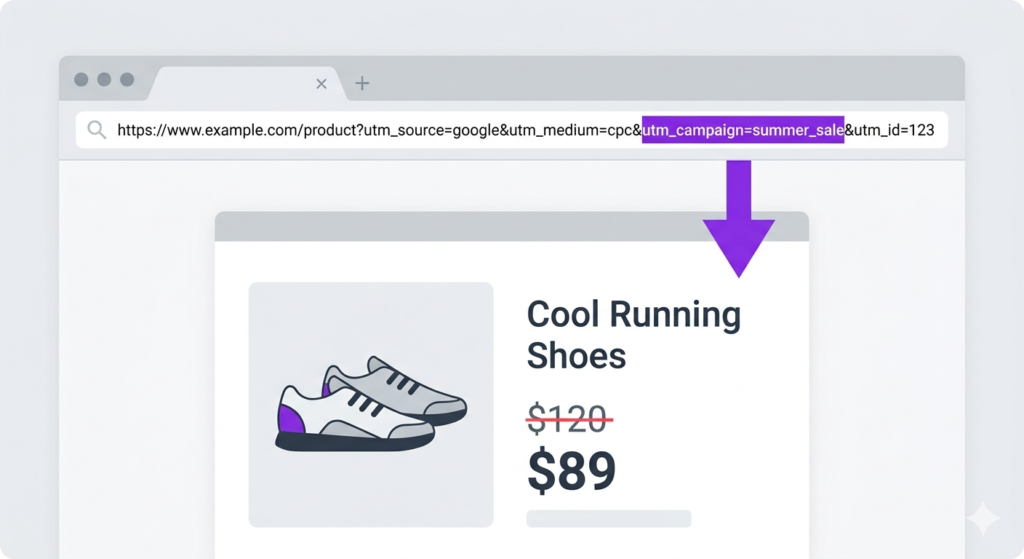
You can also add UTM parameters for Google Analytics using Google’s Campaign URL Builder:
https://yourstore.com/?campaign_id=summer_20&utm_source=google&utm_medium=cpc&utm_campaign=summer_sales
Google Analytics tracks the traffic and conversion data while Adsgun activates the discount. Both systems work together without interfering with each other.
Advanced: Run 20 Campaigns With 20 Different Promotions
Here’s where URL-targeted promotions become powerful. Imagine you run 20 different paid ad campaigns simultaneously: Google Ads Summer Sale, Google Ads Flash Friday, Facebook VIP Program, Instagram TikTok Follower Exclusive, Email Newsletter Subscriber Offer, and multiple influencer-specific campaigns.
Without a system like Adsgun, managing 20 different promotions would be chaos. You’d need 20 different discount codes, 20 different landing pages, or manual price adjustments across your store.
With Adsgun’s URL-targeted promotions, you create 20 promotions in Adsgun once, generate a unique URL for each one (Adsgun does this automatically), use each URL in its corresponding campaign, and then set it and forget it.
When a customer clicks your Google Ads link, they see the Google campaign discount. When they click your Instagram link, they see the Instagram exclusive discount. Same store, same product, different prices, all happening automatically based on which link they clicked. Each promotion’s data is tracked separately, so you can see exactly which campaign drove the most revenue.
The Psychology of Parameter-Based Offers
There’s a psychological advantage to URL-targeted promotions that many merchants overlook. When you show a customer a discount that feels made just for them, because they came from a specific channel or campaign, they perceive higher value. They think: “This offer is exclusive to people like me who clicked this ad or link.”
In reality, you might be running the same 20% discount across multiple channels. But the way it’s presented creates a sense of exclusivity because each customer sees it on a link they specifically clicked. This small perception shift often translates to higher conversion rates than generic sitewide sale promotions.
Common Parameter Names and What They Mean
If you’re integrating with different platforms, here are the standard parameter names you’ll encounter when working with a Shopify discount URL parameter setup:
gclid: Google Click ID (auto-captured from Google Ads)fbclid: Facebook Click ID (auto-captured from Facebook Ads)campaign_id: Custom parameter for your own campaign nameutm_source: Traffic source (google, facebook, email, etc.)utm_campaign: Campaign name (summer_sale, vip_exclusive, etc.)src: Short parameter for traffic sourcepromo: Promotion code or nameemail_list: Email segment (newsletter, vip, winback, etc.)ref: Referrer (influencer name, partner name, etc.)
You can create any parameter name you want. Adsgun will detect whatever you define.
Troubleshooting: Why Your Shopify Discount URL Parameter Isn’t Working
If you’ve set up a URL-targeted promotion and it’s not activating, work through this checklist:
1. Parameter spelling: Make sure the parameter name in your URL exactly matches what you entered in Adsgun. campaign_id is different from campaignid.
2. Case sensitivity: Parameters are case-sensitive. summer_20 is different from Summer_20.
3. Adsgun is active: Confirm Adsgun is installed and enabled on your store via your Shopify app settings.
4. Promotion is published: The promotion must be marked as “Active” in Adsgun, not left in draft mode.
5. URL is correct: If you’re using a custom parameter, copy the exact URL from Adsgun rather than typing it manually.
6. Browser cache: Try visiting the URL in an incognito or private window to avoid loading a cached version of the page.
Combining URL Parameters with Other Adsgun Features
URL-targeted promotions work beautifully with Adsgun’s other features:
Scheduler: Set a URL-targeted promotion to run only on specific dates. “Instagram campaign launches June 1, ends June 7” — set the scheduler, and the promotion automatically turns on and off.
Stacking: Run a public promotion (20% off everything) and a URL-targeted promotion ($15 off for email subscribers) simultaneously. Both discounts stack—the email subscriber gets both benefits.
Channels: URL-targeted promotions show strike-through prices on product pages, collections, cart, and checkout automatically. No additional setup needed.
Combining a Discount URL Parameter With Other Adsgun Features
URL-targeted promotions work well alongside Adsgun’s other features. With the Scheduler, you can set a URL-targeted promotion to run only on specific dates. An Instagram campaign that launches June 1 and ends June 7 can be fully automated with no manual intervention.
With Stacking, you can run a public promotion (20% off everything) and a URL-targeted promotion ($15 off for email subscribers) simultaneously. Both discounts apply together, and the email subscriber gets both benefits. You can read more about how Shopify compare at price interacts with real discount stacking in our dedicated guide.
The Channels feature means URL-targeted promotions automatically show strike-through prices on product pages, collections, cart, and checkout with no additional setup needed.
When a Shopify Discount URL Parameter Doesn’t Make Sense
Not every promotion needs a URL parameter. Storewide sales where everyone gets the same deal work better as a Public promotion with no targeting required. Seasonal discounts available to all customers are best handled with a Public promotion paired with the Scheduler. Customer-specific offers for logged-in VIP customers work better through a Customer Account promotion using tag-based targeting. Cart-based offers tied to order totals or product types are best left to Shopify’s built-in Automatic Discounts.
URL parameters are best for channel-specific, campaign-specific, or audience-specific offers where you control the source of the traffic. If you’re unsure which discount type fits your use case, Shopify’s official documentation on discount types covers the full range of native options.
Start Running URL-Targeted Discount Campaigns Today
If you’re running multiple paid campaigns, email segments, or partner channels, URL-targeted promotions are one of the highest-ROI features you can implement. Each campaign gets its own promotion. Each customer sees the exact offer that brought them to your store. Conversions increase because the discount they were promised is visible from the moment they land, not hidden until checkout.
Ready to set up your first URL-targeted campaign? Install Adsgun from the Shopify App Store and create your first URL-triggered promotion in minutes.




