
Shopify Compare at Price Not Showing on Collection Page: Causes & Fix
Your compare at price is set correctly but not showing on collection pages. We walk through the 4 most common causes, including variant inconsistency, theme limitations, price matching errors, and CSS issues, plus the fix for each.
The Frustration: It Works on Product Pages, Not Collections
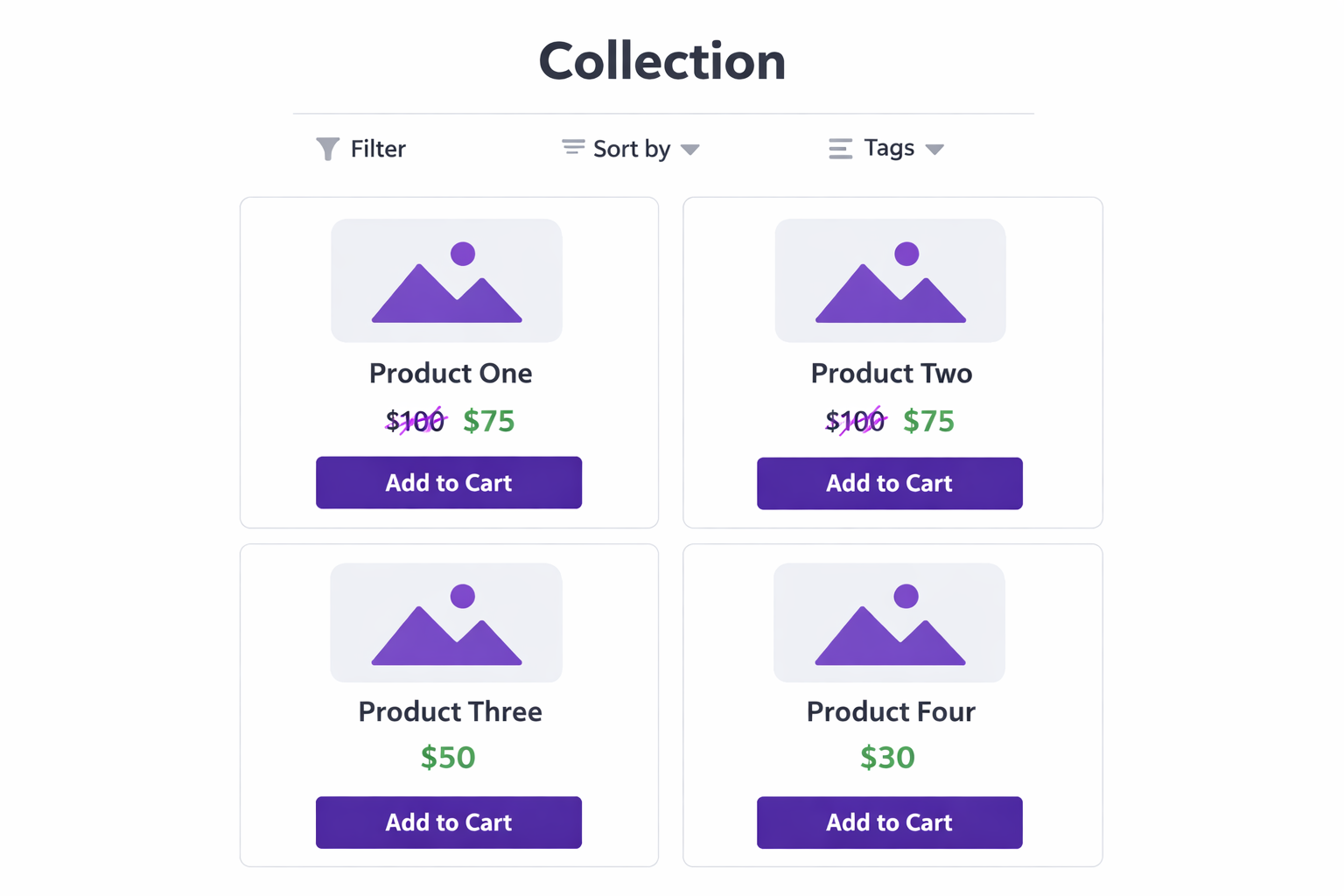
You’ve set up compare at price on your Shopify products. You check the product page. There it is, struck through and showing the discount. You click into your collections, but you see nothing. Some products show it, others don’t, or it’s missing entirely.
This is one of the most common issues Shopify merchants run into, and it’s almost always one of four causes. The good news is that each one is fixable.
Let’s walk through each cause, how to diagnose it, and exactly how to fix it.
Cause 1: Inconsistent Compare at Price Across Variants
This is the #1 culprit. Here’s what happens:
You have a product like “Winter Coat.” It comes in sizes XS through XL and colors black and navy. That’s 12 variants. You want to show it on sale for $75 (compare at $100).
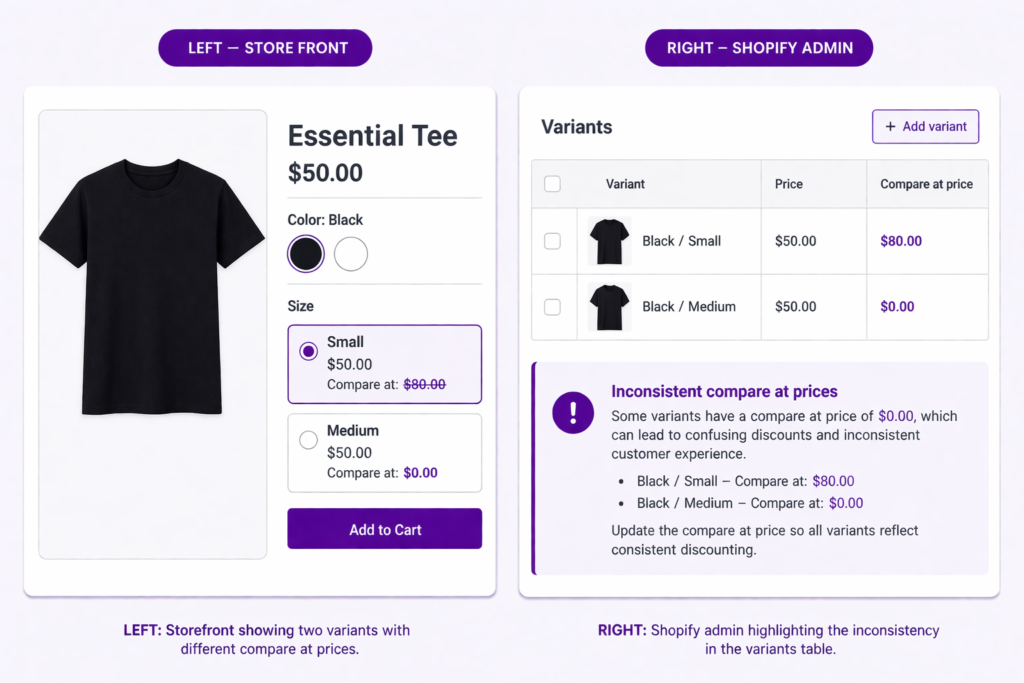
You go to your product in Shopify admin and set compare at price to $100. But Shopify’s variant system means each variant has its own compare at price value. If you don’t explicitly set it for every single variant, some of them will have $100 and others will have $0 or blank.
When the collection page renders, Shopify pulls the compare at price from the first variant. If that variant has $0, the collection page shows no struck-through price, even though other variants have the correct value. This is confirmed in Shopify’s own documentation: “If some variants have compare-at prices that are inconsistent… then the collection page won’t display the product as being on sale.”
How to Diagnose:
Go Go to your product in Shopify admin. Click the Pricing section. Scroll down to Variants. Look at the “Compare at price” column. Do all variants have the same value? If some are $0 or blank, that’s your problem.
How to Fix:
You have two options:
Option A: Manually Set Each Variant (one-time, if you have few variants)
Edit each variant and set the compare at price to $100. Click Save for each one. Tedious if you have many variants, but it works.
Option B: Bulk Edit (if you have many variants)
Go to Products > Your Product > Edit. Scroll to Variants. You should see a column for “Compare at price.” Bulk edit this column by clicking the column header and selecting “Set compare at prices.” Set it to $100 for all variants, then save.
Once all variants have the same compare at price value, your collection pages will display the struck-through price.
Cause 2: Theme Doesn’t Render Compare at Price on Collection Cards
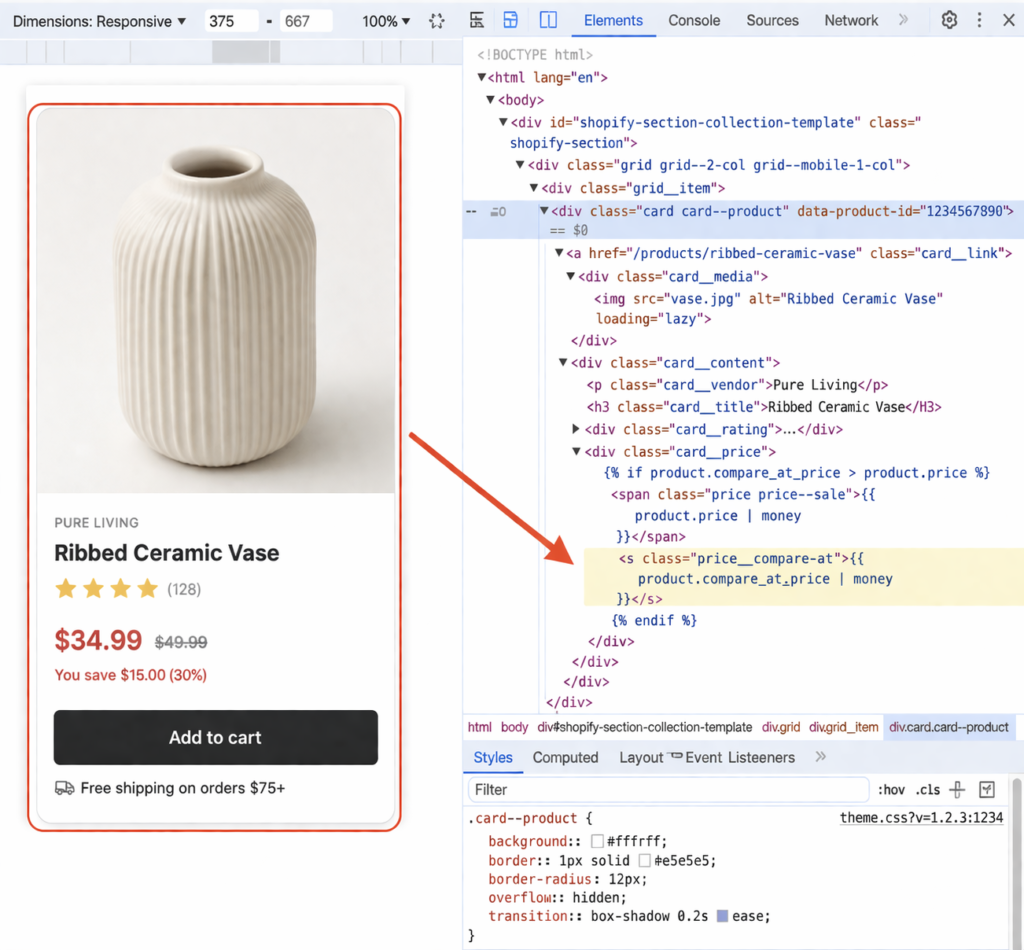
Some Shopify themes don’t show compare at price on collection cards by default. They show the selling price only. This is a theme design decision, not a Shopify bug.
How to Diagnose:
Check a different Shopify store using the same theme. Do they show compare at price on collection cards? If not, it’s a theme limitation. You can also check your theme’s documentation or support page.
How to Fix:
You have three options:
Option A: Switch Themes
If the theme doesn’t support this feature and you need it, switching to a theme that does (most modern Shopify themes support it) is the cleanest solution.
Option B: Contact Theme Support
If you want to keep your current theme, contact the theme support and ask if they can enable compare at price on collection cards. Many will do this with a single support ticket.
Option C: Use an App
An app like Adsgun can add a price display layer that sits on top of your theme, showing strike-through pricing regardless of what the theme supports. This is the fastest solution if your theme doesn’t cooperate and you don’t want to switch.
Cause 3: Compare at Price Equals Selling Price
If your compare at price is the same as your selling price, Shopify doesn’t show it struck through. It would look redundant.
If you’ve set compare at price to $75 and selling price to $75, Shopify assumes there’s no discount and hides the compare at price display.
How to Diagnose:
In your Shopify product, check that your compare at price ($100) is actually higher than your selling price ($75). If they’re the same, that’s the issue.
How to Fix:
Change your compare at price to be higher than your selling price. Shopify requires at least a $0.01 difference for the struck-through display to appear.
This sounds obvious, but it’s a common mistake when bulk updating prices or importing products from another platform.
Cause 4: CSS or Theme Issue Hiding the Element
Rarely, a theme has CSS rules that hide the compare at price element on collection pages but not product pages. Or custom CSS added by a developer is inadvertently hiding it.
How to Diagnose:
Open your collection page in a browser. Right-click on a product card and select “Inspect” (in Chrome, Firefox, or Safari developer tools). Look for an element with a class or ID containing “compare” or “sale” or “price.” Is it there in the HTML but hidden with display: none or visibility: hidden in the CSS?
If you see the element in the HTML but it’s not visible on the page, CSS is hiding it.
How to Fix:
If you have a developer, ask them to find the CSS rule hiding the element and remove or adjust it.
If you don’t, contact your theme support and describe what you found in the inspector. They can usually fix this quickly once you point them to the right element.
Why This Is a Symptom of a Larger Problem
Fixing the four causes above will get your compare at price showing on collection pages. But there’s a bigger picture worth understanding.
Compare at price is a manual price change. It’s not a real discount. When you manually set it, you’re not using Shopify’s discount system. You’re just entering a number in a product field. As Shopify’s own profit reporting documentation confirms, discounts in Shopify analytics are tracked from discount codes and automatic discounts, not from compare at price adjustments.
In practice, this means:
- Compare at price changes don’t appear as a discount line item in your Shopify analytics. A $100 product marked down to $75 records as $75 in gross revenue, with no trace of the original price or the “discount” applied.
- It requires manual updates every time you want to change your promotion.
- It has to be managed separately for every variant, which is exactly the cause we diagnosed above.
- When you scale to running multiple simultaneous promotions, compare at price becomes very difficult to manage cleanly.
The real solution is to use Shopify’s actual discount system (automatic discounts or discount codes) and surface the calculated price on collection pages using an app that reads the discount in real time.
The Clean Solution: Real Discounts with Adsgun
Instead of wrestling with compare at price across variants and themes, create a Shopify automatic discount (15% off everything, for example) and use Adsgun to display it on your collection pages.
Adsgun reads the actual discount, calculates the real final price, and displays it as struck-through pricing on collection pages, product pages, cart, and checkout. No variant inconsistency issues, no theme limitations, no CSS problems.
And when you change the discount or run a different promotion, Adsgun updates automatically across your entire store. No manual updates per variant, no bulk edits, no risk of some products showing the old price.
Your analytics stay clean too. Because real Shopify discounts are tracked as discount line items, you can see in your Shopify reports exactly how much you discounted, which promotions drove the most sales, and what your actual gross revenue looks like before and after promotions.
Ready to Fix This?
Compare at price is a workaround. If you’re wrestling with variants and themes to make it work, it’s worth switching to real Shopify discounts displayed with Adsgun.
Start your free 7-day trial. Show accurate, real-time discounted prices on every collection page, automatically.




