
Was/Now Pricing on Shopify: How to Show Original and Sale Prices
Was/Now pricing is one of the most powerful selling tools in ecommerce. Learn how to show original and sale prices across your Shopify store for every discount type, without touching a single line of code.
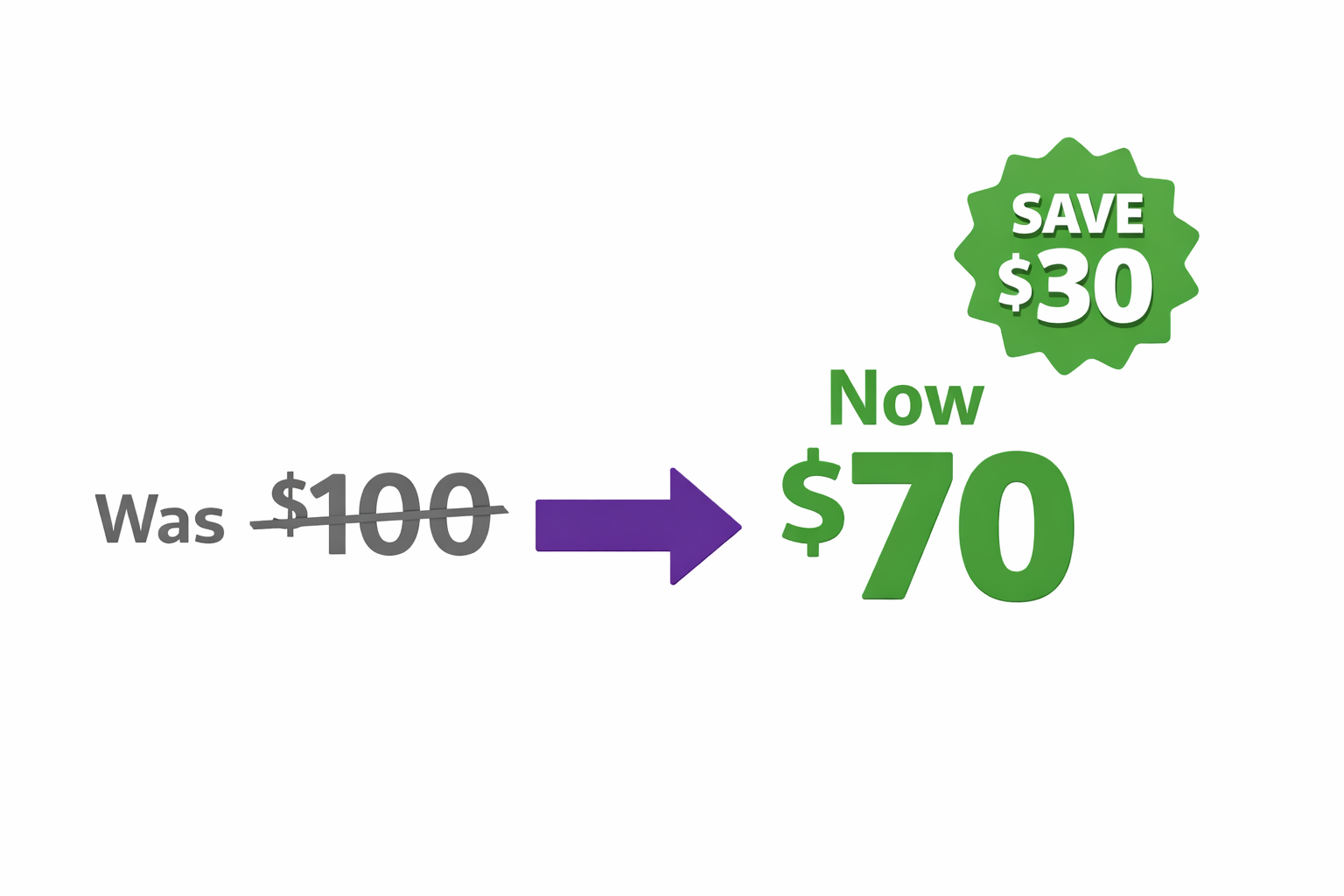
You see two prices for the same product:
Option A: $70
Option B: Was $100, Now $70
Which one feels like a better deal?
Both are the same price. But Option B feels cheaper because your brain anchors on the $100. The strike-through price sets a psychological baseline. The new price feels like a gain, not a neutral price point.
This is the power of was/now pricing on Shopify. It is not just about displaying a discount. It is about shaping perception so the price feels like a win, not just a number. Retail stores have used this tactic for decades. Online, it is equally effective. Yet many Shopify stores skip it entirely, or rely on Shopify’s native “compare at price” field, which does not work with discount codes or automatic discounts.
This guide shows you how to display was/now pricing across your entire Shopify store, including collections, product pages, cart, and checkout, for all discount types.
The Psychology of Was/Now Pricing
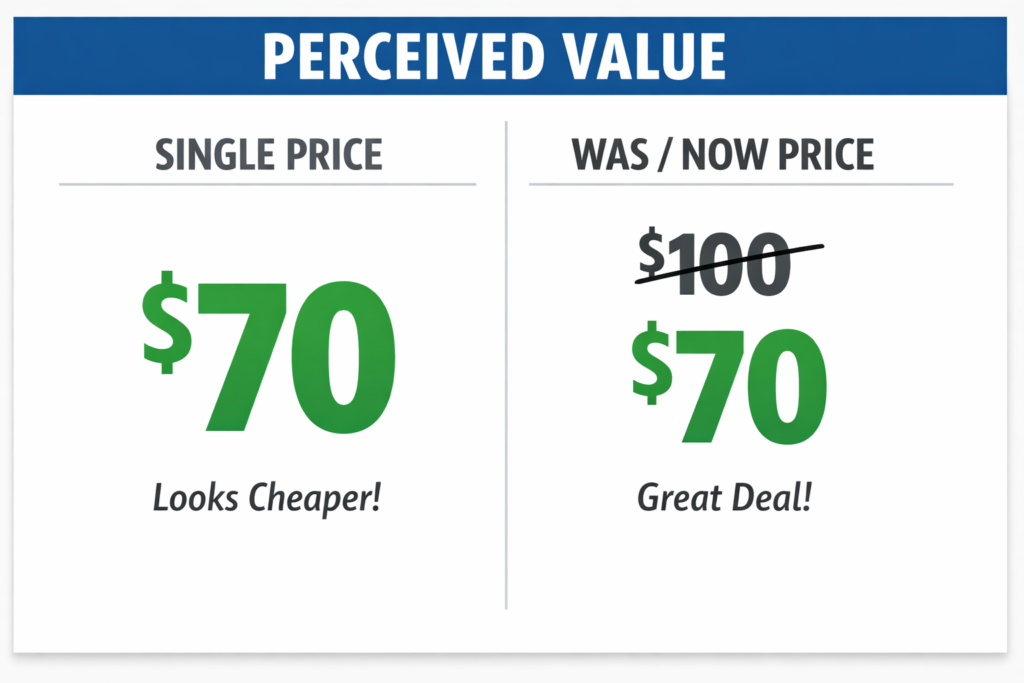
Was/now pricing on Shopify works on three psychological principles that consistently drive higher conversion rates.
1. Anchoring Effect
Your brain uses the first number it sees (the original price) as an anchor. All subsequent prices are perceived relative to that anchor. A $70 price looks expensive on its own. Shown as a reduction from $100, the same price looks like a bargain.
2. Loss Aversion
Humans feel the pain of loss more acutely than the pleasure of gain. Showing “You’re losing out on $30 in savings” creates loss aversion in a positive direction. The customer is motivated to buy to avoid missing the discount entirely.
3. Value Perception
A strikethrough price signals rarity, urgency, and legitimacy. It communicates: this deal will not last, other people have paid full price, and you are getting something special. Together, these three principles create a powerful psychological nudge toward purchase.
Shopify’s Native Was/Now Pricing (The Limitations)
Shopify has a “Compare at price” field on every product. When set, themes can display the original price struck through alongside the sale price.
How it works:
- Product original price: $100
- Compare at price: $100
- Sale price (via discount code or automatic discount): $70
- Theme displays: “Was $100, Now $70”
The problem is that this only works when all three conditions are met simultaneously: you are using Shopify’s compare-at-price field manually per product, your discount is applied via a standard discount code or automatic discount, and your theme supports compare-at-price display.
If you are running a complex promotion with customer tags, URL parameters, or private discounts, the native compare-at-price does not work. Your customer sees only the final price with no context. For a deeper breakdown of why this happens, see why Shopify discounts don’t show until checkout.
How Adsgun Displays Was/Now Pricing for All Discount Types
Adsgun reads your active promotions and automatically calculates and displays was/now pricing regardless of how the discount is triggered.
How Was/Now Pricing Works in Adsgun
- Product has original price: $100
- Active promotion: 30% off
- Adsgun calculates discounted price: $70
- Adsgun displays: “Was $100, Now $70” with the original price struck through and the new price prominent
This happens automatically across all four touchpoints:
- Product pages: Hero section shows was/now with strike-through
- Collection pages: Product cards show was/now with strike-through
- Shopping cart: Per-item was/now with total savings summary
- Checkout: Per-item was/now with order-level savings
All four locations display consistent was/now messaging, reinforcing the value at every step of the purchase journey.
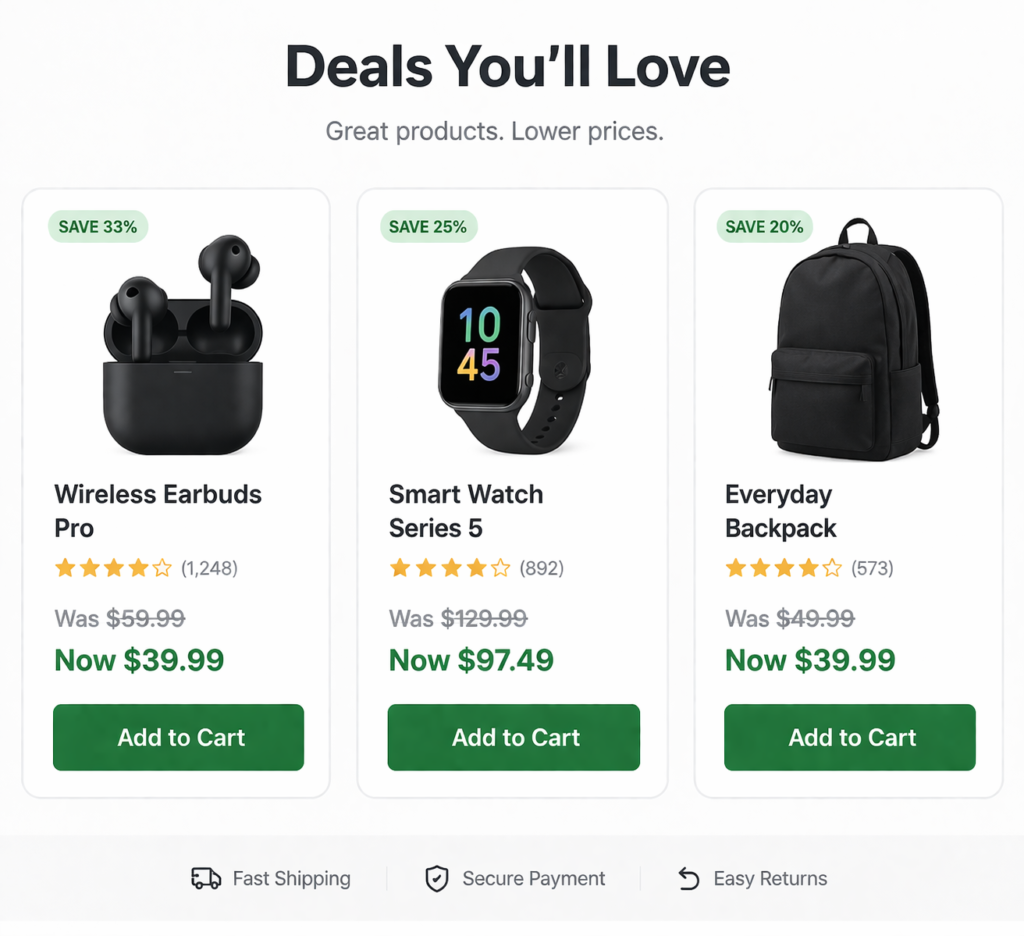
Customization Options
When setting up a promotion in Adsgun, you choose the was/now display format:
- Traditional: “Was $100, Now $70”
- Percentage: “Was $100, Now $70 (30% OFF)”
- Savings amount: “Was $100, Now $70 (Save $30)”
- Savings percentage only: “30% OFF”
- Custom: Your own wording
You also control the visual appearance:
- Strike-through color (typically grey, black, or muted)
- Sale price color (typically green, your brand color, or a high-contrast alternative)
- Font size and weight
- Placement and layout
Step-by-Step: Setting Up Was/Now Pricing in Adsgun
Create a Promotion With Was/Now Display
Follow these steps inside your Shopify admin to go live with was/now pricing across your entire store.
- Step 1: Open Adsgun In Shopify admin, open Adsgun.
- Step 2: Create or Select a Promotion Click Create New Promotion or edit an existing one.
- Step 3: Name Your Promotion For example: “Summer Sale 30% Off”
- Step 4: Define the Discount
- Type: 30% off
- Applies to: All products (or specific collections)
- Step 5: Go to Display Settings Click on the Display or Customization tab.
- Step 6: Enable Was/Now Display Check the box labeled Show Was/Now pricing.
- Step 7: Choose Display Format Select from:
- “Was $X, Now $Y”
- “Was $X, Now $Y (Save $Z)”
- “Was $X, Now $Y (Z% OFF)”
- Custom format
- Step 8: Customize Appearance
- Strike-through color: Grey (neutral), Black (bold), or your brand color
- Sale price color: Green (positive), your brand color, or a contrasting color
- Font styling: Size, weight (bold or regular), font family
- Spacing: Distance between was and now prices
- Step 9: Choose Display Locations
- Product page: Check
- Collection page: Check
- Cart: Check
- Checkout: Check
(Some plans allow granular control over locations; others apply everywhere automatically.)
- Step 10: Preview Adsgun shows you a live preview of how the was/now pricing looks on a real product.
- Step 11: Publish Your was/now pricing is now live across your store.
Real-World Impact: Why Was/Now Matters
Consider a flash sale scenario: 30% off, two identical stores, same products, same discount.
Store A (no was/now):
- Customer sees: $70
- Perception: Reasonable price
- Click-through rate: 2%
Store B (with was/now):
- Customer sees: Was $100, Now $70
- Perception: Great deal, saving $30
- Click-through rate: 3.2%
Same discount. Store B gets 60% more clicks purely because savings are visible. That multiplies across your full collection: more clicks lead to more browsing, more add-to-cart actions, and higher overall conversion. The Tire Streets case study (conversion rate up 14%, revenue up $37,800) was driven largely by making pricing visible across all touchpoints, including was/now display. You can read more about how to show discounted prices on Shopify product pages for additional context on this impact.
Combining Was/Now With Other Display Elements
For maximum impact, layer was/now pricing with other Adsgun features:
| Element | Purpose | Best Used For |
|---|---|---|
| Was/Now pricing | Show original price and savings | All discount types, all locations |
| Sale badge | Draw attention on collections (“30% OFF”) | Collections, product cards |
| Announcement bar | Broadcast the promotion sitewide | All campaigns |
| Cart display | Reinforce savings during checkout | Reducing abandonment |
A complete customer journey looks like this: the shopper sees a sale badge on a collection card, clicks to the product page (sees was/now), adds to cart (sees per-item savings), and completes checkout (sees total savings). Each element reinforces value at a critical decision point. For a deeper look at how Shopify strike-through pricing works with discount codes, see our dedicated guide.
Mobile vs. Desktop Was/Now Display
Adsgun’s was/now pricing is fully responsive.
Desktop: Original price struck through on the left, sale price in large green text on the right, with an optional savings amount below. Full clarity with no space constraints.
Mobile: Original price struck through above, sale price below in large text, with a layout adjusted for smaller screens while maintaining readable font sizes.
Always test on actual devices to confirm the display renders correctly across breakpoints.
FAQ: Was/Now Pricing on Shopify
Q: Should I always show the was price, even for non-discounted products?
A: No. Only display was/now when there is an active discount. For regular-price products, show the normal price.
Q: What if the original price is too old to be relevant?
A: That is fine. Customers do not know when you set the original price. As long as you are using a price you have genuinely charged before (not an artificially inflated figure), the display is legitimate.
Q: Can I use was/now pricing for fixed-amount discounts, not just percentages?
A: Yes. “$100 to $70” works identically whether the discount is percentage-based or a fixed dollar amount.
Q: Is was/now pricing always better than showing only the sale price?
A: For most products, yes. Research consistently shows was/now pricing increases perceived value and purchase intent. The exception is commodity-focused shoppers where the lowest absolute number matters more than the savings story. If you are unsure which approach fits your store, see how to run a sale on Shopify for strategy guidance.
Start Showing Was/Now Pricing Across Your Shopify Store
Was/now pricing is one of the most proven, highest-impact ecommerce tactics available. It anchors price perception, highlights savings, and increases conversion without changing your actual discount structure.
The reason it is underutilized is simple: Shopify’s native compare-at-price does not work with discount codes or automatic discounts. Adsgun solves this by automatically displaying was/now pricing for every discount type, across all four critical touchpoints, from the first collection page browse through to checkout completion.
Start your free 7-day trial and enable was/now pricing on your next promotion. No credit card required.




