
How to Run a Sale on Shopify: Step-by-Step Guide (2026)
A complete guide on how to run a sale on Shopify, from planning and discount setup to making prices visible, scheduling recurring sales, monitoring performance, and ending the campaign cleanly.
Running a Successful Sale on Shopify
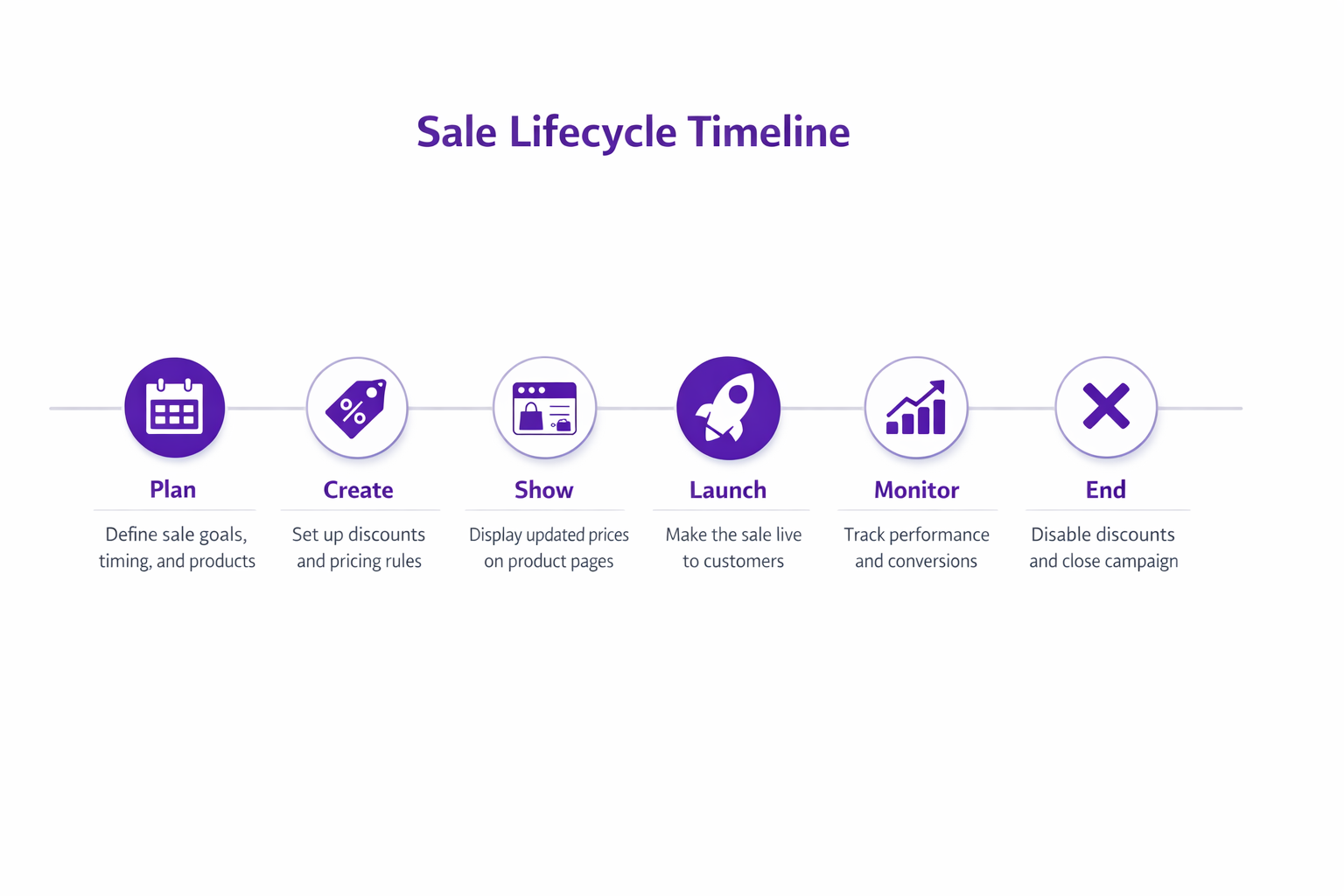
How to run a sale on Shopify? Sale is more than just creating a discount. A truly successful sale requires:
- Clear planning (what discount, when, who)
- Proper setup in Shopify (discount creation, eligibility rules)
- Visibility (showing the discount where shoppers see it)
- Timing (launching at the right moment, scheduled starts/stops)
- Monitoring (tracking performance in real time)
- Clean shutdown (ending the sale without leaving broken prices behind)
This guide walks through all six steps.
Step 1: Plan Your Sale
Before you create anything in Shopify, decide on these details:
Discount amount:
Will you offer a percentage discount (15% off), a dollar discount ($20 off), or a free gift?
Percentage discounts work well because they are simple to understand, scale with product price (which benefits high-ticket items), and are easy for customers to calculate. Dollar discounts are straightforward for customers to evaluate but tend to favor lower-priced products and require a minimum order value to stay profitable. Free gifts carry no direct revenue hit (the cost is cost of goods, not lost margin) and are compelling for customers, though they are more complex to set up and track.
For this guide, we will use a percentage discount.
Target products or collections:
Will the sale apply to all products, specific collections (such as “Summer Dresses”), specific product types (such as “Clearance”), or specific customers (such as email subscribers with a code)?
Timing:
When will the sale run? Decide on a start date and time, an end date and time, and whether you need a recurring schedule (for example, every Friday evening).
Customer eligibility:
Who can use the sale? Options include everyone, customers with a specific email tag, first-time customers, or customers in specific countries.
Budget:
If you are offering 20% off and expect to sell 1,000 units at an average price of $100, your revenue without the discount would be $100,000, your revenue with the discount would be $80,000, and the cost of the discount would be $20,000. Make sure that cost is something your margin can absorb.
Success metrics:
Decide how you will measure success before you launch. Useful metrics include incremental revenue (sales that would not have happened without the discount), customer acquisition, email list growth, cart conversion rate, and average order value.
Once you have decided on all of these, you are ready to create the discount.
Step 2: Create a Discount in Shopify
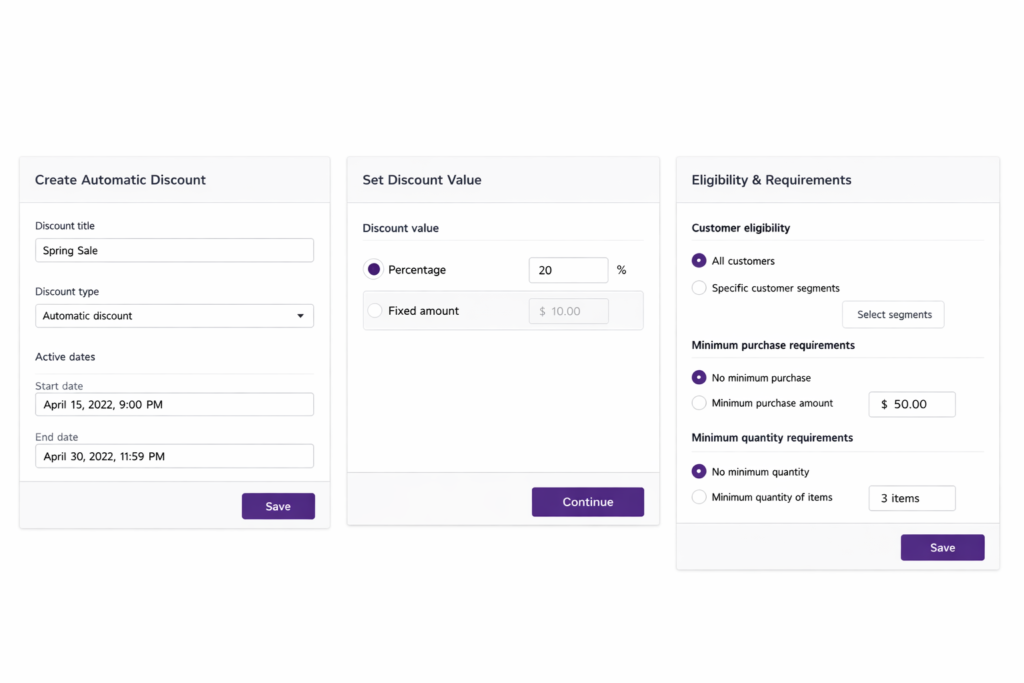
Go to Settings > Discounts in your Shopify admin and click “Create discount.”
Choosing a discount type
Shopify offers three main types. Automatic discounts apply without any code, making them ideal for sitewide sales like “20% Off Everything.” Discount codes require customers to enter a code at checkout and are useful for targeted campaigns with email lists, influencers, or paid ads, since each code provides its own attribution data. Buy X Get Y promotions (for example, “Buy 2, Get 1 50% Off”) are good for driving larger orders.
For a standard sale, use an automatic discount.
How to set up a Shopify automatic discount
Choose “Percentage” as the discount type and enter your value (for example, 15). For the products field, select “All products” for a sitewide sale or a specific collection if the promotion is more targeted. For customer eligibility, “All customers” is the right choice for a public sale. For minimum requirements, “No minimum” or a low threshold like $30 to $50 works well for most sales.
Set a start date and time and an end date and time. A specific time creates more urgency. “Sale ends Sunday at 11:59 PM” is more compelling than “Sale ends Sunday.”
Click Save. The discount is now active.
Step 3: Make Your Discount Visible on Product Pages
This is the step most merchants miss. The discount is active in Shopify’s system, but customers do not see it until checkout. On product pages and collection pages, prices still show at full rate. Since around 70% of shoppers never reach the cart, your discount is invisible to most of your visitors at the moment they are deciding whether to buy.
To show discounted prices on product pages and collection pages, use Adsgun.
Install Adsgun
Go to apps.shopify.com/adsgun and click Install.
Create a promotion in Adsgun
Go to Apps > Adsgun in your admin and click “Create Promotion.”
Select your discount
Choose the automatic discount you just created.
Choose where to display it
Check “Product pages,” “Collection pages,” and “Cart.”
Enable strike-through pricing
Choose your preferred format: “Was $100, Now $85,” “Save $15 (15% off),” or a custom format.
Set which pages
If the discount applies to all products, enable it across all product pages. If it applies to a specific collection, select that collection.
Publish
Click Publish. Your discount is now visible on product pages throughout the sale.
Step 4: Launch the Sale
On the start date, run through this checklist before announcing anything. Check that the discount is showing correctly on product pages, collection pages, and in the cart. Check that the discount applies correctly at checkout. If you are announcing via email, send the campaign. If you are running paid ads, confirm they are live. Post about the sale on social media.
On day one, monitor your sales and conversion rate closely. If something is broken, fix it before traffic ramps up.
Step 5 (Optional): Schedule Recurring Sales
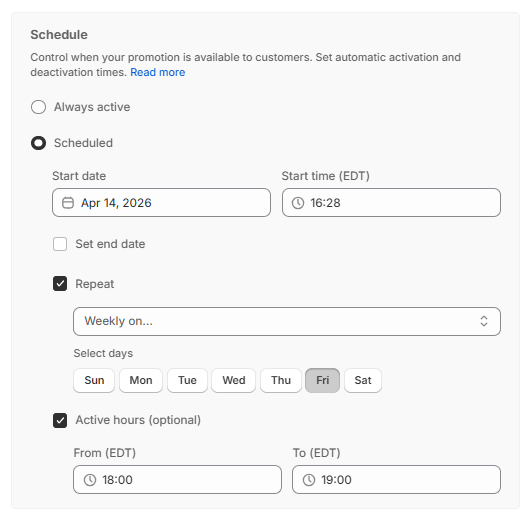
If you run the same promotion weekly (for example, a “Friday Flash Sale”), Adsgun’s scheduler lets you automate it entirely. In Adsgun, go to the promotion and click “Schedule.” Set the activate time to Friday at 6:00 PM, the deactivate time to Friday at 11:59 PM, and the repeat setting to “Every Friday.” The sale will activate and deactivate automatically each week with no manual work required.
Step 6: Monitor Performance
During the sale, track the following in Shopify Analytics (Analytics > Reports).
Revenue: Total revenue since the sale started, compared to the same period last year, and incremental revenue versus your baseline.
Discounts applied: How many customers triggered the discount, the average discount per customer, and total discount budget spent. You can find these numbers under Settings > Discounts > Your Discount.
Conversion metrics: Conversion rate (orders divided by sessions), average order value, cart abandonment rate, and email captures if the sale was tied to a signup offer.
Customer feedback: Watch your support inbox. If the discount is not applying, or if there are page errors, you want to catch those early.
Step 7: End the Sale Cleanly
When the end date and time pass, Shopify will automatically deactivate the discount. You should still verify and clean up manually.
Verify the discount ended
Go to Settings > Discounts, find the sale discount, and confirm it is now marked as “Inactive” or “Archived.”
Update Adsgun
Go to Apps > Adsgun, find the promotion for this sale, and click “Deactivate” or “End.” This removes the strike-through pricing display from your product pages.
Clear any compare at price
If you manually set a compare at price for this sale, remove it now. Leaving it in place misleads customers into thinking a discount is still active.
Announce the end
If you have an email list, let subscribers know the sale is over. This creates a sense of finality and can drive last-minute purchases from anyone still on the fence.
Best Practices for Running a Sale on Shopify
Test before launch. Add a product to your cart, apply the discount code if you are using one, verify the discount appears, and complete a test purchase if possible. Do this before you announce anything.
Announce clearly. Tell customers when the sale ends. A specific deadline creates urgency in a way that vague language does not.
Run it long enough. A four-hour window misses too many people. A 60-day sale stops feeling like a sale. One to two weeks is the right range for most stores.
Pair with traffic. A discount alone does not bring visitors. Amplify it with an email blast to your list, paid ads on Google, Meta, or TikTok, social media posts, and influencer mentions. For more tactics on how to push sales on Shopify, see our full guide.
Measure ROI. Calculate your total discount cost (total revenue multiplied by the discount percentage), your incremental revenue (new sales that would not have happened at full price), and your net profit (incremental revenue multiplied by margin, minus discount cost). Make sure the numbers work before running the same campaign again.
Checklist: Running a Sale on Shopify
- Plan discount amount, timing, products, and eligibility
- Create an automatic discount in Shopify (Settings > Discounts)
- Install Adsgun and create a promotion to display the discount on product pages
- Test the discount before launch (add to cart, verify it applies)
- Announce the sale via email, social, and ads
- Monitor performance daily
- End the discount on the scheduled end date
- Verify the discount deactivated in both Shopify and Adsgun
- Clear any compare at price from products
- Measure ROI and document results
Ready to Run Your Next Sale?
Running an effective sale requires planning, visibility, and clean execution. The most important step is making the discount visible on product pages where shoppers make decisions.
Try Adsgun free for 7 days. Set up a sale and watch your conversion rate lift as customers discover the discount before checkout.




