Shopify Google Merchant Center Discount Sync: Show Sale Prices in Shopping Ads
When you run a sale, Google Shopping ads should show the discounted price, not the regular price. Learn how to sync Shopify discounts to Google Merchant Center.
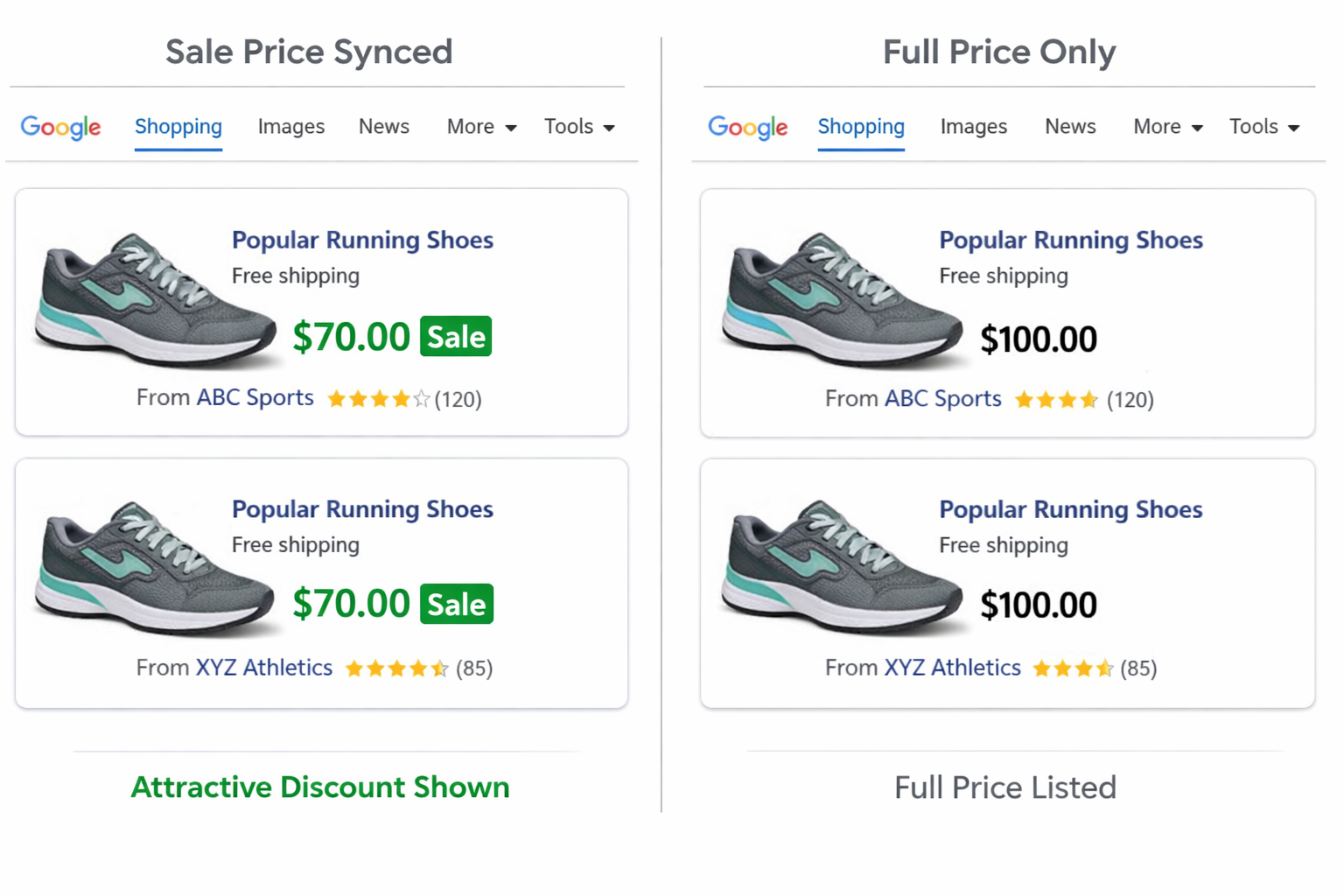
You’re running a 20% off sale. You spend $5,000 on Google Shopping ads. Your ads show the regular price: “Premium Shoes $100.”
A customer searching for shoes sees your ad. They think: “$100 for shoes seems expensive compared to competitors.” They click on the competitor instead.
Meanwhile, your competitor’s ad says: “Premium Shoes $80” because they synced their sale to Google.
Same product, same shoes, different price displayed. The competitor wins the click. You waste ad spend.
Now imagine your ad also showed “$80.” The psychology changes. “$100 struck through, $80 now” makes the shoes look like a deal. Click-through rate increases. Cost per click decreases. Same ad spend, more traffic.
This is why your Shopify Google Merchant Center sale price needs to stay in sync with your active promotions. When you run a sale, your product feed should update automatically to show the discounted price. Google Shopping ads display the sale price. Your ads become more competitive.
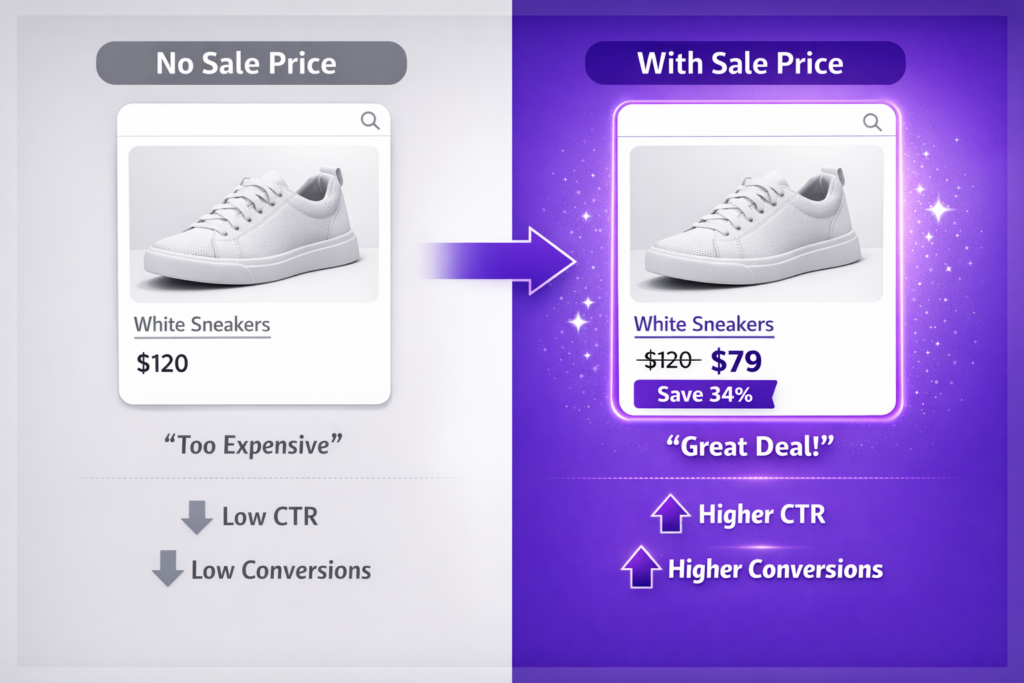
How Google Shopping Sale Prices Work
Google Shopping uses product feeds from Google Merchant Center. Your Shopify product feed (price, image, title, description, etc.) syncs to GMC. Google uses that feed to display your products in Shopping results.
The feed has two price fields:
- Price: The current price (what customers pay)
- Sale price: The discounted price (if on sale)
When both fields have values, Google displays the regular price struck through, shows the sale price in large text, and may add a “Sale” or “On Sale” label. When only the price field is populated, Google shows just the regular price with no strike-through and no sale label.
The Problem: Shopify’s Native Feed Does Not Automatically Sync Discounts
Shopify’s default product feed syncs to Google Merchant Center, but it has a critical limitation.
The feed includes the product’s “compare at price” if set, but it does not include discount-based price changes in real time. If you run a discount code or automatic discount in Shopify, the feed does not update to show the new sale price in GMC. Your GMC feed still shows the original price. Google Shopping ads show the original price. Customers do not see they are getting a deal.
This is a significant gap that costs you ad spend and lost conversions. For more on why Shopify discounts are often invisible until checkout, read why Shopify discounts don’t show until checkout and what you can do about it.
What Adsgun’s GMC Sync Does
Adsgun’s Google Merchant Center Promotion Sync (available on Plus plan and above) bridges this gap.
How It Works
- You create a promotion in Adsgun: “Summer Sale 30% Off Shoes”
- Adsgun connects to your GMC account (one-time OAuth setup)
- Adsgun watches for the promotion to activate
- When the promotion is active, Adsgun automatically updates your GMC product feed: products in the promotion get their sale_price field updated to reflect the discount (e.g., 30% off means $100 becomes $70)
- Google Merchant Center pulls the updated feed (usually within a few hours)
- Google Shopping ads automatically display the sale price with strike-through
All of this happens automatically. You do not manually upload a feed. You do not need to adjust GMC settings. The system handles it.
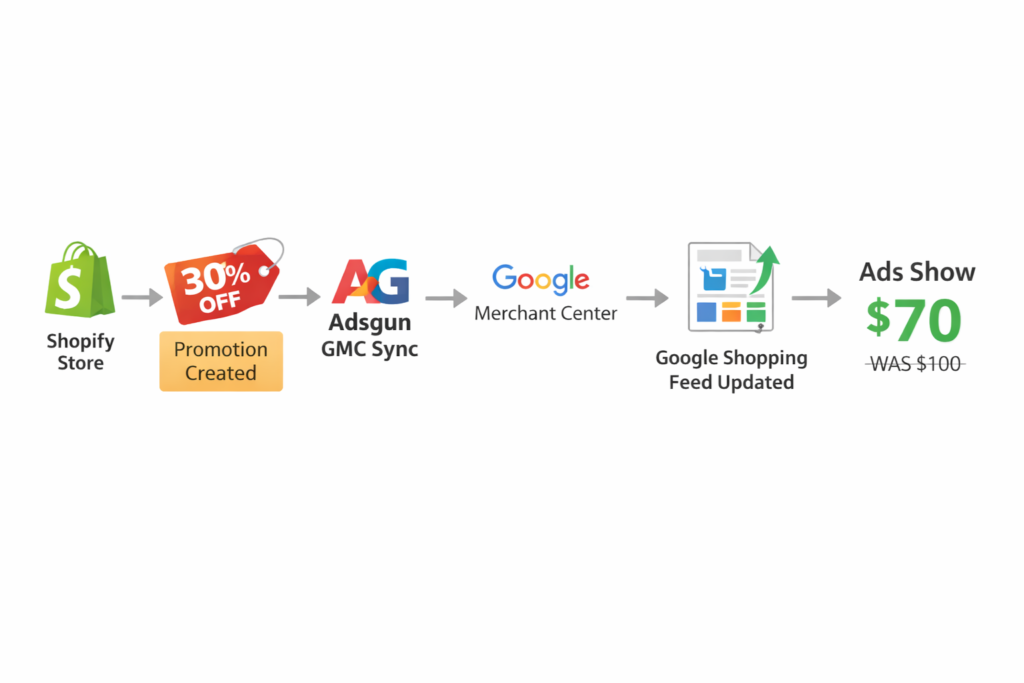
What Sale Price Sync Looks Like in Google Shopping
Before GMC Sync:
- Ad shows: “Premium Shoes $100”
- Customer sees regular price
- Lower CTR, higher CPC
After GMC Sync (with active promotion):
- Ad shows: “Premium Shoes” with $100 struck through and $70 in green
- Ad may display a “Sale” label (controlled by Google)
- Customer sees a deal
- Higher CTR, lower CPC, better ROI
Step-by-Step: Setting Up Shopify Google Merchant Center Sale Price Sync
Prerequisites
- Adsgun Plus plan or higher (Core plan does not include GMC sync)
- Google Merchant Center account connected to your Shopify store
- Products already uploaded to GMC (you need an active feed)
Setup Steps
Step 1: Connect Google Merchant Center to Adsgun
In Adsgun, go to Settings or Integrations, find Google Merchant Center, and click Connect. You will be asked to authorize Adsgun to access your GMC account via OAuth. Log into your Google account and approve the connection.
Step 2: Select Which Products to Sync
Adsgun asks which products should sync price updates to GMC. You can choose all products, specific collections, or products with specific tags. Most merchants choose all products.
Step 3: Create Your First Promotion
In Adsgun, click Create New Promotion, name it (e.g., “Summer Sale 30% Off”), define the discount percentage, and define the eligible products or collection.
Step 4: Enable GMC Sync for This Promotion
In the promotion settings, check the box: Sync to Google Merchant Center. Confirm the promotion applies to products in your GMC feed.
Step 5: Publish
Once published, Adsgun immediately updates your GMC feed with the new sale prices. Google Merchant Center will re-index the feed, usually within a few hours and sometimes up to 24 hours for large catalogs.
Step 6: Verify in Google Merchant Center
Log into Google Merchant Center, go to Products > All Products, search for a product in your promotion, and check that the sale_price field now shows the discounted price. The regular price field should remain unchanged.
Step 7: Wait for Google to Update Shopping Ads
Google will automatically update your Shopping ads to reflect the new prices in the feed. This typically takes a few hours.
Step 8: Monitor Performance
Check your Google Ads dashboard for CTR and CPC changes. Higher CTR combined with lower CPC confirms the GMC sync is working.
Real-World Impact: GMC Sync ROI
Scenario: You spend $2,000 per month on Google Shopping ads. Your average CPC is $0.80. Your CTR is 2%.
You implement GMC discount sync. During a 20% sale:
- Your CTR increases from 2% to 2.8% (a 40% increase)
- Your CPC decreases from $0.80 to $0.65 because your ads become more competitive
- Your daily ad spend stays at $67
Results: more clicks for the same spend, better ROI on ad spend, and a higher conversion rate because customers who click already saw the sale price and committed to buying.
Over a month-long sale, this could mean an extra 500 clicks, 50 or more extra orders, and $2,000+ in incremental revenue, all from better ad performance rather than increased spending.
Combining GMC Sync With the Promotion Scheduler
For maximum impact, combine GMC sync with the Adsgun promotion scheduler:
- Create a promotion: “Black Friday 30% Off”
- Set it to activate November 24 at midnight
- Enable GMC sync
- Publish
On November 24 at midnight, the promotion activates in your Shopify store, customers see discounted prices, Adsgun automatically updates your GMC feed, and within a few hours Google Shopping ads display the 30% off price. Your ads are optimized exactly when your sale starts.
When the promotion deactivates on November 26 at midnight, Shopify prices revert to normal, Adsgun updates the GMC feed back to regular prices, and Google Shopping ads revert accordingly. No manual feed updates. No waiting. Everything happens automatically, in sync.
You can also layer this with campaign-specific promotions. If you are running different offers per ad channel (Google vs. Meta vs. email), read how to run different Shopify promotions per ad campaign to get per-channel tracking alongside GMC sync.
Important: GMC Sync Requires Shopify/Google Integration
Setting Up the Shopify/Google Connection
For GMC sync to work, your Shopify store must be connected to Google Shopping (via the Google & YouTube app in Shopify), your products must be uploaded to Google Merchant Center, and Adsgun must have permission to update your GMC feed.
If you have not done this yet:
- In Shopify admin, install the Google & YouTube app
- Connect your Shopify store to Google Merchant Center
- Upload your product catalog to GMC
- Then set up Adsgun GMC sync
Once set up, everything is automatic.
FAQ: GMC Discount Sync
Q: Do I need to manually upload product feeds to Google after creating promotions?
No. Adsgun handles it. Once connected, updates happen automatically whenever a promotion activates or deactivates.
Q: How long does it take for GMC to reflect price changes?
Typically a few hours, sometimes up to 24 hours for large catalogs. Adsgun updates the feed immediately; Google’s re-indexing takes time.
Q: What if I have a large catalog (10,000 or more products)?
GMC sync still works. Adsgun batches the updates automatically.
Q: Can I sync discounts for specific products only?
Yes. When setting up the promotion, you choose which products are eligible. Only those products’ prices update in GMC.
Q: Does GMC sync work with stacked discounts?
Yes. If a customer qualifies for multiple stacked discounts (VIP plus flash sale), Adsgun calculates the cumulative discount and syncs that combined price to GMC.
Q: Will GMC sync use up my Google feed quota?
No. GMC allows one primary feed per country per language. Adsgun updates the same feed rather than creating new ones.
Ready to Make Your Google Shopping Ads More Competitive?
Every dollar you spend on Google Shopping ads should be optimized. When you are running a sale, your ads should show the sale price. Period.
GMC discount sync automates this. Your feed updates when promotions activate, deactivate, or change. Google Shopping ads always show the best price in real time.
If you want to see the full picture of how Adsgun makes discounts visible across your entire store, not just in Google Shopping, explore how strike-through pricing works on Shopify product pages.
Start your free 7-day trial (Plus plan or higher) and set up your first GMC sync today. No credit card required.