
How to Show Sale Price on Shopify Collection Pages
Most shoppers never reach your product page. Learn how to show sale price on Shopify collection pages so customers see the discount the moment they browse, and add to cart faster.
Collection Pages Are Where Shoppers Decide
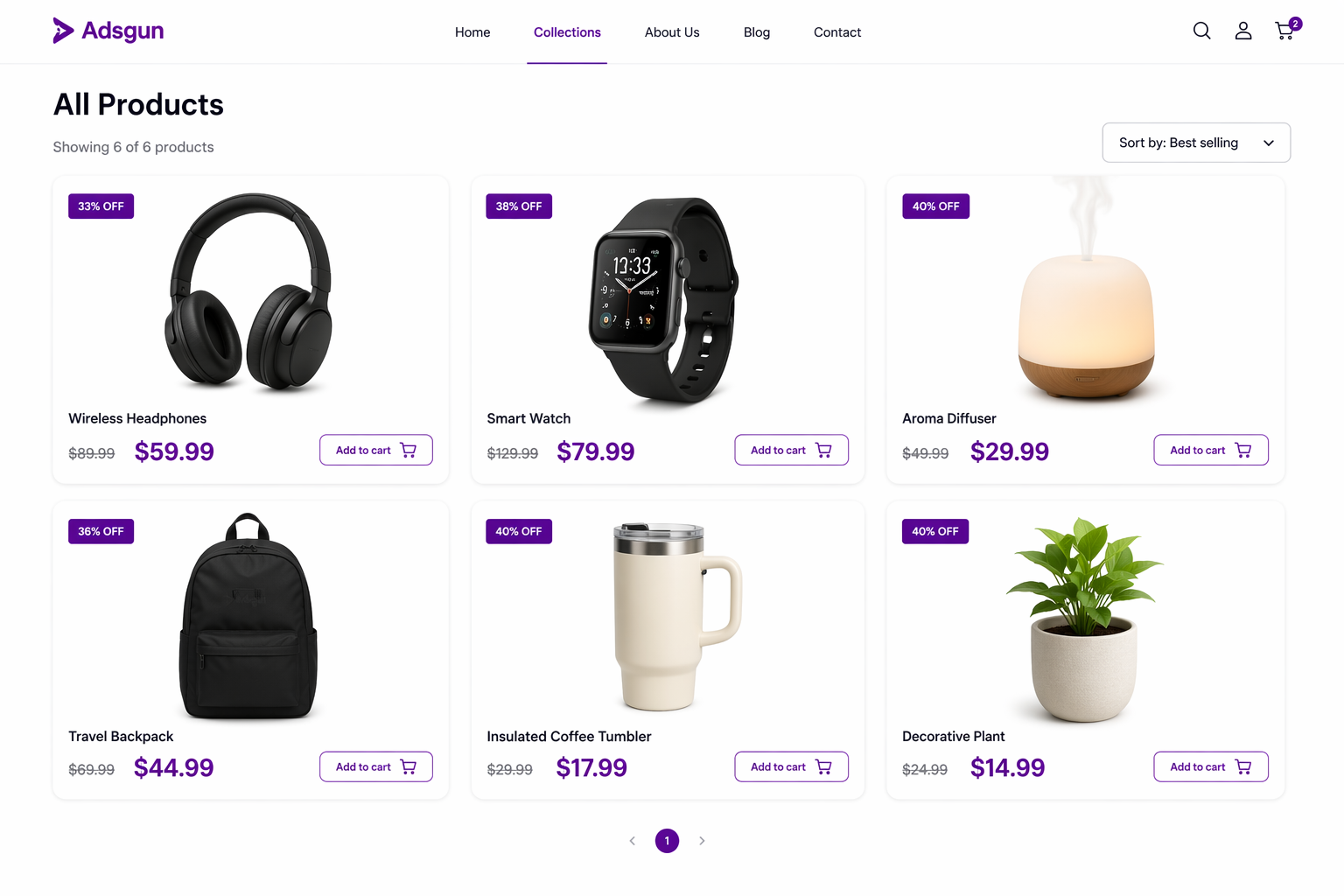
If you want to show sale price on Shopify collection pages, you have three options, and the one most merchants default to is the hardest to maintain. Collection pages are the discovery layer. Shoppers see multiple products at once, scan images and prices, and decide what to click. If sale prices are not visible on the collection cards, customers are making decisions based on full prices.
“That’s expensive. Let me look elsewhere.”
They never click to the product page. They bounce to a competitor.
This post walks through all three ways to display sale prices on collection cards, with pros, cons, and complete setup instructions for each.
Why Collection Pages Are Harder Than Product Pages
Before diving into solutions, it helps to understand why collection pages are trickier than product pages.
Product pages have more space for price information, usually have a dedicated pricing section, and many themes include theme settings to control what displays. Collection pages, by contrast, show many products in a grid where each card has limited space. Pricing is squeezed alongside the image and product name, and many themes do not include sale price by default in order to save space.
So while product page discounts are often straightforward to configure, collection cards frequently require more work.
The Variant Problem on Collections
An additional complication involves variants. A product like “Winter Coat” might have five variants (sizes XS through XL). On the product page, the customer selects a variant and sees that variant’s price. On the collection card, no variant is selected, so Shopify picks the first variant and shows its price.
If the first variant has a different compare at price than the others, the collection card price does not accurately represent all variants. This is the variant inconsistency problem, and it is especially visible on collections where customers cannot select variants.
The solution is either to show a price range on collection cards (“$80 to $95”) or to ensure all variants share the same compare at price.
Method 1: Compare at Price on Collection Cards
The simplest approach is to use compare at price and ensure your theme displays it on collection cards.
Prerequisites: All products have compare at price set to the same value for all variants, and your theme renders compare at price on collection cards.
How it works: Go to Products in Shopify admin, click a product, set compare at price on the product and all variants, save, then check whether your theme displays it on collection cards (this depends on theme settings).
Pros: Free, no setup beyond setting compare at price, and if your theme supports it, it works immediately.
Cons: Requires manual updates to compare at price every time discounts change. Variant inconsistency issues apply as described above. Many themes do not display compare at price on collection cards by default. If your theme does not support it, you are stuck without switching themes or using another method. There is also no connection to real Shopify discounts.
Check if your theme supports it: Go to a collection page on your store and look at any product card. If there is a crossed-out price, your theme supports collection card compare at price. If not, you will need Method 2 or Method 3.
Complete setup (if your theme supports it):
- Step 1: Set compare at price. Go to each product and enter the selling price (for example $80) and the compare at price (for example $100).
- Step 2: Set all variants consistently. Go to Variants and make sure every variant has compare at price set to $100, not $0 or blank.
- Step 3: Check the collection page. Go to a collection. If you see the struck-through price on product cards, you are done.
- Step 4: Update every product. Repeat this for every product you want to discount.
Ongoing maintenance: Every time a discount changes, you need to recalculate and update compare at price on every affected product. At scale, this is tedious and error-prone. For a deeper look at why this creates problems, see our full guide on Shopify compare at price not showing on collection pages.
Method 2: Custom Code for Collection Cards
Hire a developer to modify your theme so it displays sale prices on collection cards.
How it works: A developer accesses your theme code, finds the collection card template (usually product-card.liquid or similar), and adds code to display compare at price. Alternatively, they add code to calculate and display a discounted price based on your discount rules.
Pros: Customizable for your specific theme, can calculate prices dynamically from discount rules, and works even if your theme does not natively support it.
Cons: Expensive ($500 to $2,000 depending on the developer). Breaks when themes update. Requires hiring the developer again each time it breaks. Ongoing maintenance costs add up quickly. It also only works on the web store, not mobile apps.
If you have a developer, here is what to ask for: “I want sale prices visible on collection product cards. For each product, show the original price crossed out and the discounted price. If the product has variants with different prices, show a price range.”
The developer will typically edit the collection card template, add code to check for compare at price, apply strike-through formatting, and test across mobile, tablet, and desktop.
Ongoing maintenance: Every theme update risks breaking the custom code. Budget for $100 to $300 per broken update.
Method 3: Adsgun (Complete Setup for Collections)
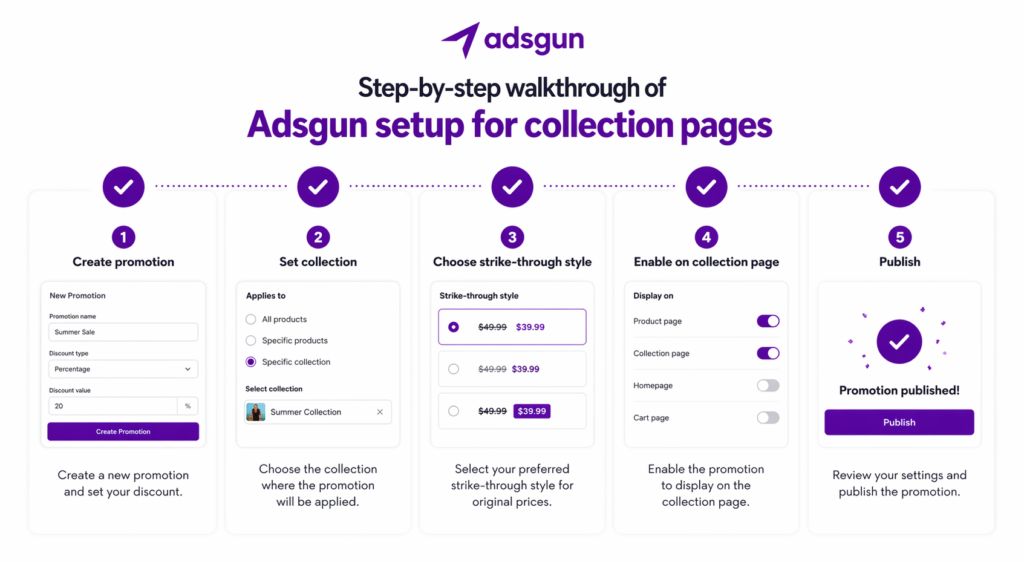
Adsgun adds a pricing display layer to collection cards that works with any Shopify theme.
How it works: Install Adsgun, create a promotion linked to your Shopify discount, choose which collections to show the discount on, enable strike-through pricing on collection cards, and publish. Adsgun handles the display logic regardless of whether your theme natively supports sale prices.
Pros: No code required. Works with any theme. Survives theme updates. Real-time updates mean changing a discount instantly updates prices across all collection cards. Works simultaneously on product pages, collections, and cart. Handles variants automatically by picking the lowest-priced variant to display. Includes multi-currency support and analytics on collection page visibility and click-through rates.
Cons: Monthly subscription starting at $19/month (with a free plan available for your first promotion and a 7-day free trial on paid plans).
Complete setup for collection pages:
- Step 1: Install Adsgun from the Shopify App Store and approve permissions.
- Step 2: In your Shopify admin, click Apps and then Adsgun to open the dashboard.
- Step 3: Click “Create Promotion.”
- Step 4: Select the Shopify discount you want to display, for example “20% Off Everything.”
- Step 5: Click “Select Collections” and check the collections where you want sale prices to appear. Select “All products” for sitewide display, or choose specific collections individually.
- Step 6: Choose your strike-through style: “Was $100, Now $80,” “Save $20 (20% off),” “Only $80,” or a custom format.
- Step 7: Toggle on “Show on collection pages.” You can also enable “Show on product pages” and “Show in cart” to make the discount visible at every stage of the shopping journey.
- Step 8: For products with variants at different price points, choose either “Show lowest price” (recommended to drive clicks) or “Show price range” to give an accurate overview.
- Step 9: Optionally, create separate promotions per collection to customize messaging. For example, “Save on Winter Coats” for your Winter Collection and “Save on Summer Dresses” for your Summer Collection.
- Step 10: Click “Preview” to review how the promotion looks on your collection pages before going live.
- Step 11: Click “Publish.” Within seconds, sale prices appear on collection cards.
- Step 12: Visit your collection pages and verify the prices display correctly across all cards, on both mobile and desktop.
Handling Variants on Collection Cards
One challenge with collection cards is that customers cannot select variants. The card shows one price, but the product may have multiple variants at different price points.
Adsgun offers three approaches: show the lowest-priced variant (which emphasizes the deal and drives clicks, since customers see “From $80” and then discover the full range on the product page), show a price range (“$80 to $95” for an honest overview), or show the average variant price. For most stores, showing the lowest price drives the most clicks because it highlights the discount clearly.
Which Method Should You Use?
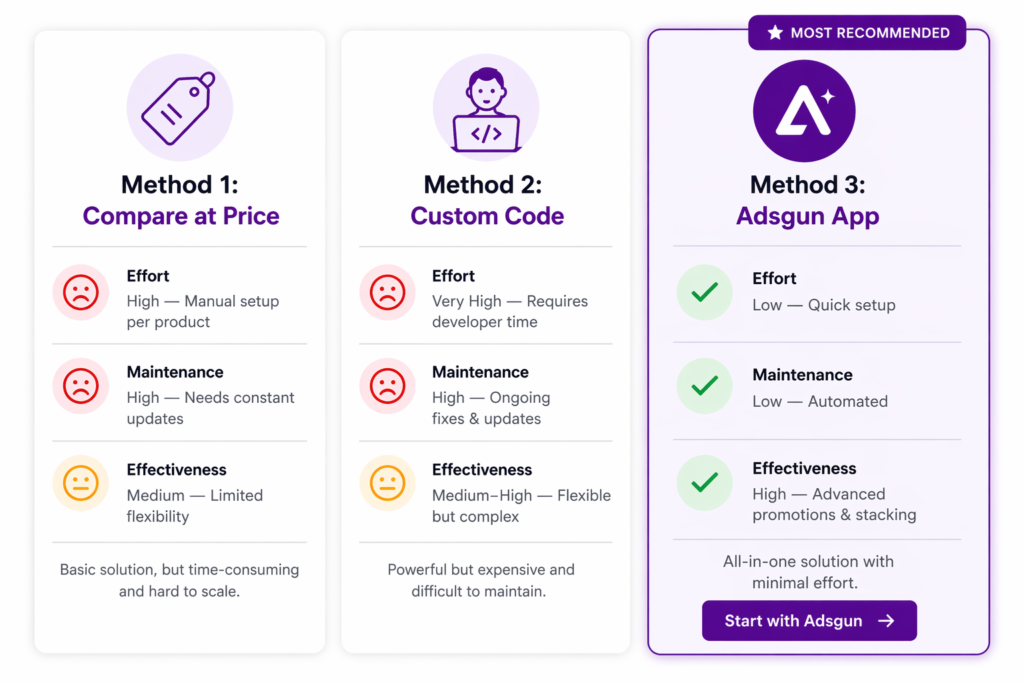
- Use compare at price if your theme supports it, you are comfortable with manual updates, you have a small product catalog, and you do not change discounts frequently.
- Use custom code only if you have a developer on staff and can budget for ongoing maintenance after every theme update.
- Use Adsgun for the vast majority of stores. It works regardless of theme, survives updates, requires no code, and is built to increase conversions directly from collection page browsing. You can start with the free plan (one promotion, no credit card required) and upgrade when ready.
For more strategies on converting more visitors from your existing traffic, see our guide on how to push sales on Shopify.
Results: More Add-to-Carts from Collections
When sale prices are visible on collection cards, customer behavior shifts. Instead of clicking through to learn more, customers add directly to cart because they have already seen and processed the discount.
On a typical Shopify store, the difference looks like this. Without collection sale prices: 5,000 monthly collection page visits, 8% click through to the product page (400 clicks), 5% add to cart from there (20 add-to-carts). With collection sale prices: 5,000 monthly collection page visits, 12% add to cart directly from the collection (600 adds) plus 6% click to the product page (300 clicks), 5% of those add (15 adds), for a total of 615 add-to-carts.
That is 615 versus 20. The actual numbers vary by store and discount size, but the direction is consistent: visible discounts convert on collection pages. Research from Baymard Institute confirms that roughly 70% of shoppers never reach checkout, which means collection pages are often the only opportunity to communicate the value of your promotion.
For more on why discounts often stay invisible until checkout and how to fix that across your entire store, see our breakdown of why Shopify discounts only show at checkout.
Ready to Show Sale Prices on Collections?
Collection pages are where most purchase decisions are made. If your sale prices are not visible there, you are leaving conversions on the table.
Try Adsgun free for 7 days. See how many more customers add to cart when they see the discount on the collection card rather than discovering it at checkout.




