
Shopify Announcement Bar for Promotions: Complete Setup Guide
The announcement bar at the top of your store is prime real estate. Use it to broadcast your promotions automatically, without manual updates.
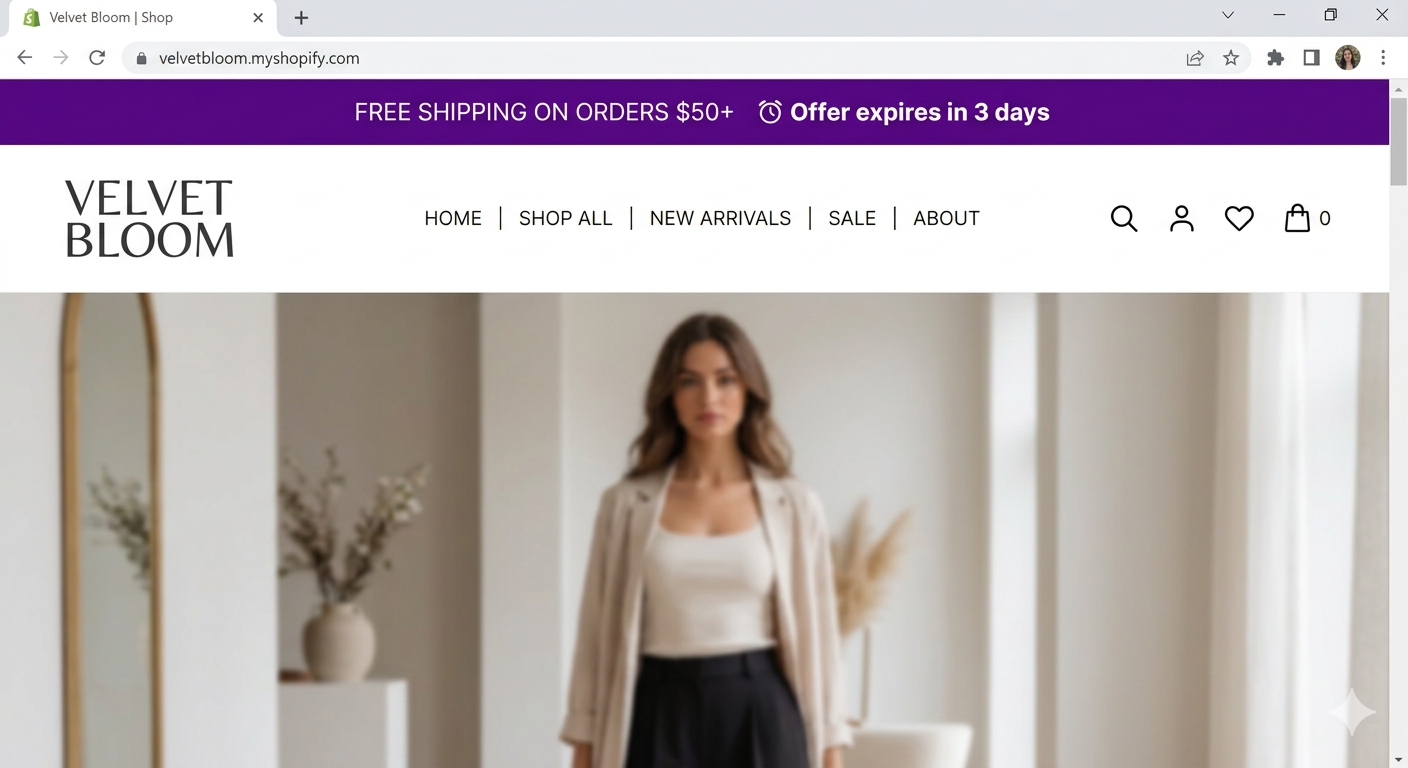
Your store loads. The visitor’s eye goes to the top of the page. What do they see?
- Option A: Nothing special. Just the navigation menu.
- Option B: A prominent Shopify announcement bar: “FREE SHIPPING ON ORDERS $50+ — Code Auto-Applied”
Which one communicates value better? Option B, obviously.
The Shopify announcement bar is the first thing visitors see. It’s prime real estate. Many merchants leave it empty or use it for generic messages (“Need help? Chat with us”). But smart merchants use it to broadcast their current promotions and drive more sales from the very first second a visitor lands on their store.
Why the Shopify Announcement Bar Converts Visitors
An announcement bar that says “20% OFF EVERYTHING” immediately tells the visitor: there’s a sale happening, and this is a good time to buy.
It frames the entire shopping experience. The customer browses knowing there’s a sale active. They’re more likely to add items, more likely to check out, and more likely to complete the order.
Shopify’s Native Announcement Bar
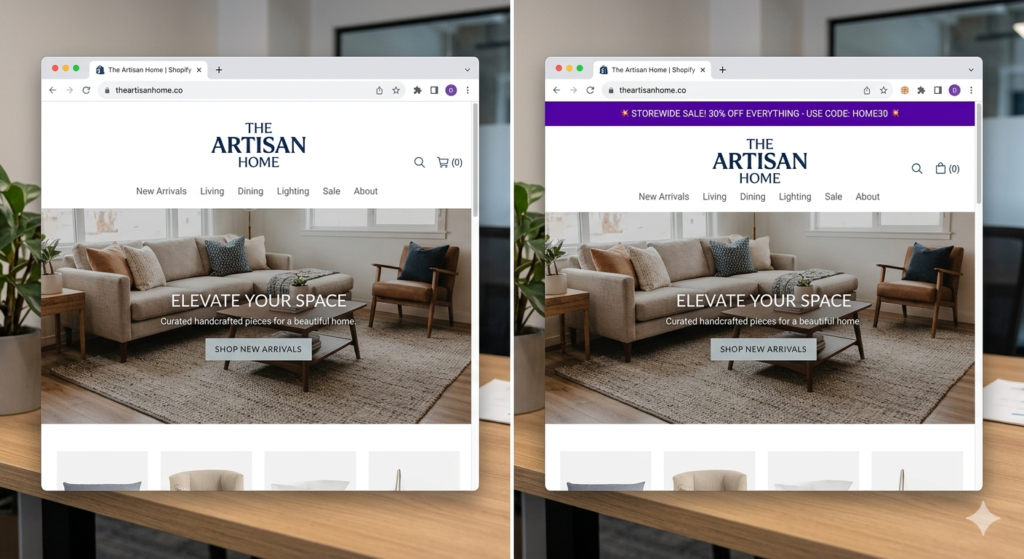
Shopify themes support announcement bars out of the box. You can typically customize the text, background color, text color, and an optional link. The limitation, however, is that it’s completely static. You manually change it when promotions change, and manually revert it when they end. For a store with frequent promotions, this quickly becomes tedious and easy to forget.
How Adsgun Makes Your Shopify Announcement Bar Automatic
Adsgun automatically generates announcement bar content based on your active promotions:
- You create a promotion: “Summer Sale 30% Off”
- You set your announcement text: “Summer Sale: 30% Off Everything”
- The promotion activates: the announcement bar automatically appears
- The promotion ends: the bar automatically disappears
- A new promotion activates: the bar updates to the new promotion’s text
Zero manual updates. The bar is always in sync with your active promotions. This is the same logic Adsgun uses across your entire store to display strike-through pricing and sale prices storewide.
Setup: How to Add an Announcement Bar for Your Promotion
Step 1: Open Adsgun
In Shopify admin, open Adsgun.
Step 2: Create or Select a Promotion
Click Create New Promotion or edit an existing one.
Step 3: Go to Display Settings
In the promotion, click Display or Customization tab.
Step 4: Enable Announcement Bar
Check the box: Show announcement bar when this promotion is active
Step 5: Write Your Announcement Text
This is the text that will appear in the bar:
Good options:
- “Summer Sale: 30% Off Everything”
- “Flash Sale: 20% Off Activewear (6 PM to Midnight)”
- “Free Shipping on Orders $50+”
- “Member Exclusive: 15% Off”
- “Black Friday: 35% Off. Deal Ends Midnight”
Keep it short (1–2 lines max). Longer text gets cut off on mobile.
Step 6: Customize Appearance
- Background color: Contrasting color (red, purple, your brand color)
- Text color: White (for contrast)
- Text size: Medium to large (readable on mobile)
- Position: Top of page (standard)
- Font weight: Bold (grabs attention)
Step 7: Optional: Add a Countdown Timer
Check: Show countdown timer in announcement bar
This adds “Expires in 3 days” or similar, creating urgency.
Step 8: Optional: Add a Link
If you want the announcement bar to link somewhere, point it to /collections/sale-products or your dedicated sale collection page. When customers click the bar, they land directly on your active sale.
Step 9: Preview
Adsgun shows you what the bar looks like on desktop and mobile.
Step 10: Publish
The promotion is live, and the announcement bar is active.
Why Urgency Works in a Shopify Announcement Bar
Adding a countdown timer or deadline to your Shopify announcement bar triggers urgency. Phrases like “Ends Tonight at 11 PM” or “3 Days Left: 30% Off” give visitors a concrete reason to act now rather than come back later. If your promotion has a fixed end date, always communicate it in the bar.
Best Practices for Announcement Bars
1. Make It Visually Distinct
The bar should stand out. Use a bold color that contrasts with your site’s primary colors.
- If your site is white/grey: Use red, purple, or your brand color
- If your site is colorful: Use a neutral bold color or white background with bold text
2. Keep Text Short and Scannable
Visitors read the bar in 1–2 seconds. Make every word count:
- Good: “Free Shipping + 20% Off”
- Bad: “We’re having a special promotional event this week where we’re offering free shipping combined with a 20% discount”
3. Create Urgency When Appropriate
If the promotion is time-limited, say so:
- “Flash Sale: Ends Tonight at 11 PM”
- “3 Days Left: 30% Off”
- “Limited Time: Free Gift With Purchase”
4. Use Action-Oriented Language
Tell the customer what to do:
- “Shop the Sale”
- “Claim Your Code”
- “Unlock Free Shipping”
5. Match Bar to Promotion Type
Different promotions warrant different messaging:
- Discount: “20% Off Everything”
- Free shipping: “Free Shipping on $50+”
- Free gift: “Free Gift With Your Purchase”
- Member exclusive: “Member Exclusive: 25% Off”
- Limited time: “Flash Sale: Ends Midnight”
6. Test on Mobile
Test on Mobile: The bar condenses on smaller screens. According to Shopify’s own research on mobile commerce, more than half of ecommerce traffic now comes from mobile devices. Test your bar on an actual phone, not just a browser resize, to make sure the text isn’t cut off and remains readable.
Advanced: Multiple Bars for Multiple Promotions
If you’re running multiple simultaneous promotions and need to manage their timing, check out our guide on how to schedule a sale on Shopify for step-by-step instructions on automated start and end times.
Option A: Show the most important promotion in the bar
- Set one “priority” bar that shows when multiple promotions are active
Option B: Show a combined bar
- Announcement text: “Member 15% + Flash 20% + Free Ship — Stack Em Up!”
- Shows all active offers in one concise message
Real-World Impact: Announcement Bar Effectiveness
Research shows announcement bars increase conversion by 2–5% when they:
- Are visually prominent
- Show a real, valuable offer
- Create urgency (time-limited)
- Use action-oriented language
Research consistently shows that visually prominent, offer-focused announcement bars improve overall store conversion. For a deeper look at how announcement bar design affects ecommerce engagement, Popupsmart’s breakdown of real brand examples is a solid reference.
In concrete terms: A store with 1,000 monthly visitors and 2% baseline conversion (20 orders) can gain 0–1 additional orders per month just by adding an effective announcement bar. Over a year, that’s 5–12 extra orders.
Small gains, but free gains.
FAQ: Announcement Bars
Q: Should I always have an announcement bar active?
A: Not necessarily. If you don’t have an active promotion, leaving the bar empty or using it for announcements (chat support, returns policy) is fine. The bar is valuable when you have something to announce.
Q: Can I use the bar for non-promotional messages?
A: Yes. Use it for operational messages: “We’re currently experiencing shipping delays” or “New store hours” or “Chat support is available Mon–Fri 9–5.”
Q: Does the announcement bar slow down my site?
A: No. It’s a lightweight HTML element. No performance impact.
Q: Can I hide the bar on specific pages?
A: Theme settings usually allow this. Check your theme’s announcement bar options.
Q: What colors work best for the bar?
A: Bold colors that contrast with your brand. Red and purple are traditional for sales. Green for eco/sustainability messages. Use your brand color if it’s bold.
Ready to Broadcast Your Promotions?
The announcement bar is valuable real estate. Use it to tell visitors immediately: “There’s a sale happening. This is a good time to buy.”
With Adsgun, the bar updates automatically based on your active promotions. No manual updates. Always in sync.
Start your free 7-day trial and enable your first announcement bar today. No credit card required.




