
How to Show Discounted Prices in Shopify Cart
Shopify only shows discount codes as a single line in the cart, not on each product. Learn how to show discounted prices in your Shopify cart on every line item and reduce cart abandonment.
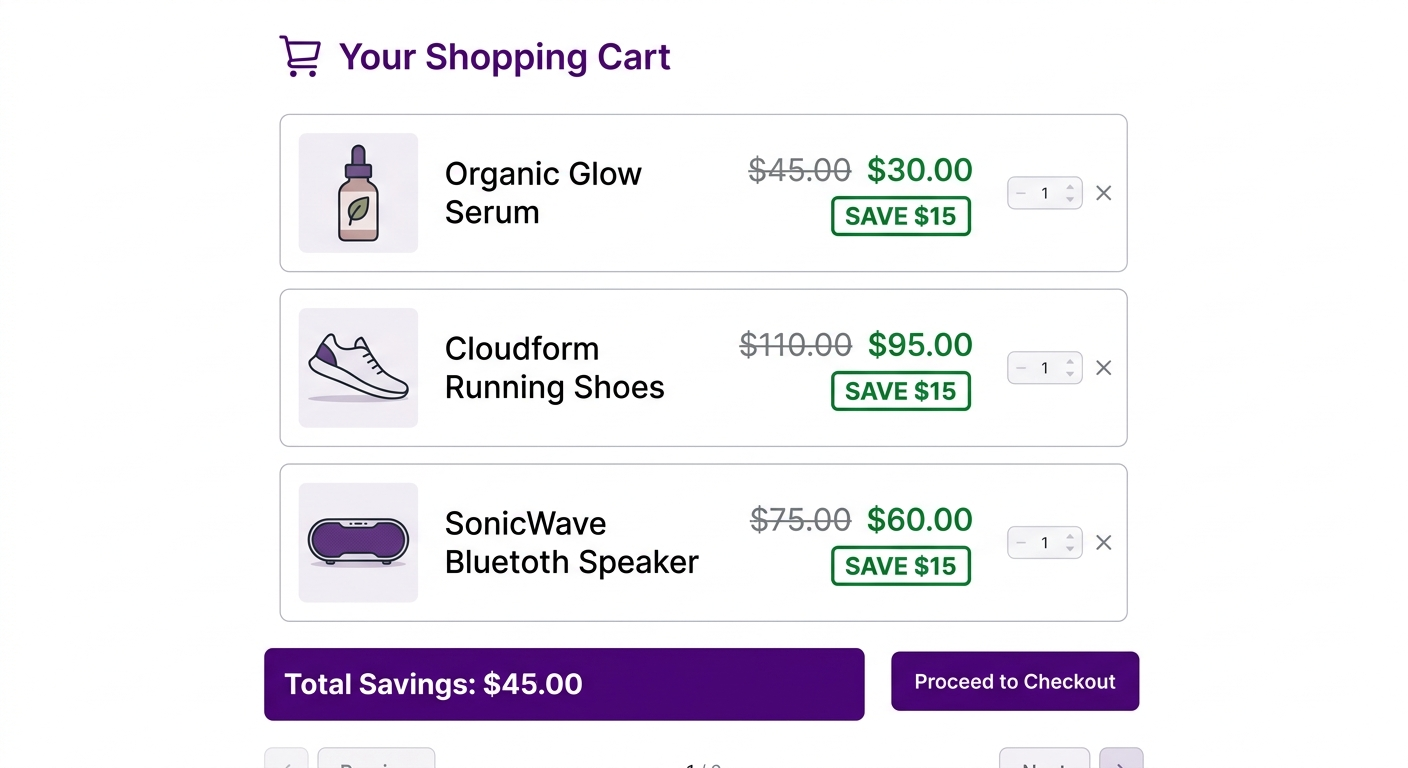
Your customer has added three items to their cart. The subtotal reads $247.80. Below it, a line item says “Discount (SAVE20): $49.56 off.” Total: $198.24.
Here’s what the customer thinks: “Great, I’m getting a discount.”
Here’s what they don’t see: how much they’re saving on each item. They see the aggregate savings, but not the breakdown. They don’t feel the value of the discount applied to their specific products. The savings feel abstract. This is exactly the problem that comes up when Shopify stores don’t show discounted prices in the cart on a per-item level.
Now imagine the same cart, but this time each product line shows:
- Shirt (was $89, now $67) – Save $22
- Pants (was $98, now $78) – Save $20
- Jacket (was $120, now $90) – Save $30
- Order total savings: $72
Suddenly, the discount isn’t abstract. It’s concrete, itemized, and impossible to ignore. The customer sees exactly which products are discounted and by how much. They feel the value three times over: once per item, then again at the order level.
This is the difference between “I got a discount” and “I’m saving $72 on items I actually wanted.” The second version reinforces the purchase decision at the exact moment your customer is most vulnerable to abandoning their cart.
Why the Shopify Cart Matters Most for Discount Visibility
The cart is the last stop before checkout. At this point:
- Your customer has committed to buying (items are added)
- They’re evaluating the total spend (should I proceed?)
- They’re most susceptible to second thoughts (is this worth it?)
This is the psychological moment where a visible discount becomes a deal-closer. According to Baymard Institute research on cart abandonment, nearly 70% of online shoppers abandon their cart during the checkout flow. Many cite “expensive prices” as the reason, even though they added the items themselves.
When you show discounted prices in the Shopify cart as itemized, per-product savings, you deploy one of the strongest anti-abandonment signals available. It tells the customer: “You’re getting a great deal on each of these items. This is a good time to buy.”
What Shopify’s Native Cart Shows (And Doesn’t Show)
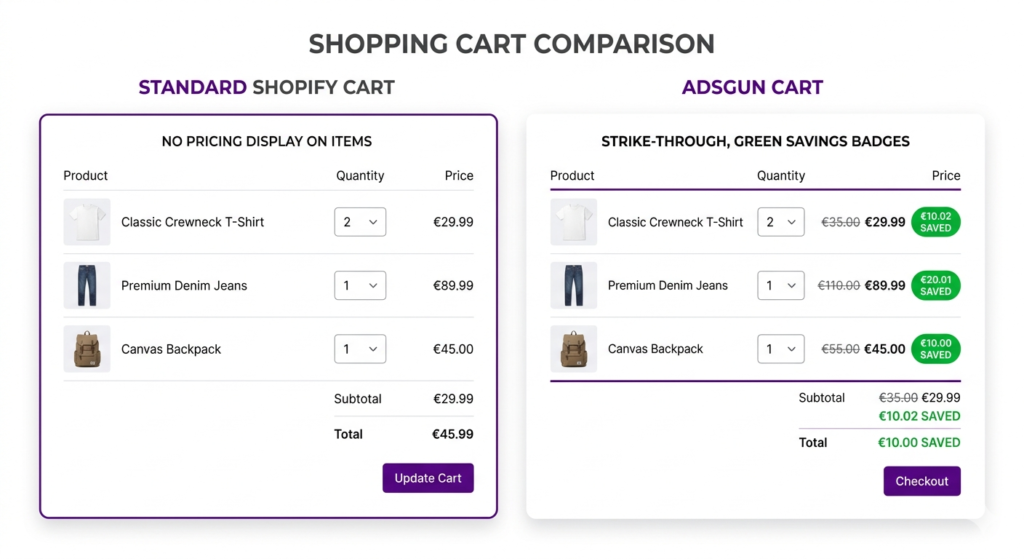
In Shopify’s default cart experience:
- Discount code line item: Shows as a single line: “Discount Code (WELCOME15): $37.50 off”
- Product line items: Show the full price with no strike-through and no savings amount per item
- Total savings: Visible only as the discount amount at the bottom
The discount is there, but it’s not associated with the products. A customer sees $89 for the shirt, $98 for the pants, and then $37.50 off the entire order. The connection between the shirt price and the savings is never made.
This is a UX gap in Shopify’s core functionality. It’s not Shopify’s fault: the platform was designed for general ecommerce, not specifically for maximizing discount visibility. But it’s a gap that costs conversions. If you’ve been wondering why your Shopify automatic discount is not showing in the cart the way you’d expect, this is the root cause.
How to Show Discounted Prices in Your Shopify Cart with Adsgun
Adsgun’s cart display layer adds four critical elements that solve the visibility gap:
1. Per-Item Original and Sale Price
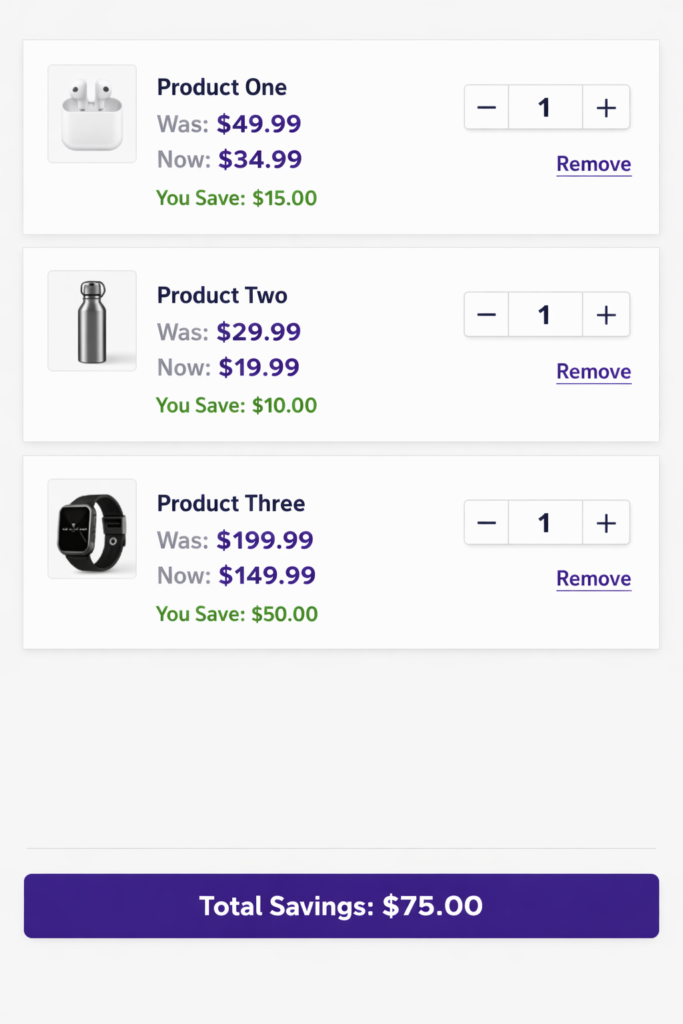
Each product shows “Was $89, Now $67.” The original price has a strike-through. The sale price is bold and highlighted. Your customer immediately sees the value of their specific product.
2. Per-Item Savings Amount
Below each product: “Save $22.” No math required. No ambiguity. The customer knows exactly what they’re saving on that item.
3. Visual Savings Badge
A customizable badge draws the eye. You can use:
- “SAVE $22”
- “20% OFF”
- “Member Price”
- “Flash Sale”
4. Cart-Level Total Savings Summary
At the bottom of the cart: “You’re saving $72 on this order.” This reinforces the overall deal and gives the customer the full picture.
All of these elements are fully customizable in terms of colors, fonts, badge position, and text format. You can match your brand, whether you’re a premium retailer (subtle grey strike-through) or a fast-fashion store (bold red “SALE” badge).
Real Impact: Why Cart Discount Display Drives Conversion
A major tire retailer (Tire Streets) ran a Black Friday and Cyber Monday campaign and documented the impact:
- Sessions: 19,000 (consistent year-over-year)
- Conversion rate: 2.78% to 3.17% (+14%)
- Orders: +18%
- Revenue: $228,500 to $266,300 (+$37,800)
Same traffic, same products, same discounts. The difference was visible pricing across product pages, collections, and the cart itself.
When customers see the savings on every item in their cart, they feel the deal. They’re less likely to abandon. They’re more likely to add one more item: “Since I’m already saving $70, might as well pick up the accessories for $25 more.”
Step-by-Step: Enabling Adsgun’s Cart Discount Display
- Install Adsgun from the Shopify App Store if you haven’t already
- Create or select a promotion in Adsgun:
- Click “Create New Promotion” or edit an existing one
- Set your discount (e.g., 20% off, $15 off, free shipping)
- Set eligible products (all, specific collections, tags, or price ranges)
- Go to Display Settings:
- In Adsgun, click on the promotion you want to configure
- Navigate to the “Display” or “Customization” tab
- Enable Cart Display:
- Check the box for “Show discount in cart”
- Choose your cart display format: strike-through + savings amount, Was/Now pricing, percentage off, or a custom format
- Customize colors and styling:
- Strike-through color (default: grey)
- Sale price color (default: green)
- Badge style: color, shape, font size, and position on the line item
- Text format: “Save $22”, “20% OFF”, “Member Price”, etc.
- Set your total savings message:
- Customize the text: “You’re saving $X on this order” or your preferred wording
- Preview on mobile and desktop to ensure visibility and no layout breaks
- Publish
The cart display is now live. When customers add products with active promotions and view their cart, they’ll see itemized savings on every line.
Combining Cart Discount Display With Other Visibility Layers
The cart doesn’t live in isolation. For maximum impact, show discounts across the entire customer journey:
- Product pages: Strike-through price and “Was/Now” badge while the customer is browsing. See how to show discounted prices on Shopify product pages
- Collections: Sale badges (20% OFF) on product cards to drive clicks. See how to show sale price on Shopify collection pages
- Cart: Itemized savings and total order savings (this post)
- Checkout: Strike-through prices and total savings confirmation
Each touchpoint reinforces the deal. By the time your customer reaches payment, they’ve seen the savings multiple times. The discount is top-of-mind, and conversions follow.
Mobile vs. Desktop Considerations
Carts on mobile have less screen space. Adsgun’s cart display is responsive by design:
- On desktop: Strike-through price, sale price, badge, and savings amount are all visible per line
- On mobile: The essentials remain visible (sale price and savings amount), while secondary elements like the original price strike-through can be toggled or collapsed to save space
Test on your actual store across different devices to confirm readability before going live.
Your customers are closest to buying when they’re reviewing their cart. It’s the ideal moment to reinforce the value of their purchase. Shopify’s default cart shows discounts as a bottom-line credit. Adsgun shows them on every item, exactly where they matter most.
Start your free 7-day trial today. No credit card required.



