
Shopify Compare at Price vs Discount Code: Which Should You Use?
Compare at price changes product data. Discount codes apply at checkout. The compare at price vs discount code decision affects your analytics, flexibility, and customer experience. Here is how to choose.
How Compare at Price Works
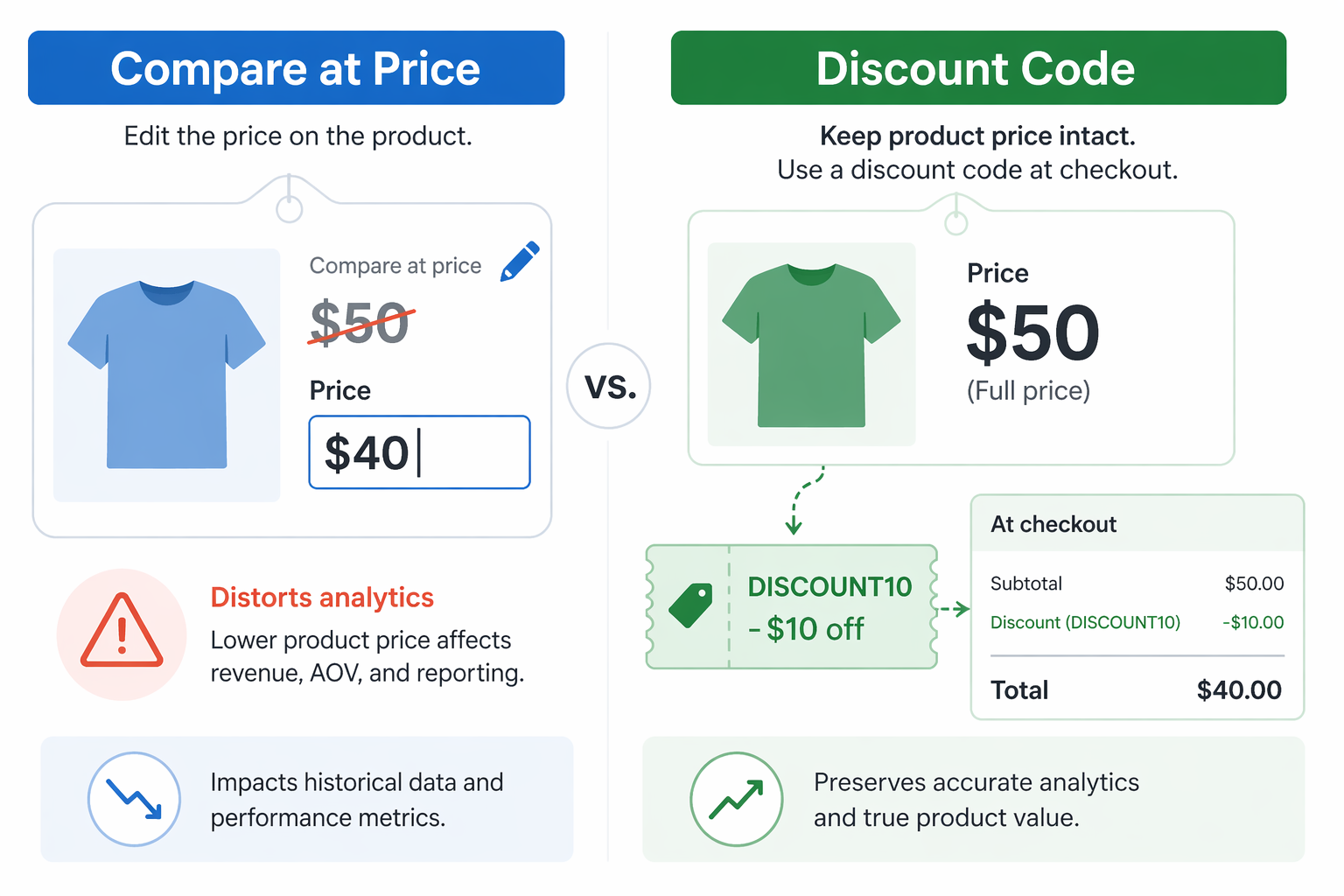
Compare at price vs discount code is an important distinction when working with Shopify pricing. Compare at price is a field inside Shopify’s product data, and every product has two price fields:
- Price: the amount you sell at
- Compare at price: a higher reference price, usually presented as the “original” or “retail” price
Shopify shows them as: Compare at Price, Price
Example:
- Price: $40
- Compare at price: $50
- Displayed as:
$50$40
How it’s created:
You manually edit the product and set the compare at price field. Or you bulk edit with a CSV. Either way, the product’s actual selling price moves down.
How Shopify records it:
Shopify treats the lower price ($40) as the real product price. Financially, it is as if the product was always $40. No discount is tracked. The sale is recorded as “$40 sale, no discount applied.”
Analytics impact:
Gross revenue is based on the new lower price. If you move a product from $50 to $40 using compare at price, Shopify reports the sale as a $40 product, not as a $50 product discounted to $40. That distorts financial reporting across the store.
How Discount Codes Work
A discount code is separate from product data. The product keeps its full price. The discount is applied as a line item at checkout.
How it’s created:
You create a discount in the Shopify admin. You set the type (percentage or fixed amount) and a code, for example `SAVE20`.
Customer experience:
The customer adds a product to the cart at full price ($50). At checkout, they enter `SAVE20`. Shopify applies the discount. The final total is $40.
Shopify’s handling:
Shopify records the product at full price ($50) and the discount as a separate negative line item (-$10). The sale is tracked as “$50 product + $10 discount = $40 total.”
Analytics impact:
Gross revenue shows $50 per product correctly. The discount is tracked separately. Financial reporting stays accurate.
Compare at Price vs Discount Code: 8 Key Dimensions
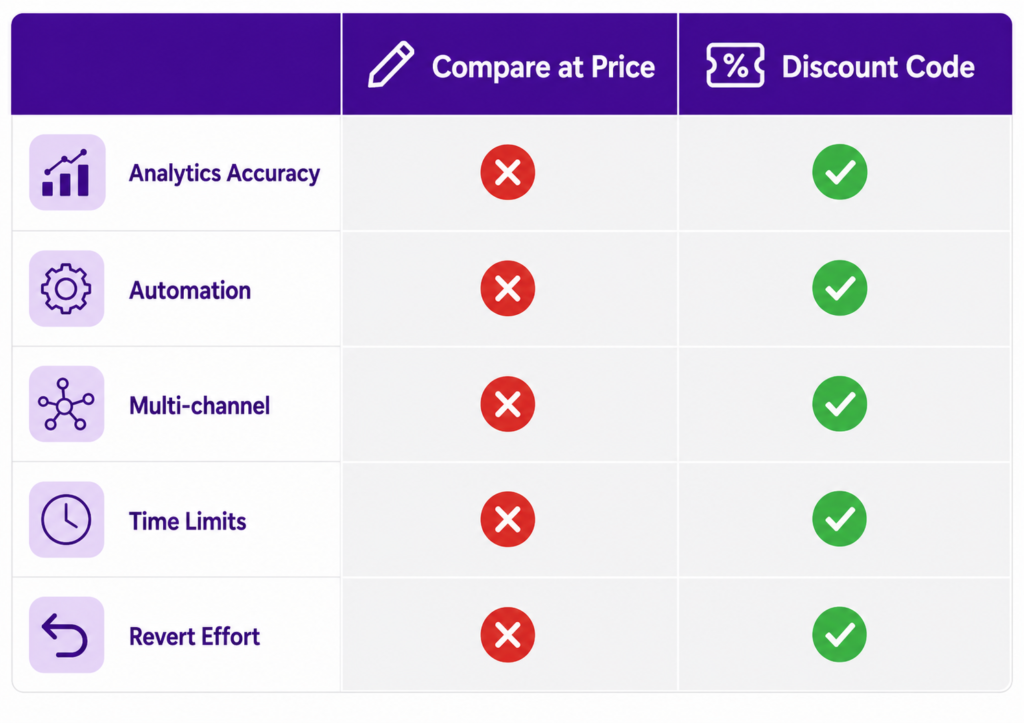
Here is a direct compare at price vs discount code breakdown across the dimensions that actually matter for running a store.
| Dimension | Compare at Price | Discount Code | Winner |
|---|---|---|---|
| Setup complexity | Simple (one field) | Moderate (create code + rules) | Compare at Price |
| Analytics accuracy | Poor (distorts gross revenue) | Excellent (tracks discount separately) | Discount Code |
| Automation potential | Manual per product | Can automate via Shopify Discounts | Discount Code |
| Multi-channel capability | Only on Shopify | Can work via links, codes, automation | Discount Code |
| Customer experience | Sees savings on product page | Sees savings only at checkout | Compare at Price |
| Revert effort | High (must manually revert each product) | Low (disable discount code) | Discount Code |
| Variant handling | Works per variant | Works across all variants | Tie |
| Multi-promotion support | Difficult (price conflicts) | Can stack up to 5 codes | Discount Code |
Overall winner: Discount Code. Better analytics, more flexibility, easier to manage, and survives scale.
Where compare at price still wins: customer visibility. Without help, discount codes stay hidden until checkout.
Adsgun closes that gap by showing discount codes as strike-through pricing on product pages, so discount codes win that dimension too once Adsgun is in the picture.
Note on stacking: Shopify allows up to 5 product or order discount codes plus 1 shipping discount code per order, and each code must have the “Combines with” settings configured correctly. There is also the question of how they stack visually, which is the topic of our separate Shopify discount stacking guide.
When Compare at Price Actually Makes Sense
Compare at price has legitimate uses, but they are narrower than most stores realize. It makes sense in three scenarios:
- Permanent price reductions. Your costs dropped and you are permanently lowering price. This is not a promotional discount, it is a real price change. Use compare at price to document the old retail figure for context.
- One-off markdowns. A product is not moving. You mark it down from $50 to $35 permanently, not as a limited offer. Compare at price documents the old retail.
- Clearance items. End-of-season clearance where $100 products drop to $25 for final sale. Compare at price shows the original retail alongside the final clearance price.
When not to use compare at price: any promotion with a future end date, any time-limited offer, anything you plan to revert.
When Discount Codes Are the Right Choice
Discount codes (or automatic discounts) are better for almost every other scenario:
- Promotional campaigns. “Summer Sale 20% Off” limited to June through August. Create a discount code. Disable it on September 1.
- Influencer partnerships. Each influencer gets a unique code. You track which influencer drove revenue. Use discount codes with unique bulk codes per influencer.
- Channel-specific offers. Email subscribers get 15% off, paid ad traffic gets 10% off. Use discount codes (or URL-targeted promotions if you want the discount to apply automatically without a code).
- Customer segments. VIP members get 20% off automatically. Use automatic discounts or Adsgun Customer Account promotions tied to customer tags.
- Time-limited flash sales. A 24-hour flash sale that reverts automatically. Use a discount code combined with the Adsgun scheduler.
- Stacking multiple promotions. Combine a percentage off with free shipping and a tier-based bonus. Discount codes support up to 5 stacked product or order codes plus 1 shipping code per order.
The Hybrid Trap: Mixing Compare at Price and Discount Codes
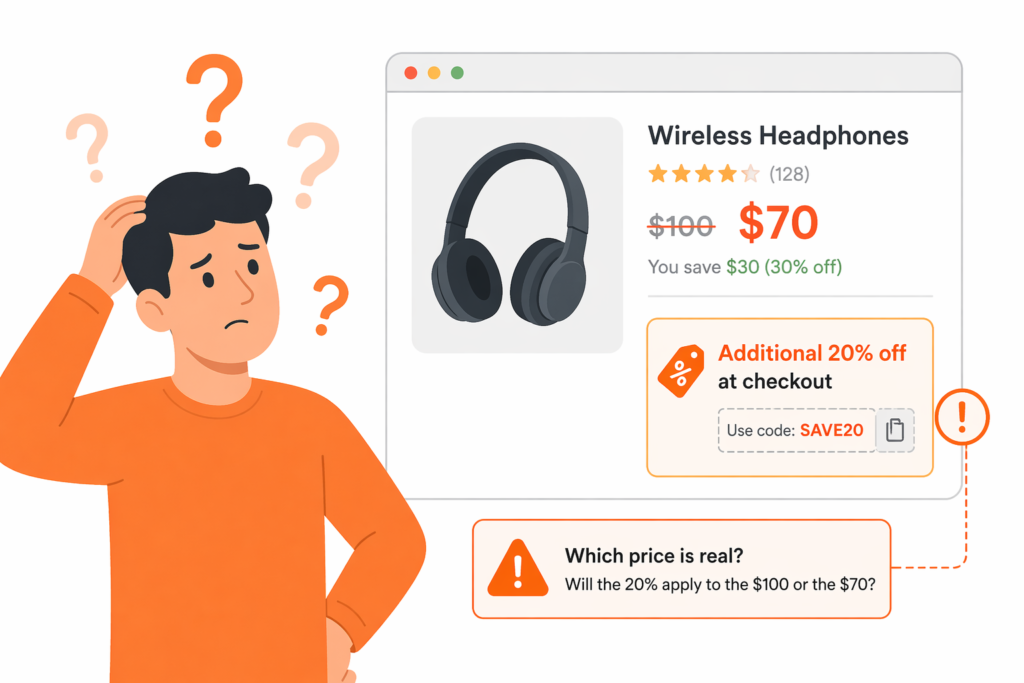
Some stores use both mechanisms at the same time. The base product has a compare at price set (documenting some “old price”), and an active promotion also runs as a discount code.
The problem: customers see both at once, which creates confusion.
The product page shows $100 $70 (the compare at price reduction). At checkout, the discount code also runs: $70 minus 20% equals $56. The customer’s brain stalls. “Is this product $70 or $56? Am I getting both discounts? Which price was real?”
This hesitation causes cart abandonment on the most motivated customers.
The fix is simple: do not mix them. Pick one approach per product and stick to it:
- For permanent price changes, use compare at price
- For promotions, use discount codes and never touch compare at price for those products
The Clean Solution: Real Discounts Plus Visible Display
For most modern Shopify stores, the right architecture looks like this:
- Use real Shopify discounts (discount codes or automatic discounts) for every promotion. This preserves accurate analytics because the discount is tracked as its own line item.
- Display them visibly via Adsgun so strike-through pricing appears on product pages, collections, cart, and checkout, not only at checkout.
- Never use compare at price for promotions. Reserve compare at price for permanent price changes only.
This stack gives you:
- Accurate financial reporting because discounts are tracked separately
- Customer visibility equivalent to compare at price, without touching product data
- One-click management (enable and disable each promotion in Adsgun)
- Flexibility across time limits, stacking, and multiple channels
FAQ: Common Compare at Price vs Discount Code Questions
Q: Can I use compare at price and discount codes together?
Technically yes, but it confuses customers and produces the hybrid trap described above. Pick one approach per product.
Q: Does compare at price show on collection pages?
Usually yes, but it depends on your theme and on whether every variant has a consistent compare at price. Some themes do not render it on collections. Our full compare at price guide walks through the troubleshooting.
Q: Can I automatically revert compare at price after a set date?
No. Compare at price has no native scheduler. It requires a manual revert, which is one of the main reasons it does not work well for time-limited promotions. Use a discount code with an end date instead.
Q: How do I show the discount on product pages, not just at checkout?
Use a display app like Adsgun. It displays discount codes as strike-through pricing on product pages, collections, and cart, so the customer sees the savings before reaching checkout. This removes the main reason stores reach for compare at price in the first place.
Q: Which affects gross revenue more, compare at price or discount codes?
Compare at price distorts gross revenue because it changes the product’s recorded price. Discount codes keep gross revenue clean because the discount is a separate line item. If your finance team cares about accurate reporting (and they should), this alone is a reason to switch away from compare at price for promotions.
Q: Can I stack multiple discount codes on the same order?
Yes, up to 5 product or order discount codes plus 1 shipping code, provided each code has the correct “Combines with” settings. For complex stacking across different customer segments, channels, and promotions, an app-managed promotion engine simplifies the logic.
Audit Your Pricing: Compare at Price vs Discount Code Issues
If you are currently running active promotions through compare at price, here is a clean migration path:
- Audit products. Identify every product that has a compare at price set right now.
- Categorize each case. Is it a permanent markdown or a temporary promotion?
- For permanent markdowns, keep compare at price. No action needed.
- For temporary promotions, create a discount code or automatic discount instead, then revert the compare at price on the affected products.
- Test. Verify that pricing now displays correctly on product pages, collection pages, and checkout. Verify that analytics now show the discount as a separate line item, not a price change.
For stores with hundreds of products this takes real time, but the analytics payoff is significant. Every promotion you run after the migration produces clean numbers.
Why Reporting Accuracy Actually Matters
At the end of the year, you need true gross revenue, cost of goods sold, and profit margins. If your prices have been distorted through compare at price during every promotion, your financial reports are distorted with them. You might think you are running at 45% margin when the real number is 40%. That gap drives real decisions: which products to reorder, which categories to expand, whether to raise prices, whether to spend more on acquisition.
Real discounts tracked as line items give you clean data to work with. Compare at price gives you ambiguous data dressed up as revenue growth.
Start Using Real Discounts Today
If you are running promotions with compare at price, switch to discount codes. Schedule each code to disable automatically on its end date. Use Adsgun to display the discount as strike-through pricing on product pages, so customers see the deal before they click Add to Cart.
Your analytics will thank you, your finance team will thank you, and your customers will see the savings earlier in their journey, which is the entire point.




