
Shopify Discount Code Not Showing on Product Page: Why and How to Fix
Discount codes are hidden until checkout by design. But you can show them on product pages using URL parameters, manual compare at price, or an app. Learn the pros and cons of each approach.
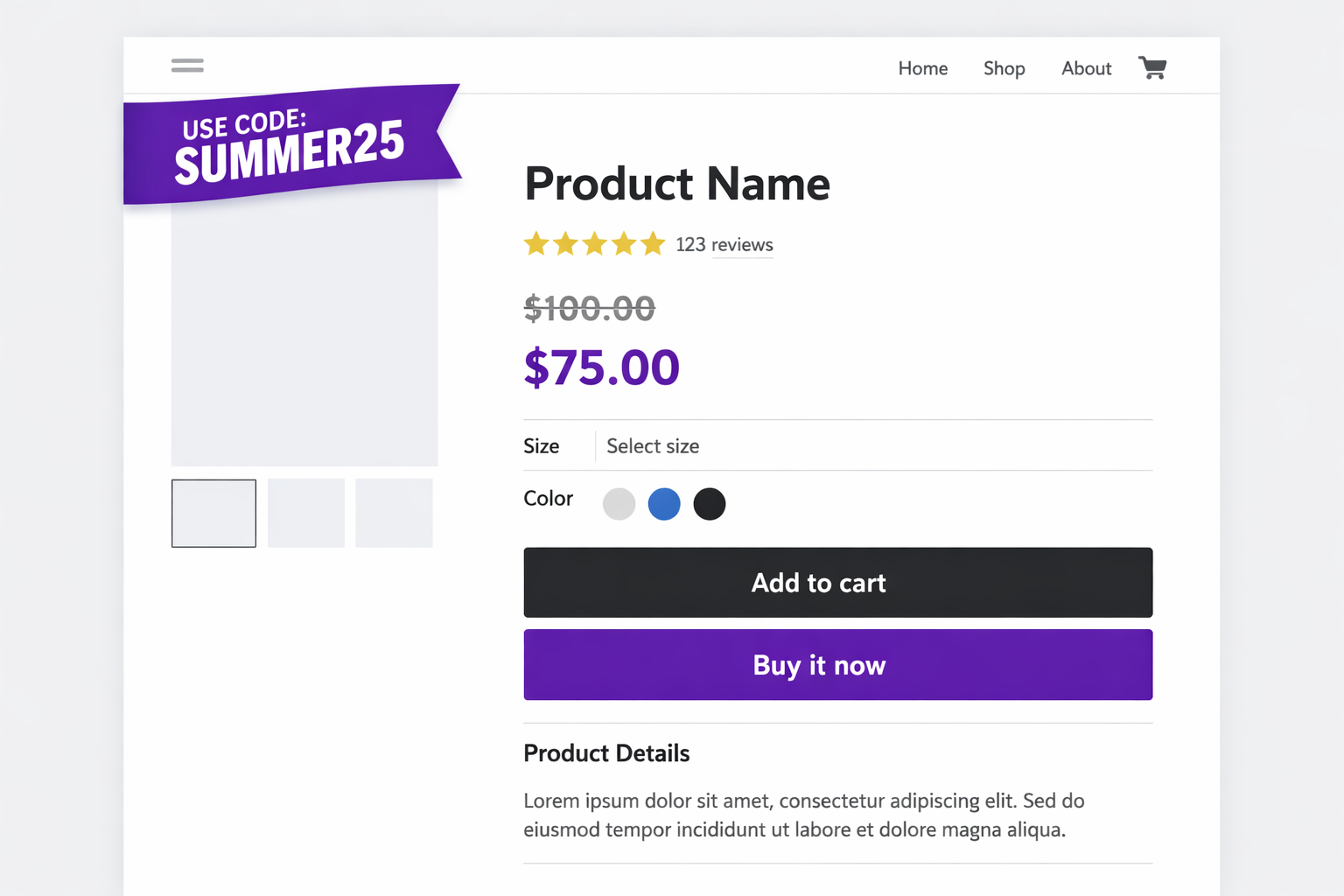
The Problem: Discount Codes Are Invisible Until Checkout
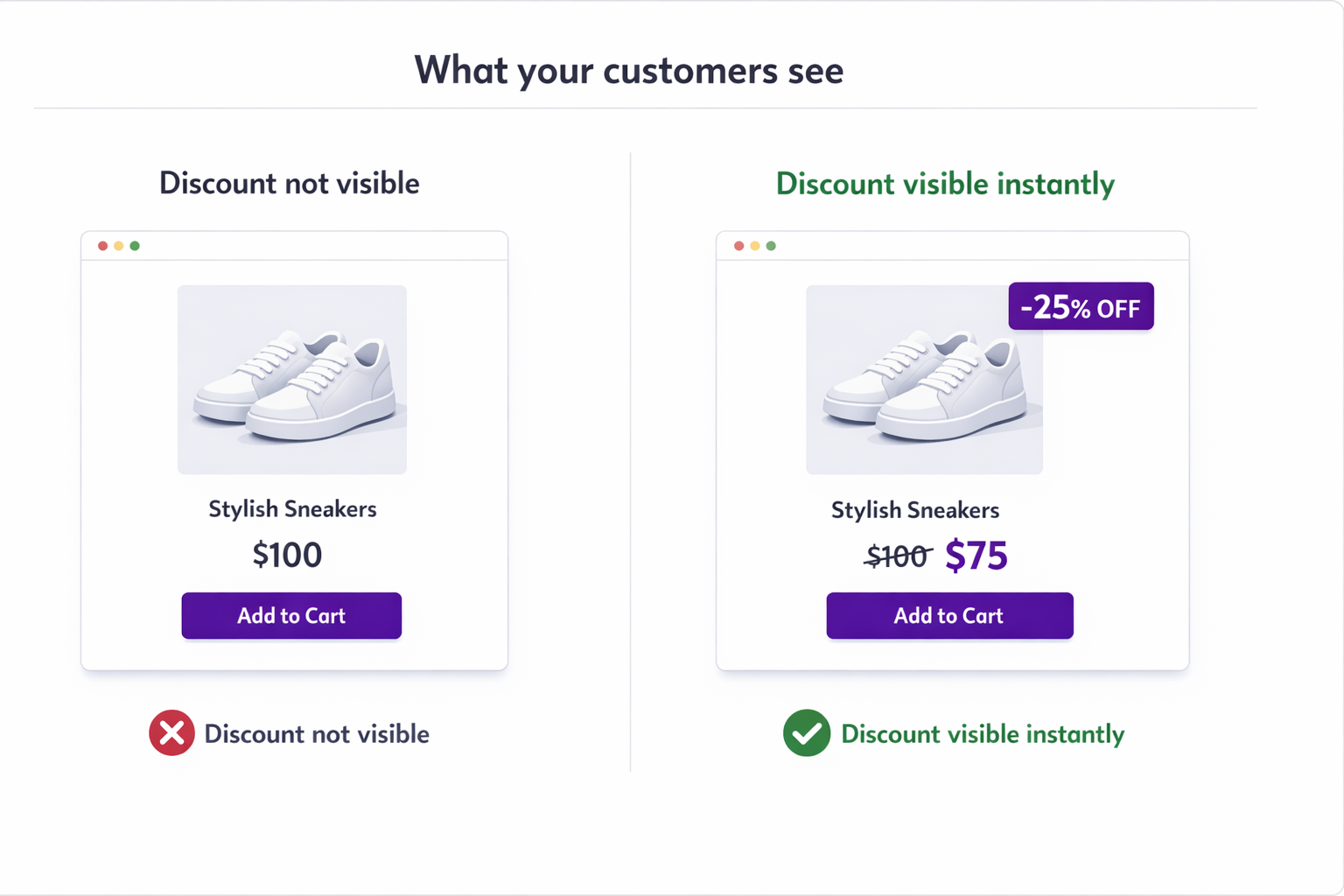
You’ve created a discount code “SUMMER25” for 20% off, but you’re facing the issue Shopify Discount Code Not Showing on Product Page. You’re running an email campaign with the link. Customers click the email, land on your product page, see the full price, and think “That’s expensive. I’ll check a competitor first.”
Then at checkout, they may remember to type in the code and discover it’s actually 20% off. But by then, they have either already committed or left to compare options and forgotten about your store.
The problem is simple. Discount codes do not show the price reduction on product pages. They stay invisible until checkout.
Why Shopify Discount Codes Are Not Showing on Product Pages
Unlike compare at price, which is stored directly on the product, a discount code is handled separately in Shopify’s discount system.
When a customer lands on your product page, Shopify does not know which discount code will be used. It could be SUMMER25, SPRING20, or no code at all. Because of that, Shopify shows the full price and only applies the discount later in the checkout flow.
This approach is technically simpler, but it creates a conversion gap. It’s also the main reason behind the common issue of Shopify discount code not showing on product page, since customers can’t see the discount when it matters most.
For reference, Shopify explains how discounts are applied in checkout and how compare-at pricing works here: https://help.shopify.com/en/manual/discounts/discounts-faq https://help.shopify.com/en/manual/products/details/product-pricing/sale-pricing
Three Methods to Fix Shopify Discount Code Not Showing on Product Page
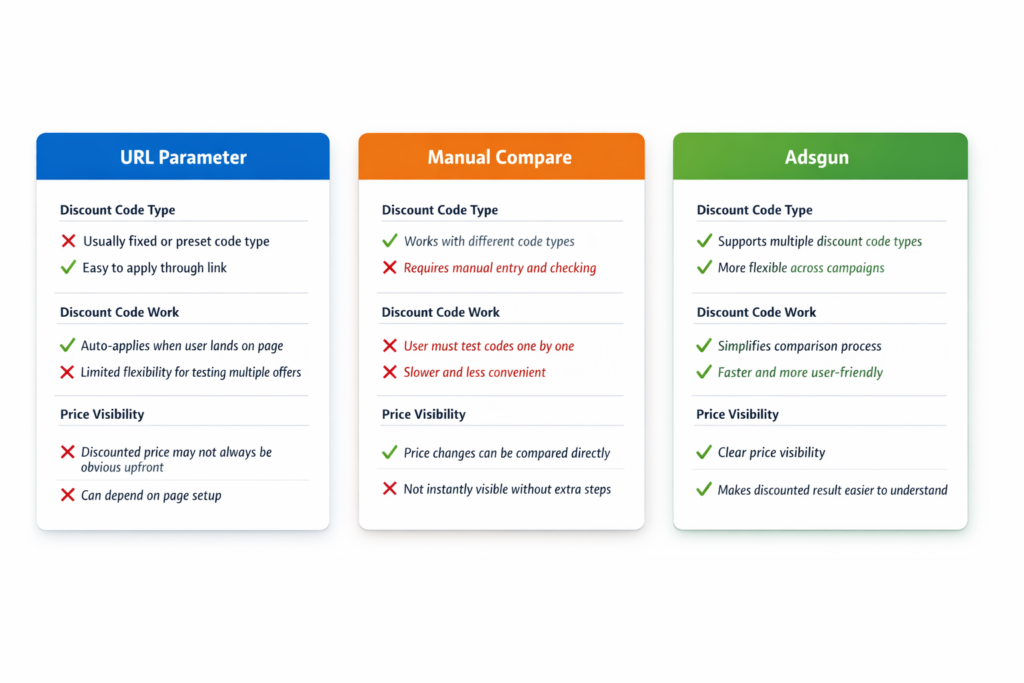
Method 1: URL Parameters (The Limited Approach)
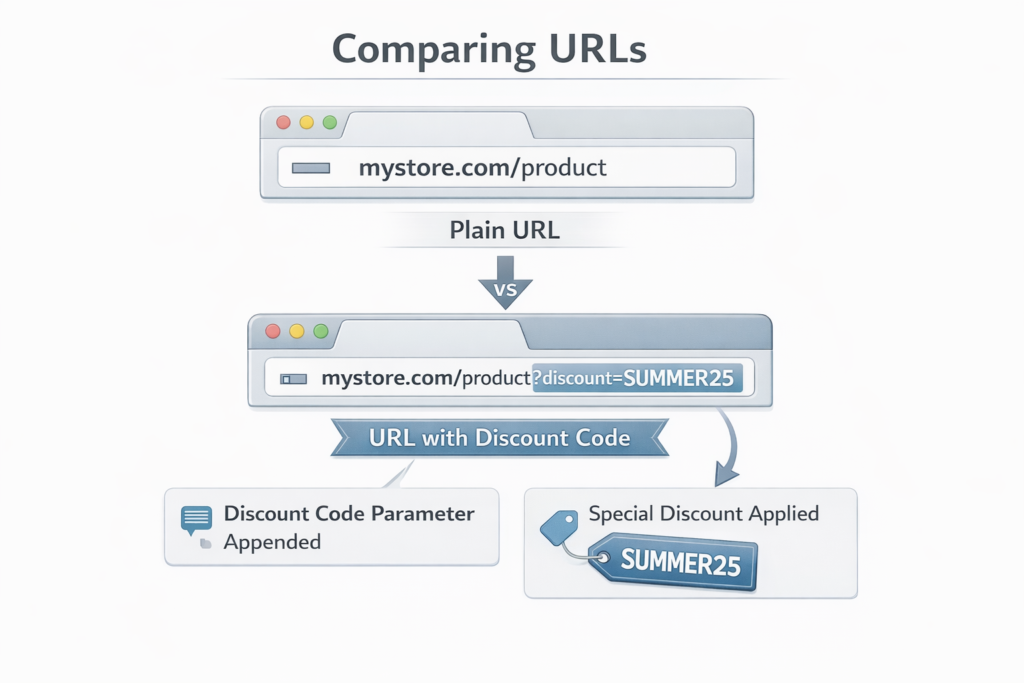
Shopify allows you to pass a discount code in the URL: mystore.com/products/winter-coat?discount=SUMMER25
When the customer lands on this URL, the discount code is pre-filled at checkout, but the product page still shows the full price.
Pros:
- Free
- Simple
- Works with any theme
Cons:
- Doesn’t show the price reduction on the product page (still shows full price)
- Customers might not notice the discount until checkout
- Only works if you control the link (email, your ads, your site)
- Doesn’t help customers who find your products via organic search or social media
When to use: Only if you’re running a channel where you control the link (like email campaigns or paid ads) AND you’re okay with customers not seeing the discount until checkout.
Method 2: Manually Set Compare at Price (The Imperfect Workaround)
You could set the compare at price manually to show the discounted price on product pages. When the customer reaches checkout, they enter the code and get the discount.
Pros:
- Free
- Shows the price reduction on product pages
- Works with any theme
Cons:
- Manual. you have to update it every time you change the code or discount percentage
- Doesn’t show the CODE itself, just the price reduction (customers might not know why the price dropped)
- Gets out of sync. If you create a new code, you have to remember to update compare at price
- Doesn’t work well with multiple simultaneous codes at different percentages
- Creates accounting confusion (your compare at price doesn’t match your actual discount)
When to use: Only if you have one static discount code that never changes.
Method 3: Best Solution for Shopify Discount Code Not Showing on Product Page
Adsgun reads discount codes from the URL or auto-applies them, calculates the real discounted price, and displays it on product pages with a badge showing the code name.
Pros:
- Automatic, no manual updates
- Shows the price reduction AND the code name (“Code: SUMMER25 – Save 20%”)
- Works across all channels (email, ads, organic search, social)
- Real-time price calculation (if you change the code, the price updates)
- Eliminates customer friction (no typing the code at checkout)
- Works with unlimited simultaneous codes
Cons:
- Monthly subscription
When to use: If you run any discount codes at all, especially if you run multiple codes or update them frequently.
How Adsgun Shows Discount Codes
Let’s walk through a real scenario:
You run an email campaign with this link: mystore.com/products/winter-coat?discount=SUMMER25
Without Adsgun:
- Customer lands on product page
- Sees “Winter Coat – $100” (full price)
- Doesn’t see the discount
- Thinks the price is too high, doesn’t add to cart
- Never reaches checkout
With Adsgun:
- Customer lands on product page
- Adsgun reads the URL parameter “SUMMER25”
- Adsgun validates that SUMMER25 exists and calculates the discount (20% off = $80)
- Adsgun displays: “Was $100 | Now $80” with a badge “Code: SUMMER25”
- Customer sees the deal immediately
- Much more likely to add to cart
- At checkout, Adsgun has already auto-applied the code
- Customer doesn’t have to type anything
This is a small difference in flow, but it has a huge impact on conversion. The customer sees the discount before deciding whether to buy, not after.
Real-World Impact: Email Campaigns
Imagine you run an email campaign to 50,000 subscribers with a SUMMER25 code.
Scenario A: Without Adsgun (code hidden on product page)
- 2% click the email link (1,000 clicks)
- 10% add to cart (100 add-to-carts)
- 5% remember the code and use it at checkout (5 orders)
- Revenue: 5 orders × $100 = $500
Scenario B: With Adsgun (code shown on product page)
- 2% click the email link (1,000 clicks)
- 12% add to cart (120 add-to-carts) – higher because they see the discount
- 95% auto-apply at checkout (because Adsgun auto-applies the code)
- 114 orders × $80 (discounted price) = $9,120 in discounted revenue
- (This assumes a baseline add-to-cart rate and accounts for the fact that not all visitors convert)
The actual numbers depend on your store, but the direction is clear: showing the code and price reduction on the product page converts more customers.
Important: The Difference Between Codes and Automatic Discounts
We’ve been talking about discount codes specifically. But Shopify also has “automatic discounts” that apply without a code. These are a separate feature.
Discount codes:
- Require customers to enter a code
- Can be targeted to specific channels (give one code for email, a different code for influencers, etc.)
- Show in analytics as separate line items
- Can be shared or restricted
Automatic discounts:
- Apply without a code (everyone who meets the eligibility rules gets the discount)
- Can’t be selective by channel
- Don’t show a line item in analytics (they just show as a price reduction)
For most stores running email campaigns, influencer programs, or paid ads with unique codes, discount codes are the right choice. Adsgun handles both automatically.
Ready to Fix This?
Your discount codes work. But if customers can’t see them on product pages, you’re losing conversions. Adsgun helps display the discount earlier, keeps pricing consistent, and removes friction from the buying process.
Try it free for 7 days and see how many more customers add to cart when they see the discount before checkout.




