
Shopify Sale Price Customization: Styling Badges, Colors, and Savings Display
Your discount display doesn't have to look generic. Learn how to customize Shopify discount badges, colors, and savings messages to match your brand.
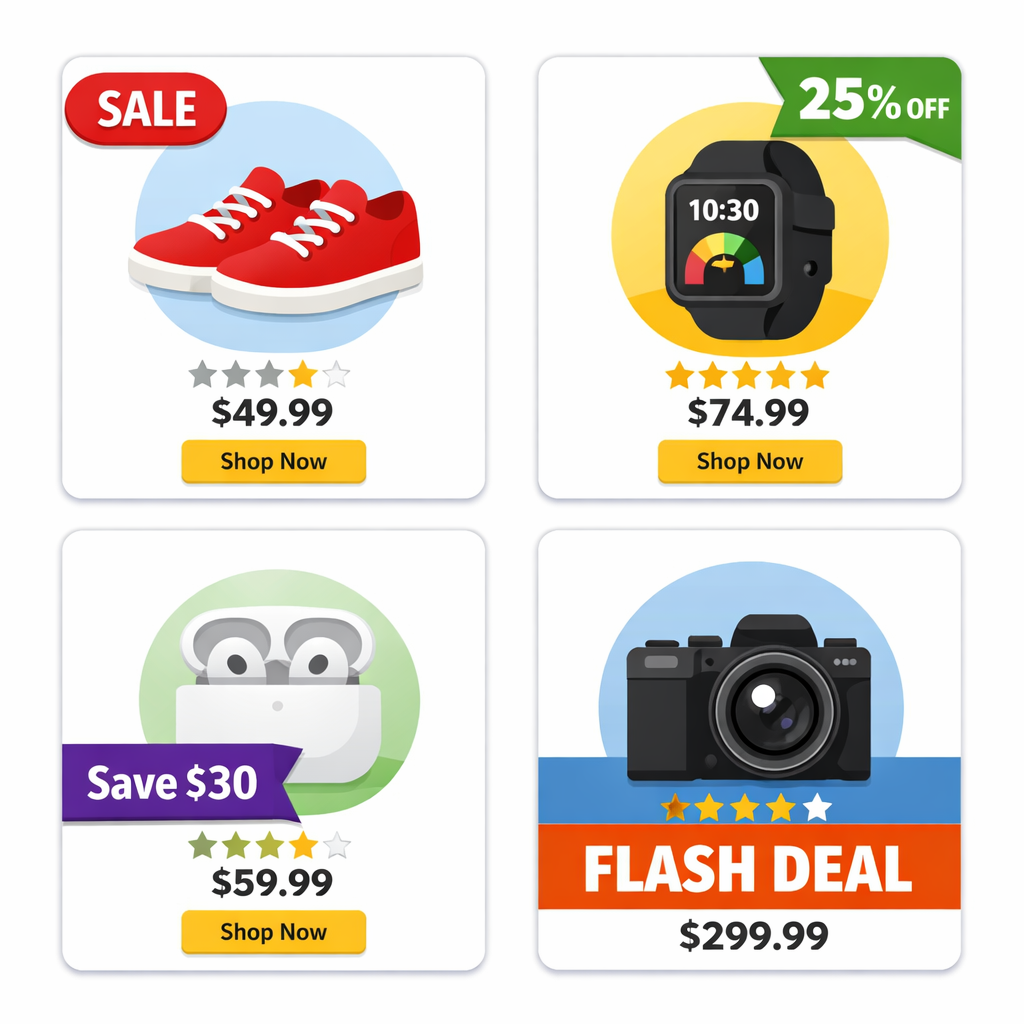
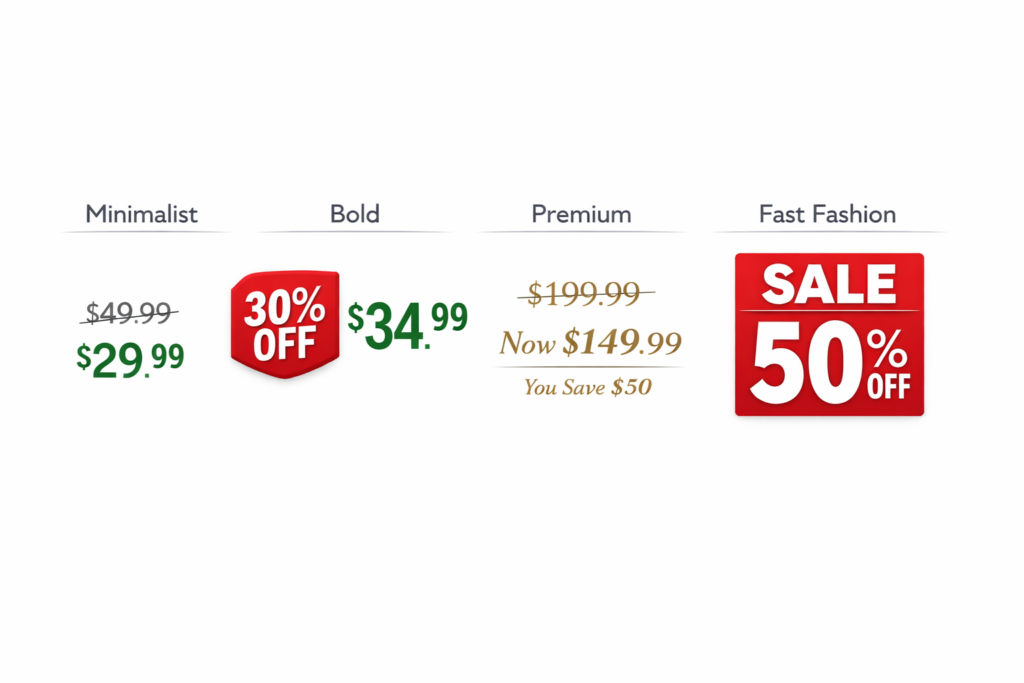
Shopify discount badge customization gives you control over how your promotions look and feel across your store. A luxury brand communicates discounts differently than a fast-fashion retailer, and a premium skincare brand handles them differently than a clearance outlet. The visual choices you make signal your brand values before a customer reads a single word.
Luxury brand approach:
- Subtle grey strike-through (understated)
- Small “Member Price” badge
- Elegant savings message: “Your member benefit”
- Positioning: Discrete, not flashy
Fast-fashion approach:
- Bold red strike-through (attention-grabbing)
- Large “30% OFF” badge
- Aggressive savings: “SAVE $45”
- Positioning: Prominent, no apology
The mechanics are the same (original price struck through, sale price displayed), but the aesthetics communicate completely different brand values.
Most merchants use default styling. They accept whatever the system provides. But thoughtful merchants customize the styling to match their brand.
Elements You Can Customize
1. Strike-Through Color
The original price (struck through) can be:
- Grey: Neutral, professional, minimalist
- Black: Bold, high contrast, clear
- Brand color: Creates cohesion, personalizes the experience
- Lighter shade: Subtle, premium feel
2. Sale Price Color
The new discounted price can be:
- Green: Universal positive association, draws attention
- Your brand color: Consistent branding
- Red: Urgency and excitement
- Gold/Highlight: Premium feel
3. Badge Style
The discount badge (e.g., “30% OFF”) can be:
- Text only: Minimalist
- Rounded rectangle: Friendly, modern
- Sharp rectangle: Bold, clear
- Circle: Eye-catching
- Ribbon/banner: Decorative, premium
- Sticker: Playful, casual
4. Badge Text Format
What the badge says:
- Percentage: “30% OFF”
- Dollar amount: “SAVE $45”
- Descriptive: “MEMBER PRICE”, “FLASH SALE”, “LIMITED TIME”
- Hybrid: “30% OFF ($45 Savings)”
5. Savings Message Format
At the order level (in cart/checkout):
- “You save $X”: Simple
- “You save $X (30% off)”: Detailed
- “You save 30%”: Percentage only
- Custom: “Your member benefit: $X savings”
6. Font Size & Weight
- Bold: Grabs attention, works for fast-fashion
- Regular: Professional, works for premium
- Large: Visible from distance, good for collections
- Small: Subtle, premium feel
7. Positioning
Where the badge/savings appear:
- Top-left corner: Traditional, visible
- Top-right corner: Also visible, alternative
- Bottom-right corner: Subtle, less intrusive
- Full-width banner: Prominent, impossible to miss
- Inline with price: Integrated, minimal clutter
Real-World Examples: Brand-Aligned Discount Badge Designs
These examples show how the same Shopify sale price mechanics produce completely different brand experiences depending on your customization choices.
Example 1: Premium Luxury Brand
Product: Luxury skincare ($120 face serum)
Customization:
- Strike-through color: Light grey (subtle)
- Sale price color: Black (sophisticated)
- Badge: Small, minimal “Member Benefit”
- Badge position: Top-right corner (discreet)
- Savings message: “Exclusive member pricing”
Result: The discount feels like a privilege, not a clearance sale.
Example 2: Fast-Fashion Retailer
Product: Basic t-shirt ($15 regular → $10 on sale)
Customization:
- Strike-through color: Bright red
- Sale price color: Bold green
- Badge: Large red “33% OFF” rounded rectangle
- Badge position: Top-left corner (grab attention)
- Savings message: “SAVE $5 → Don’t Miss Out!”
Result: The discount is impossible to ignore. FOMO kicks in.
Example 3: Outdoor/Adventure Brand
Product: Hiking backpack ($180 regular → $135 on sale)
Customization:
- Strike-through color: Dark grey
- Sale price color: Orange (brand color)
- Badge: Ribbon style “ADVENTURE SALE”
- Badge position: Top-left
- Savings message: “Save $45 (25% Off)”
Result: The discount feels adventurous and branded, not cheap.
Example 4: Eco-Conscious Brand
Product: Organic cotton t-shirt ($35 regular → $28 on sale)
Customization:
- Strike-through color: Soft grey
- Sale price color: Green (eco association)
- Badge: Minimal “sustainable savings”
- Badge position: Bottom-right (subtle)
- Savings message: “Invest less, reduce waste”
Result: The discount feels aligned with brand values, not discount-driven.
Step-by-Step: Shopify Discount Badge Customization in Adsgun
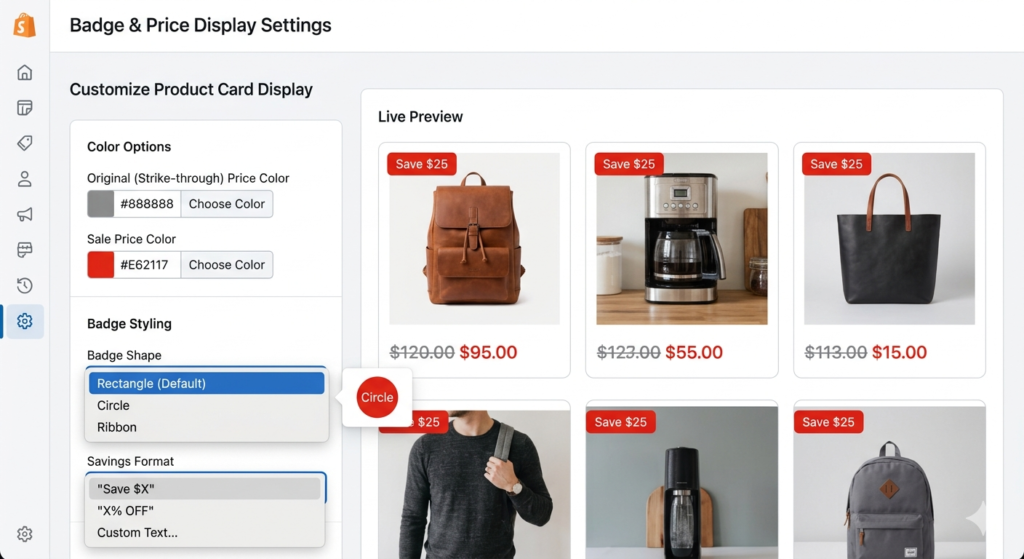
Adsgun’s display settings let you control every visual element of your discount presentation. Here is how to set it up.
Step 1: Open Adsgun
In Shopify admin, open Adsgun.
Step 2: Create or Select a Promotion
Click Create New Promotion or edit an existing one. If you have not yet set up a promotion, see the guide on how to run a sale on Shopify.
Step 3: Go to Display Settings
Click Display or Customization tab.
Step 4: Customize Strike-Through
- Strike-through color: Click the color picker. Choose grey, black, or a custom hex code (your brand color).
- Preview: Adsgun shows the effect on a sample price.
Step 5: Customize Sale Price
- Sale price color: Click to choose. Recommend green (positive) or brand color.
- Font weight: Bold or regular
- Font size: Small, medium, or large
- Preview: See the result
Step 6: Customize Badge
- Badge enabled: Check/uncheck to show/hide badge
- Badge text: Choose from “SALE”, “30% OFF”, “SAVE $30”, “Member Price”, or custom
- Badge background color: Your brand color or contrasting color
- Badge text color: White (for contrast) or black
- Badge shape: Rectangle, rounded, circle, ribbon, or sticker
- Badge position: Top-left, top-right, bottom-right, full-width
Step 7: Customize Savings Message
At the order level (cart/checkout):
- Format: “You save $X” or “You save $X (30% off)” or custom
- Include percentage: Yes or no
- Custom message: “Your exclusive savings:” or your wording
Step 8: Preview
Adsgun shows:
- How the strike-through looks on a product page
- How the badge appears on a collection card
- How the savings message appears in the cart
- Desktop and mobile versions
Step 9: Test
- Publish the promotion
- Visit your store on desktop and mobile
- Verify the customization looks right
- Adjust if needed and republish
Step 10: Publish
Your customized discount display is live.
Mobile vs. Desktop Customization Considerations
Desktop:
- More space for badges
- Badges can be larger
- Strike-through is easily visible
- Multiple elements (badge, price, and savings message) coexist clearly
Mobile:
- Limited space
- Badges might be smaller or stacked
- Strike-through takes up more visual real estate
- Text gets condensed
Adsgun is responsive. Design on desktop, but always test on mobile to ensure readability and aesthetics hold up. For more on how Shopify sale price displays across different pages, see the dedicated guide.
Best Practices for Discount Display Customization
1. Align With Brand Voice
If your brand is luxury and minimalist, avoid a loud red “SALE” badge. If your brand is bold and fun, lean into it. The psychology of strike-through pricing is well documented: visible savings drive action, but the presentation needs to fit your brand or it can feel off.
2. Prioritize Readability
On mobile, a tiny badge is invisible. On desktop, a tiny badge looks weak. Find the balance that works across both screen sizes.
3. Test With Real Customers
Show mockups to a small group. Ask whether the discount display matches the brand. Iterate based on feedback.
4. Avoid Excessive Customization
Customizing every element leads to visual noise. Stick to three or four design decisions (color palette, badge style, positioning) and apply them consistently.y.
5. Maintain Consistency Across Promotions
If you have multiple promotions (flash sale, VIP, seasonal), consider using different badge colors to differentiate them, but keep the overall style consistent. This is especially important if you are running VIP customer discounts alongside public promotions.
6. A/B Test If High-Volume
If you have significant traffic, test two designs:
- Design A: Subtle, premium look
- Design B: Bold, attention-grabbing look
Measure conversion rates and optimize based on real data. Shopify’s A/B testing guidance covers the fundamentals if you are new to this.
FAQ: Discount Customization
Q: What if I change my customization mid-promotion?
A: Changes apply immediately. Existing orders are not affected; new visitors see the updated design.
Q: Can I customize discounts differently for different products?
A: Within one promotion, styling is consistent. If you want different styles for different products, create separate promotions.
Q: Does customization affect the discount math?
A: No. Styling is purely visual. The discount amount (15% off, $20 off, etc.) and application logic remain unchanged.
Q: Should I customize every promotion differently?
A: No. Keep most customization consistent. Use slight variations (different badge color) to differentiate promotion types (VIP vs. Flash Sale), but maintain overall brand consistency.
Ready to Customize Your Discount Badges?
Your discount display is part of your brand identity. A luxury brand should not display discounts the same way a clearance outlet does.
Adsgun’s customization options let you design discount displays that match your brand aesthetics: bold, subtle, premium, or fun, whatever fits your brand voice.
Start your free 7-day trial and customize your first discount badge today. No credit card required.




