
Shopify Theme Compatibility for Discount Apps: What Every Merchant Should Know
Shopify theme compatibility for discount apps decides whether your pricing display survives the next theme update. Here is the difference between app blocks and code injection, and how to vet any vendor before installing.
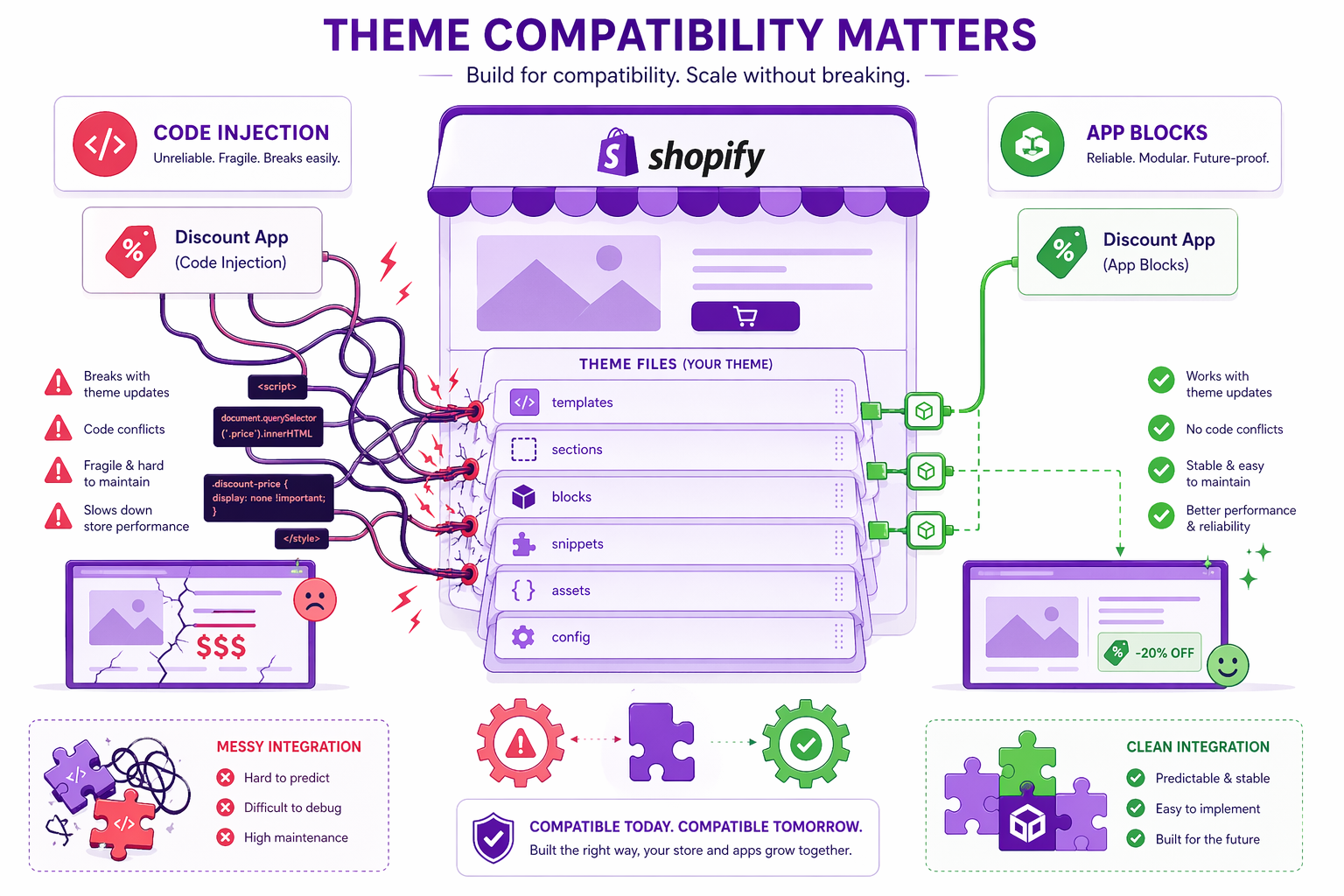
Every discount app on the Shopify App Store eventually meets a theme update. Shopify theme compatibility for discount apps is what decides whether your pricing display survives that moment, or breaks silently while you keep paying for traffic that never sees the deal. The wrong app turns a routine theme update into a revenue outage. The right one keeps running, untouched, while the theme around it changes.
Why Shopify Theme Compatibility Matters for Discount Apps
Your Shopify store runs on a theme. The theme contains the HTML, CSS, and Liquid (Shopify’s templating language) that renders your store visually and functionally. Shopify theme compatibility is what determines whether the apps you install (especially discount apps) keep working when that theme gets updated.
Many discount apps inject code directly into theme files. When Shopify releases a theme update, your theme files are updated too. The injected code either: (a) breaks because the surrounding code changed, or (b) gets overwritten and disappears.
This causes:
- Discount pricing suddenly stops displaying
- Prices show incorrectly across the store
- Customer data tied to the discount logic is lost or exposed
- You have to reinstall the app and reconfigure everything
This is bad. You want apps that do not depend on specific theme files.
Online Store 2.0 vs. Vintage Themes
Online Store 2.0 themes (launched 2021) support app blocks natively. Free OS 2.0 themes include Dawn, Sense, Craft, Refresh, Studio, Taste, Ride, Colorblock, Crave, and Origin. Most paid themes from the Shopify Theme Store released after 2021 are also OS 2.0.
Vintage themes (the architecture before OS 2.0) do not support app blocks. Free vintage themes include Debut, Brooklyn, Boundless, Minimal, Narrative, Simple, Supply, and Venture. According to Shopify’s official theme architecture documentation, vintage themes have been sunset and only receive security fixes, no feature updates.
If you are using a vintage theme, you have two options:
- Upgrade to an Online Store 2.0 theme (Shopify’s official recommendation)
- Use apps that support vintage themes through fallback compatibility (fewer options, more risk)
This is also tightly related to the broader Shopify Scripts deprecation, which is forcing the same shift toward modern, app-block-friendly infrastructure across the platform.
How Adsgun Avoids Compatibility Issues
Adsgun uses Shopify’s app block system. It does not inject code into theme files. Instead:
- Adsgun provides an app block called “Adsgun Discount Display”
- You add the block to your product page through the theme editor (visual, no code)
- The block is part of the app, not part of the theme
- Theme updates do not affect it
- Uninstalling Adsgun removes the block cleanly
Result: Adsgun works with 100 percent of Online Store 2.0 themes and most vintage themes through fallback compatibility. The same approach is what powers reliable discounted price display on product pages regardless of which theme you are running.
How to Check Shopify Theme Compatibility for Any Discount App
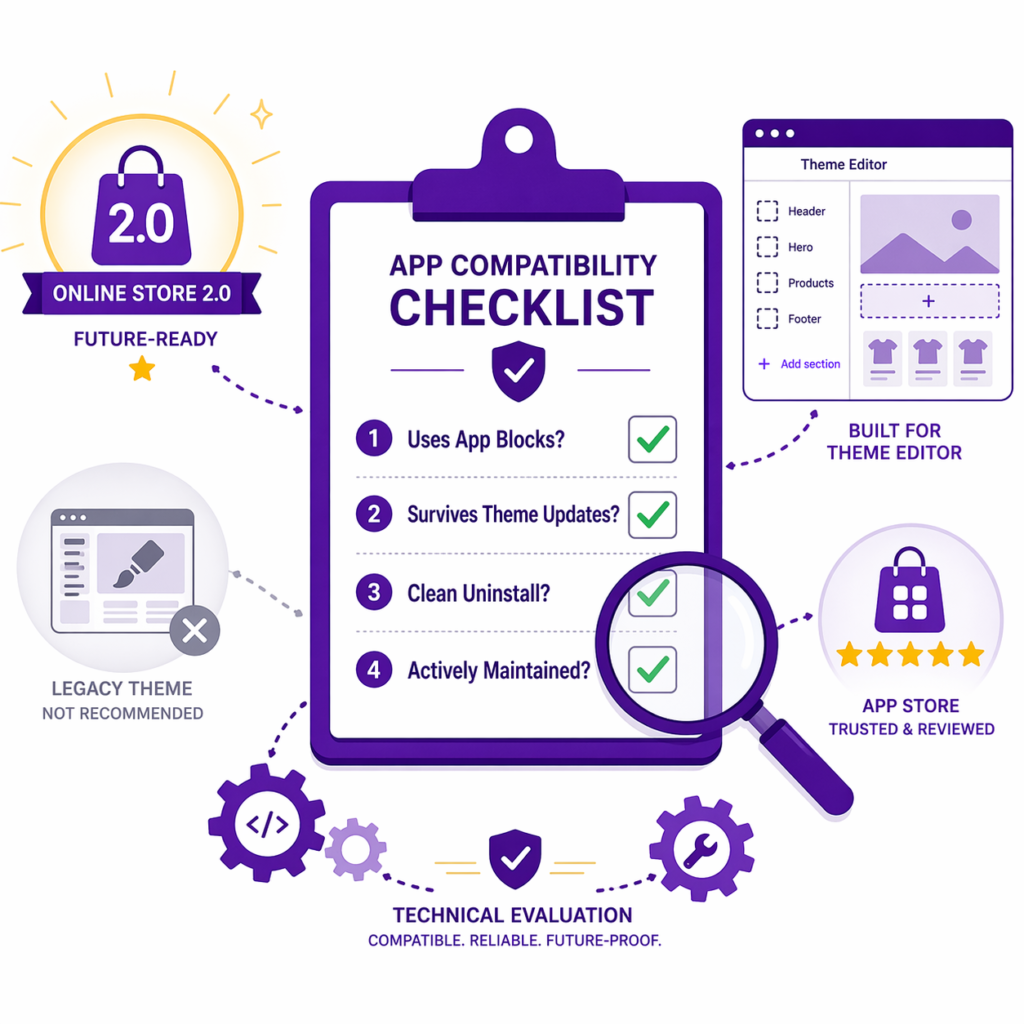
Before you install any discount app on your live store, run it through a structured check. This is also the framework we recommend in our buyer’s guide to picking a discount app.
The Four-Question Shopify Theme Compatibility Test
Does the app use app blocks or inject code into theme files?
- Ask support directly: “Does your app use app blocks or inject Liquid code into theme files?”
- “App blocks” means modern and safe.
- “Code injection” or “Liquid code” means older and risky.
Will the app survive theme updates?
- Test it: install the app, update your theme, verify the display still works.
- Or ask support: “When I update my theme, will your app continue to work?”
What happens when you uninstall?
- Ask: “Does uninstalling leave any code or database entries behind?”
- Safe answer: “We remove everything cleanly.”
- Risky answer: “You may need to remove Liquid code from theme files manually.”
Is the app actively maintained?
- Check the app’s last update date in the Shopify App Store.
- If the last update was over 12 months ago, the app may be abandoned and is more likely to break with future Shopify updates.
The Clean Uninstall Test
After uninstalling any app, check your source code for any leftover code:
- Go to your Shopify admin
- Online Store > Themes > Edit Code
- Search for the app name or any code that looks out of place
- If you find leftover code, delete it manually
Safe apps leave zero leftover code. Apps that fail this test are the ones most likely to break your pricing display weeks or months later, often without an obvious cause.
Best Practices for Discount App Selection
- Prioritize Online Store 2.0 themes. If you are on a vintage theme, plan an upgrade. Most new apps target OS 2.0 first, and vintage compatibility tends to ship as a secondary fallback.
- Verify app block support before installing. Ask the vendor: “Does this use app blocks?” If the answer is anything other than a clear yes, treat it as a yellow flag.
- Read reviews for compatibility complaints. In the Shopify App Store reviews, look for phrases like “broke after theme update” or “left code behind.” Those patterns signal injection-based architecture.
- Test on a development store first. Before installing on your live store, install on a development or duplicate theme and test compatibility against your current theme version.
- Maintain your theme. Update your theme when Shopify releases updates. Old themes accumulate compatibility issues over time, especially as Shopify deprecates older JavaScript libraries and APIs.
- Avoid stacking multiple discount apps. Multiple apps competing for the same display slots can conflict. One reliable discount app is almost always better than three half-working ones, which is also why stacking discount logic inside a single app outperforms running parallel apps.
FAQ: Shopify Theme Compatibility
If an app breaks my pricing display, what do I do?
First, uninstall the app. If pricing still looks wrong, go to theme code and search for any code you do not recognize. Delete leftover code. If that does not work, restore a recent theme backup from the Shopify admin.
Can I restore a theme backup if something breaks?
Yes. Shopify keeps theme backups automatically. In the theme editor, you can restore to a previous version under the theme actions menu.
Is it safe to have multiple discount apps installed?
Safe? Yes. Optimal? No. Multiple apps can conflict on rendering, hooks, or pricing logic. Use one well-built discount app rather than three separate ones.
If my theme is vintage, should I upgrade?
Yes. Shopify has sunset vintage themes and they no longer receive feature updates. Upgrading to an OS 2.0 theme prevents future compatibility issues, gives you access to app blocks, and protects you from the JavaScript and font system deprecations Shopify is rolling out across 2025 and 2026.




