
Shopify Discount Codes Explained: Setup & Best Practices
A complete guide to Shopify discount codes: the five types, step-by-step setup, naming conventions, tracking, and how to make codes visible across every step of the customer journey.
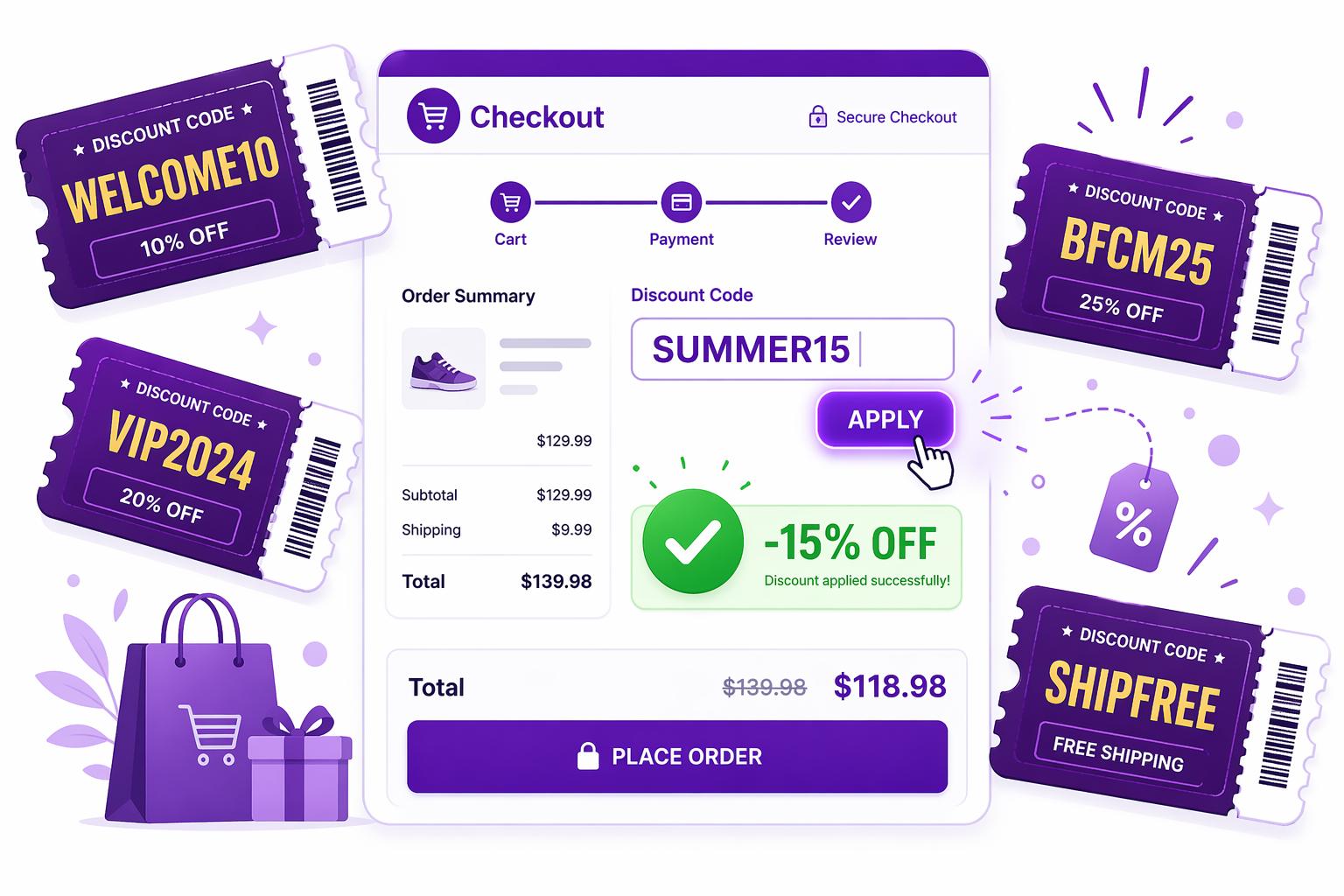
Shopify discount codes are the workhorse of every promotion strategy. They drive email campaigns, ad attribution, influencer tracking, and seasonal sales. Yet most stores get them subtly wrong: they name codes poorly, they hide them at checkout, or they pick codes when automatic discounts would convert better. This guide walks through every part of the workflow, from the five types of codes to the auto-apply trick that makes them visible everywhere.
If you want a complete picture of how Shopify discount codes compare to other promotion mechanics, the related guide on automatic discount vs discount code is worth reading alongside this one.
What Are Shopify Discount Codes?
Shopify discount codes are promotional codes that customers enter at checkout to receive a discount. Unlike automatic discounts, which apply without any customer action, codes require the customer to know about the code and enter it manually. This friction is a feature in some cases (attribution) and a bug in others (conversion).
A typical discount code journey: a customer sees “SUMMER15” advertised, adds items to cart, proceeds to checkout, enters the code in the “Discount Code” field, and the discount applies. Shopify then tracks that the order was influenced by that specific code.
This tracking capability is why discount codes exist at all. They are not the best user experience, but they are the best tool for connecting promotions to specific marketing channels.
The Five Types of Shopify Discount Codes
Percentage Off is the most common. “SUMMER15” gives 15 percent off the entire order. The customer sees the benefit immediately because it scales with their cart size.
Fixed Amount Off (“WELCOME10”) deducts a flat amount (10 dollars, 25 dollars, 100 dollars) from the total. These are popular for first-time customer incentives because a 10 dollar discount feels more concrete than 10 percent off to new shoppers.
Free Shipping Codes (“SHIPFREE”) waive shipping charges. Psychologically, “free shipping” converts better than “8.99 dollars off” even when the values are identical. Free is a special word in ecommerce.
Buy X Get Y Codes (“BUY2GET1FREE”) bundle discounts. A customer buys 2 items and gets a third free, or gets a specific item at a reduced price. These are excellent for inventory management and cross-selling. For a deeper setup walkthrough, see the BOGO setup guide.
Percentage Off Specific Collections (“SALE20”) applies to only certain products or collections, not the entire order. You can restrict the discount to sale items, specific product IDs, or collections.
Creating Shopify Discount Codes: Step by Step
- Navigate to Discounts. In your Shopify admin, go to Apps and Sales > Discounts. Click “Create Discount.” Choose “Discount Code.”
- Name the Code. Enter the code your customers will use. Best practice: use uppercase, no spaces (SUMMER15, WELCOME10, VIP2024). Make it memorable but clear in intent.
- Choose Discount Type. Select percentage, fixed amount, free shipping, buy X get Y, or percentage off specific collections.
- Set the Discount Value. Enter the percentage or dollar amount. For buy X get Y, specify quantities and which items are affected.
- Define Eligibility. Restrict the code to:
- Specific products or collections
- Specific countries
- Specific sales channel
- Set Minimum Requirements. Optionally require:
- A minimum order value (“Code only works on orders over 50 dollars”)
- A minimum quantity (“Customer must have 2 or more items in cart”)
- Set Usage Limits. This is critical:
- Unlimited uses: anyone can use the code unlimited times (used for public promotions)
- Limit to X uses: the code can be used 1,000 times total, then expires
- Limit to 1 use per customer: each customer can use it once (used for first-time offers)
- Active from and to dates (optional time-based limit, useful for scheduling flash sales)
- Set Combination Rules. Does this code combine with other codes or automatic discounts?
- Can combine with other discounts (default)
- Cannot combine with other discount codes (but can with automatic discounts)
- Cannot combine with any other discounts (exclusive use, this code only)
- Create and Review. Shopify shows a summary. Click “Save Discount.” The code is now live.
For the full logic of how multiple discounts interact at checkout, see the discount stacking guide.
Shopify Discount Code Naming Conventions
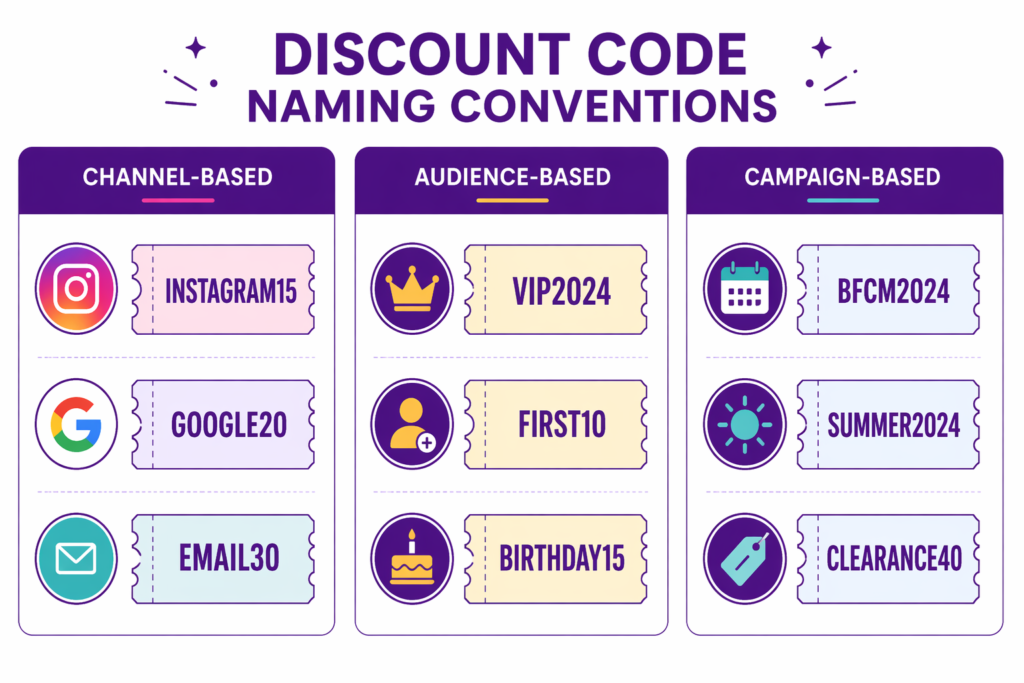
How you name your Shopify discount codes influences both tracking accuracy and customer experience. There are three useful frameworks: channel-based, audience-based, and campaign-based.
Channel-Based Naming
- INSTAGRAM15 (Instagram campaign)
- GOOGLE20 (Google Ads)
- INFLUENCER_SARAH (specific influencer)
- EMAIL30 (email campaign)
This allows you to filter discount code usage in analytics and see which channels drove the most orders. For higher-volume influencer campaigns, use bulk discount code generation so each creator gets their own unique code.
Audience-Based Naming
- VIP2024 (loyalty members)
- FIRST10 (first-time customers)
- WELCOME2024 (general new customer)
- BIRTHDAY15 (birthday segment)
Pair audience codes with customer tag based discounts so the right segment automatically gets the right offer.
Campaign-Based Naming
- BFCM2024 (Black Friday)
- SUMMER2024 (seasonal)
- CLEARANCE40 (inventory)
- FOUNDERS25 (launch)
Best practice: Include both the channel and the value in the code. “INSTAGRAM15” tells your team (and shows in Shopify reporting) that this was Instagram-driven and worth 15 percent off. Avoid generic names like “SAVE” or “DEAL” because they tell you nothing about performance.
Discount Code Limitations: The Checkout-Only Problem
Shopify discount codes have the same core limitation as automatic discounts: customers only see them at checkout. Your code “SUMMER15” is worthless if customers do not know it exists, and even if they do know, they have to remember it when they reach checkout. This is documented in detail in the post on why Shopify discounts only show at checkout.
This creates two problems:
Problem 1: Friction. Customers have to type the code. Mobile users especially: reaching the discount field, typing, checking for typos. Many abandon at this step. Some estimates put discount code abandonment at 15 to 25 percent of users who have the code but do not successfully enter it. The Baymard Institute keeps the running benchmark on overall checkout abandonment and confirms that unexpected friction at the payment step is one of the top reasons carts are abandoned.
Problem 2: Invisibility. Your customer browses your store, sees full prices, and makes decisions based on those full prices. Even though you have a live code for 20 percent off, they see no indication of it. The discount is not influencing their decision to buy the product or add a second item to hit a free shipping threshold.
This is why visible discount display matters: customers decide to buy because they see a deal, not because they stumble upon a code at checkout.
Auto-Applying Discount Codes: The /discount/CODE URL
Shopify offers a workaround for the friction problem: auto-apply URLs. Any discount code can be auto-applied by creating a special URL:
yourstore.com/discount/SUMMER15
When a customer lands on this URL, the code is automatically added to their cart. They do not have to enter it manually. The full technical breakdown lives in the how to auto-apply Shopify discount codes guide, and the related Shopify discount URL parameter approach is even more flexible for ad campaigns.
This solves the friction problem for promotional channels (email, social, ads) where you control the link. Instead of saying “Use code SUMMER15,” you provide the auto-apply link. Customers click, land on your store, and the code is already applied.
Limitation: Auto-applied codes still do not show discounted prices before checkout. The customer lands on your store, the code is in their cart, but they do not see that their cart now has a discount until they reach checkout.
This is why Adsgun exists: it reads the discount from the auto-apply URL (or from any active Shopify discount) and displays the discounted pricing in real time on product pages, collections, and carts.
Making Shopify Discount Codes Visible: The Adsgun Approach
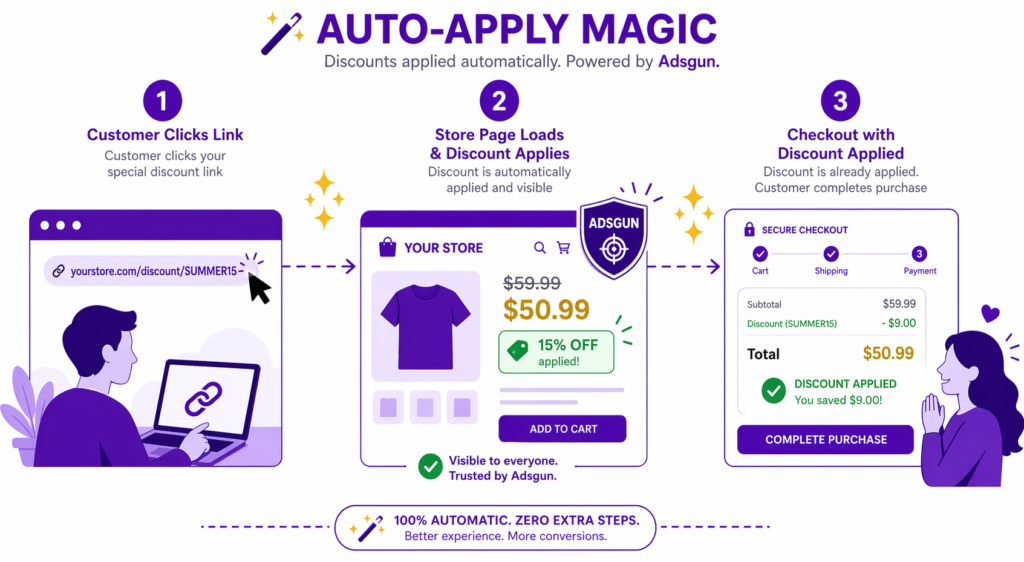
When you pair Shopify discount codes with Adsgun’s strike-through pricing display, here is what happens:
- You create a discount code “SUMMER15” in Shopify at 20 percent off.
- You set up an auto-apply link: yourstore.com/discount/SUMMER15.
- Adsgun reads the discount from the URL parameter and evaluates whether it is active and valid for the current customer.
- If it applies, Adsgun displays the discounted price everywhere: product pages show “Was 99 dollars, Now 79.20 dollars.”
- In the cart, customers see their total savings on each line item, not just on the summary.
- At checkout, the discount applies as normal and is attributed to the SUMMER15 code in Shopify analytics.
Result: the customer sees the discount before they buy. The visibility drives incremental conversions. And the discount is still attributed to the specific code in Shopify’s reporting.
This is the bridge between attribution (discount codes) and conversion optimization (visible pricing).
Best Practices for Shopify Discount Codes Strategy
Use Unique Codes for Each Channel
Do not use the same code for email, Instagram, and paid ads. Use EMAILSUMMER, INSTASUMMER, ADSUMMER. This lets you track which channel drove the most orders.
In Shopify’s discount reports, you can see that EMAILSUMMER was used 450 times and generated 18,000 dollars in discounted revenue, while INSTASUMMER was used 1,200 times and generated 35,000 dollars. This performance data drives your 2026 budget allocation.
Set Usage Limits for Flash Sales
If you run a 24-hour flash sale, set the code to expire in 24 hours. Also set a total usage limit if you are concerned about over-discounting. A code with a 500-use limit will stop working after 500 purchases, even if the time window is still open.
One Use Per Customer for First-Time Offers
New customer offers (welcome discounts) should be limited to one use per customer. This prevents customers from creating multiple accounts to exploit the discount repeatedly.
Exclude Strategic Products
If certain products are already discounted or have thin margins, exclude them from the code. Set the code to apply to all products except Sale items, for example.
Communicate the Code Clearly
In emails, social posts, and ads, make the code obvious. Do not hide it in small text. Put it in the subject line if possible (email), in the first sentence (social), and as a callout (ads). The Shopify email discount strategy guide goes deeper on how to package codes for email subscribers.
With auto-apply links, you can be even clearer: just provide the link without mentioning the code at all. The customer does not need to know there is a code, they just know that the link gives them a discount.
Tracking Shopify Discount Code Performance
Navigate to Apps and Sales > Discounts, find your code, and Shopify displays:
- Times applied
- Total discount value
- Discounted revenue
- Discounted items (if applicable)
This data is crucial for understanding promotion ROI. Calculate:
- Discount efficiency: Times applied divided by discount value equals cost per use.
- Revenue per code: Discounted revenue divided by times applied.
- Net profit: Is the incremental revenue (vs not offering the discount) greater than the discount cost?
If your SUMMER15 code was used 450 times, cost you 4,500 dollars in discounts, and drove 25,000 dollars in revenue that would not have happened otherwise, your ROI is roughly 455 percent (25,000 dollars incremental revenue divided by 4,500 dollars discount cost).
For Shopify’s own documentation on how the reporting fields are calculated, see the official Shopify Help Center entry on discount codes.
FAQ: Shopify Discount Codes
Can I change a discount code after I create it?
You can change the discount value, expiration date, usage limits, and eligibility. But you cannot change the code text itself. If you want a new code, create a new one.
Can one customer use multiple codes on the same order?
Not by default. The code field accepts one code. If you set codes to “Cannot combine with other discount codes,” only one applies per order.
What if my code is not working?
Check: Is it active (not expired)? Does it meet the minimum order value? Is the customer in the right country (if geographically restricted)? Has the code hit its usage limit?
Do discount codes affect analytics?
Like automatic discounts, codes are tracked separately. Net sales is always accurate. But using “Compare at Price” instead of a real discount makes codes invisible in reporting.
Can I create a code that stacks multiple times?
No. Each code applies once per order. But you can combine multiple codes if you allow it in combination rules.
Should I use lowercase or uppercase codes?
Uppercase is best practice. It is easier to read, stands out more in marketing, and reduces typo confusion.
How do I export all my discount codes?
Shopify does not have a built-in export. You can manually copy codes from the Discounts page, or use a third-party app like Gorgias or Zapier to export them to a CSV.
The Code vs Automatic Discount Decision
Use Shopify discount codes when:
- You need attribution to a specific channel.
- You are testing a discount value (easier to compare code A vs code B).
- You want short-term control (activate or deactivate specific codes quickly).
Use automatic discounts when:
- You want zero friction (the discount applies on its own).
- You are protecting margin across the board (order threshold discounts).
- You are less concerned with granular channel attribution.
The best stores use both: automatic discounts for margin baseline, discount codes for channel-specific attribution and testing. And the best of those stores use visible pricing on top, so codes and automatic discounts actually drive conversion instead of just reducing margin.
Launch Your Next Shopify Discount Code With Adsgun
Pair every discount code with an auto-apply link and let Adsgun display the saving on product pages, collections, cart, and checkout. Customers see the deal before they buy, the code still gets the credit in Shopify reporting, and you get full attribution plus higher conversion in one move.
Try Adsgun Free and turn your discount codes into visible offers today.




